Follow Up
Overview
Open an entry from the Feedback & Complaints register to review the submission, assign it to a team member, record investigation and resolution notes, and update its status. The same workflow applies to feedback and complaints.
Navigating the Register
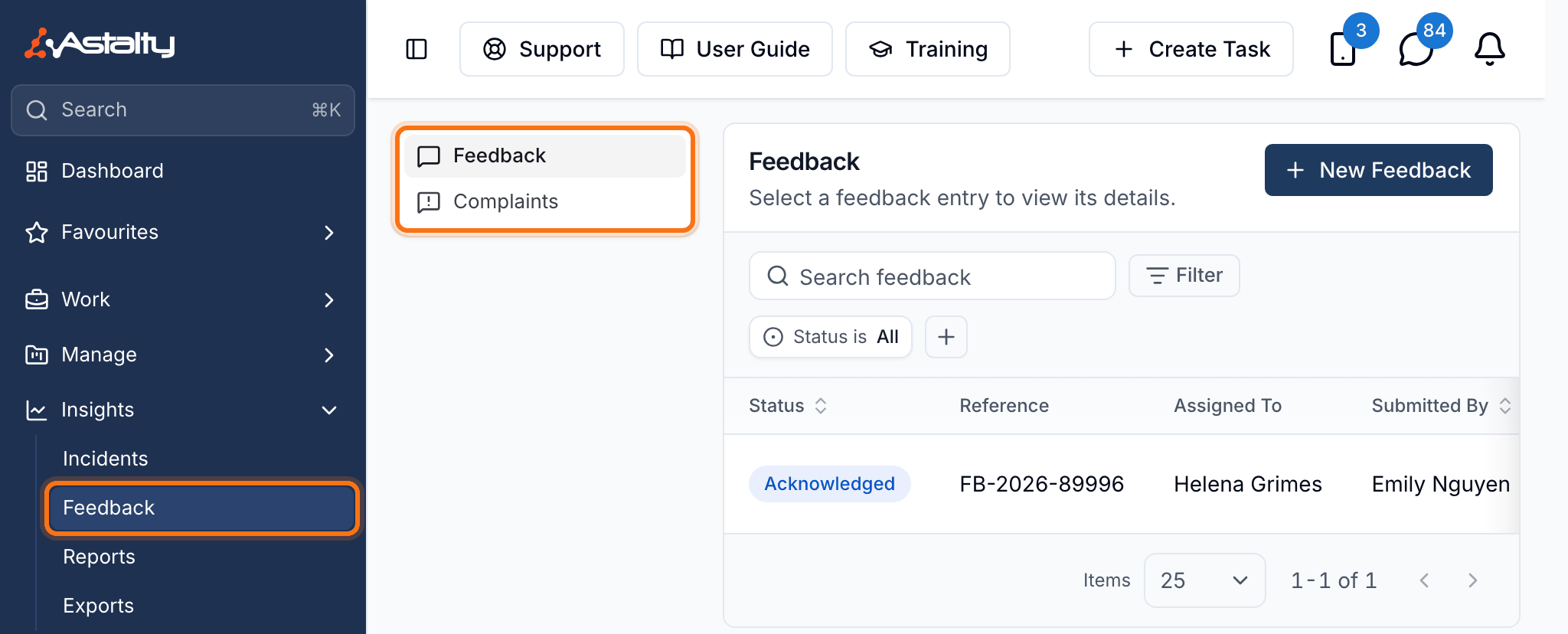
When you open the Feedback menu from the main navigation, you will see two tabs:
- Feedback - displays all entries submitted as feedback.
- Complaints - displays all entries submitted as complaints.
Each tab shows a table with the following columns: Reference, Status, Assigned To, Submitted By, Subject, Details, Created At, and Updated At.
You can filter entries by Status, Assignee, and Archived status. The Assignee filter appears when Participant filters are enabled for your account. You can also search across entries using the search bar.
Viewing a Feedback or Complaint Entry
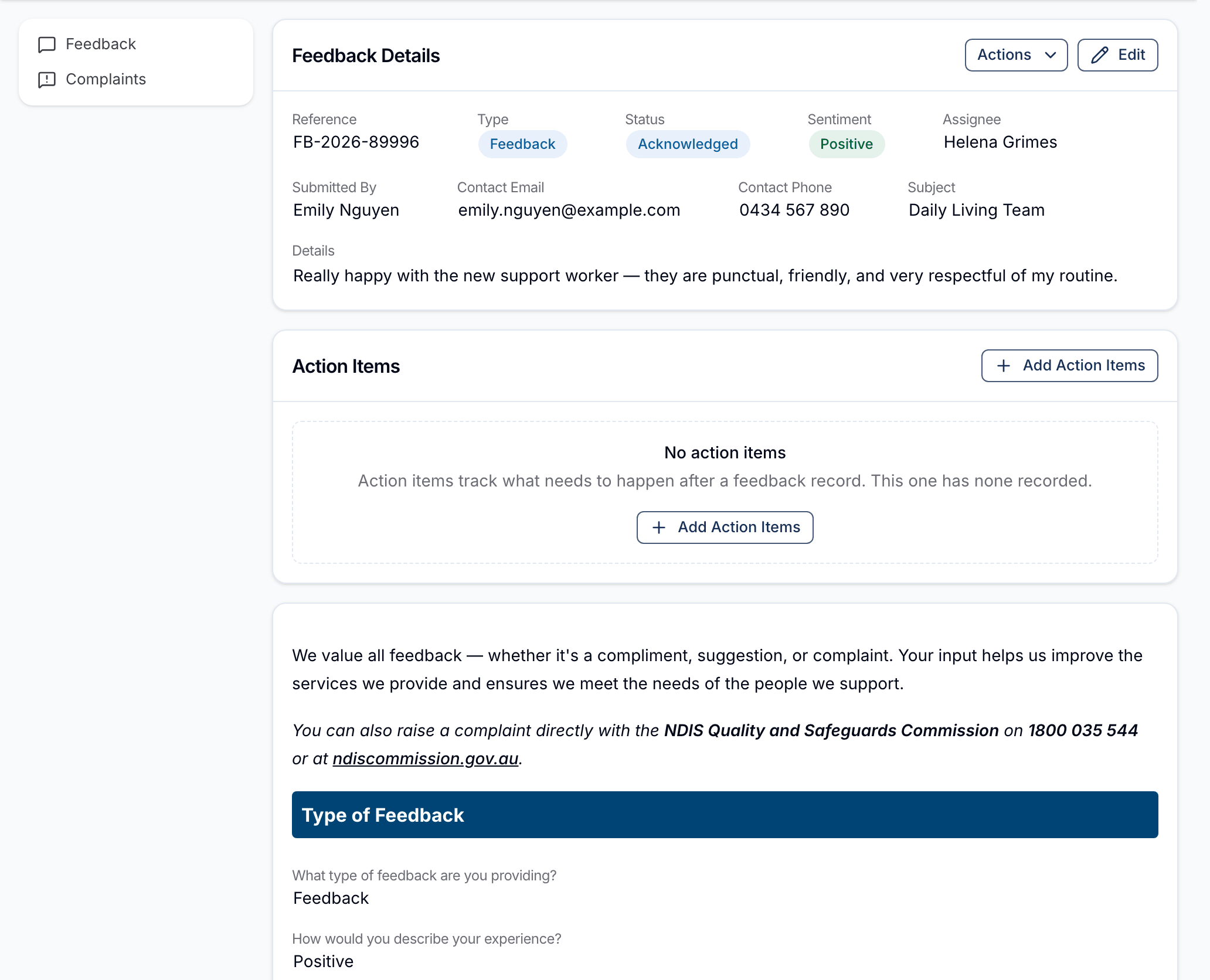
Select an entry in the register to open its follow-up page. It shows:
- Reference - the unique reference number Astalty generates for the entry (e.g. FB-2026-00001).
- Type - whether the entry is Feedback or a Complaint.
- Status - the current status of the entry.
- Sentiment - the submitter's experience rating (Positive, Neutral, or Negative). This only appears for Feedback entries.
- Assignee - the team member currently assigned to follow up.
- Submitted By - the name of the person who submitted the entry (or 'Anonymous' if no name was provided).
- Contact Email and Contact Phone - the submitter's contact details, if provided.
- Subject - the person, team, or service the feedback or complaint relates to.
- Details - the full details provided in the submission.
- Follow-up & Resolution Notes - any notes recorded during the follow-up process.
Below the summary, the full form submission is displayed for reference.
Menu Options
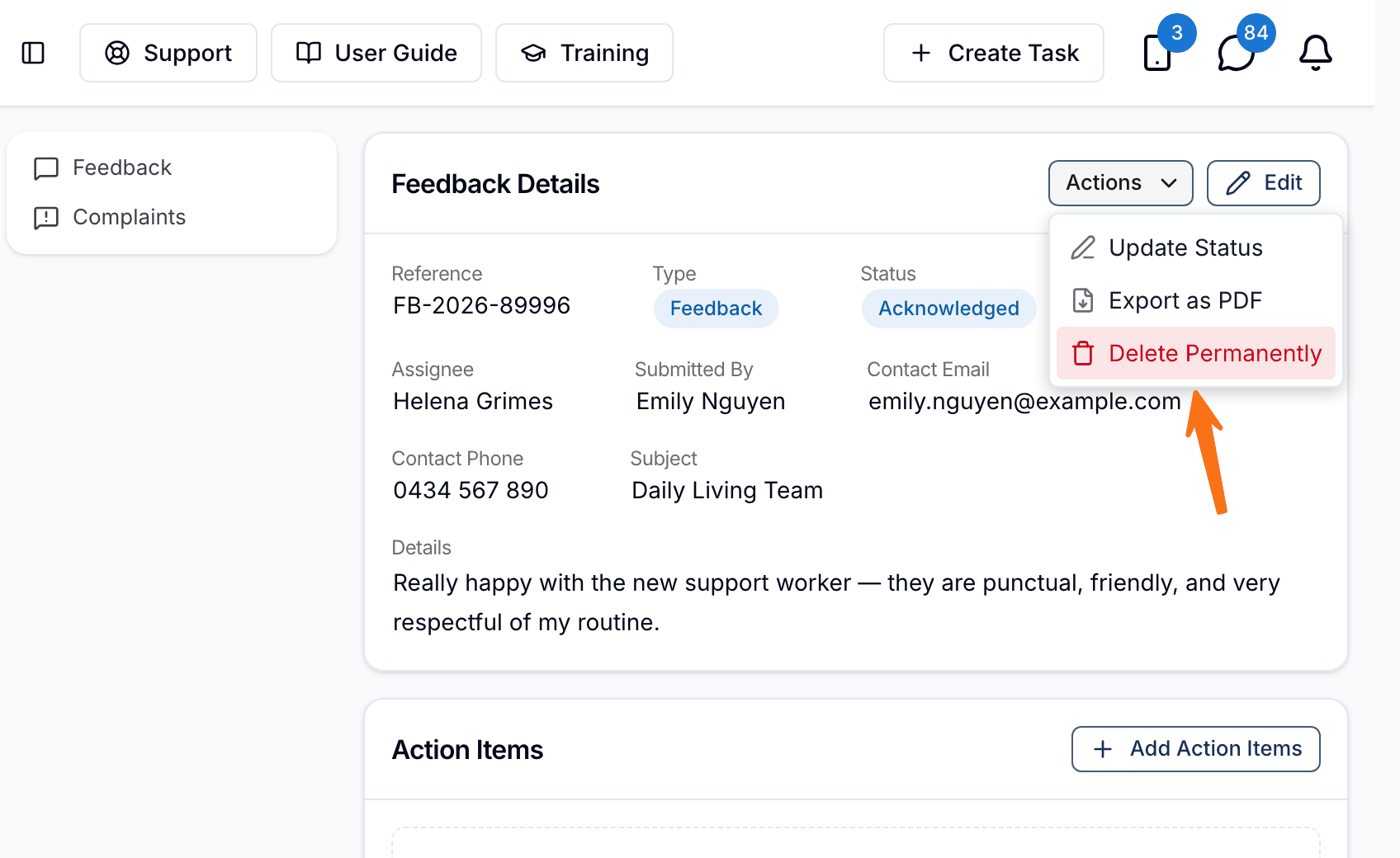
Within the entry detail screen, you have the following options:
- Actions > Update Status - change the status of the entry.
- Actions > Export as PDF - download a PDF of the entry for audits, evidence, or stakeholder reporting.
- Actions > Delete Permanently - permanently delete the entry and its source form submission.
- Edit - open the edit panel to update the entry details.
Status Update
To update the status of a Feedback or Complaint entry, select Actions > Update Status. You will see the current status and a dropdown to select a new status. The available statuses are:
- New - the entry has been submitted and not yet reviewed.
- Acknowledged - the entry has been reviewed and acknowledged.
- In Progress - the entry is currently being investigated or actioned.
- On Hold - the entry has been paused for further information or review.
- Resolved - the matter has been resolved.
- Closed - the entry has been finalised and closed.
Select the desired status and click Update to save the change.
Editing a Feedback or Complaint Entry
To assign a team member, update contact details, or record follow-up information, click the Edit button. In the edit panel you can update the following:
- Assigned To - assign a team member to follow up on the entry. When you assign someone, they will receive a notification letting them know.
- Submitted By - update the name of the person who submitted the entry.
- Contact Email and Contact Phone - update the submitter's contact information.
- Subject (person, team, or service) - update who or what the entry relates to.
- Details - update the details of the submission.
- Follow-up & Resolution Notes - record any follow-up actions, investigation notes, or resolution details.
Select Update Feedback to save the changes.

Archiving an Entry
Once a feedback or complaint entry has been marked as Resolved or Closed, you can archive it. To archive an entry:
- Click into the entry from the register.
- Click Edit to open the edit panel.
- Select Archive at the bottom of the panel.
- Confirm the action in the dialog that appears.
Archiving an entry also archives its linked form submission. To restore it, open the entry, select Edit, then Unarchive. To find archived entries, set the register's Archived filter to Archived.
Deleting an Entry Permanently
You can permanently delete a Feedback or Complaint entry, removing it and the form submission it came from. By default, only Admins can do this. Unlike archiving, a deleted entry cannot be recovered. To delete an entry:
- Click into the entry from the register.
- Click Actions > Delete Permanently.
- Confirm the action in the dialog that appears.
Exporting a Feedback Entry as PDF
You can export a Feedback or Complaint entry as a PDF directly from the register. To export:
- Open the Feedback register from the main menu.
- Select the relevant entry.
- Click Actions.
- Choose Export as PDF.
The PDF contains the full entry in one file for review, audit evidence or stakeholder reporting.
Setting Up Feedback Notifications
You can configure notifications to alert team members when a new feedback or complaint entry is submitted. To set this up:
- Open Notifications from the main menu.
- Select Feedback under Forms.
- Click Create Notification and configure who should be notified.
See Feedback Notifications for the recipient and delivery options.
