- Forms & Quality
- Archiving Incidents
Archiving Incidents
Overview
Incidents can't be permanently deleted in Astalty, but they can be archived. Archiving keeps the incident's full history without cluttering your active register - archived incidents are hidden by default from both the Participant and Staff Incident lists.
A few things to note when archiving an incident:
- Archiving an incident also archives its linked form submission, and unarchiving restores it. This keeps the incident and its underlying form in sync.
- Archiving does not delete any data - the incident can be restored at any time.
- By default, Managers can archive Participant incidents but not Staff incidents.
Archiving an Incident
- Open the incident from the relevant Participant or Staff Incident register.
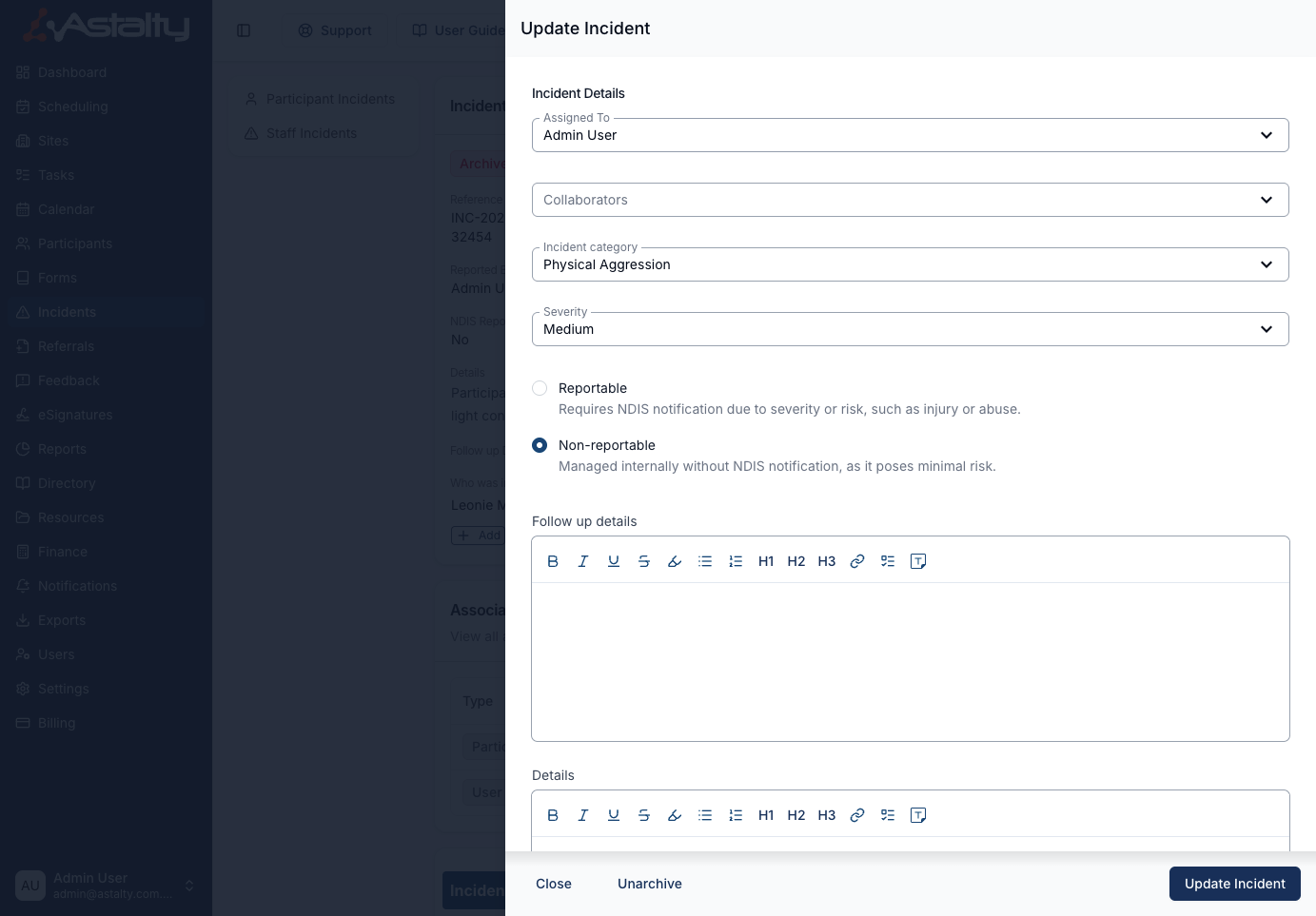
- Click Edit to open the Update Incident panel.
- Click Archive, then confirm when prompted.
You'll be asked to confirm before the incident is archived - once confirmed, it's removed from the active list and marked with an Archived tag.
Finding Archived Incidents
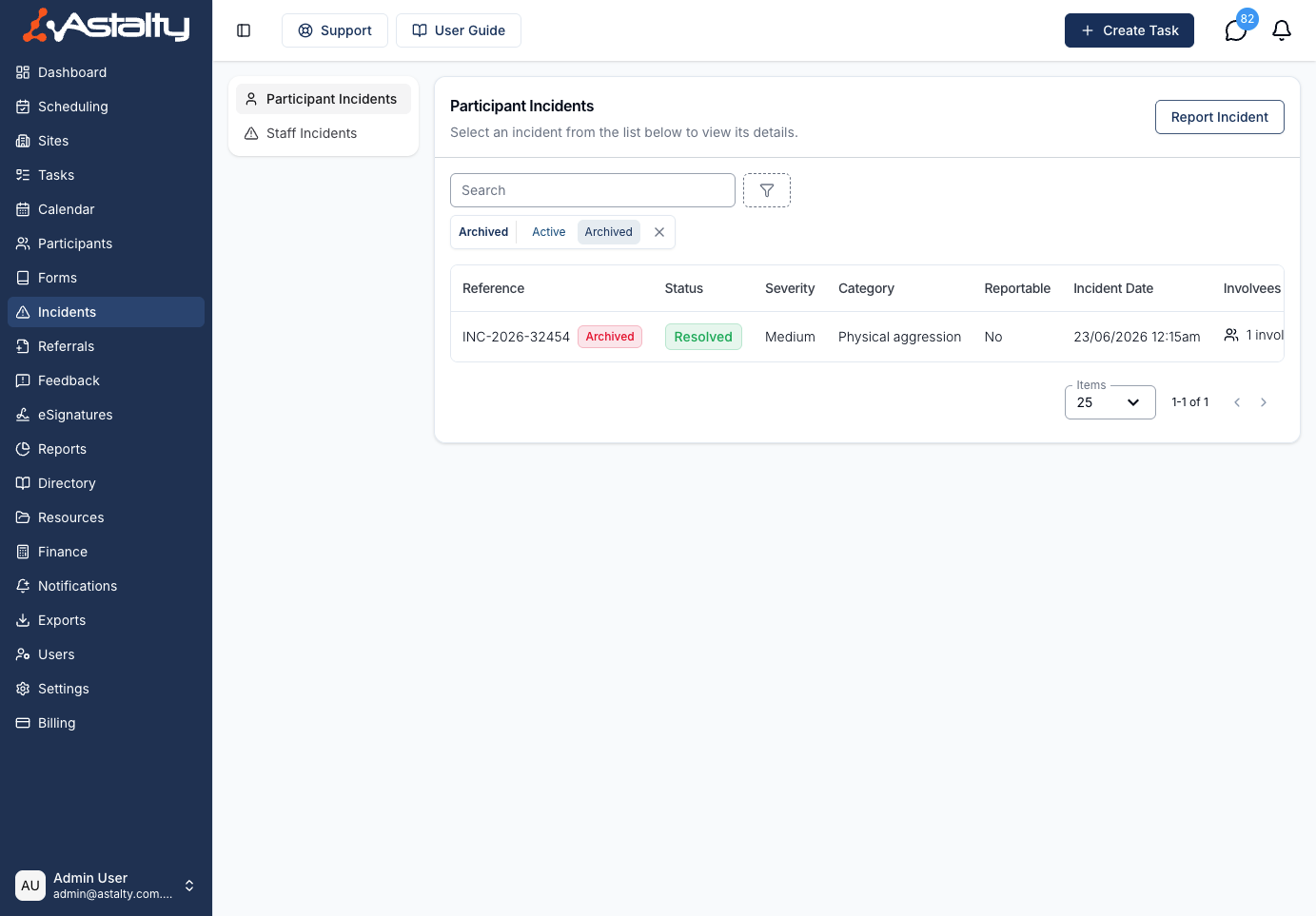
Archived incidents don't appear in the register by default. To view them, use the Archived filter on the Participant or Staff Incident list and switch it from Active to Archived.
Archived incidents are clearly marked with a red Archived tag in the list, so they're easy to tell apart from active incidents.
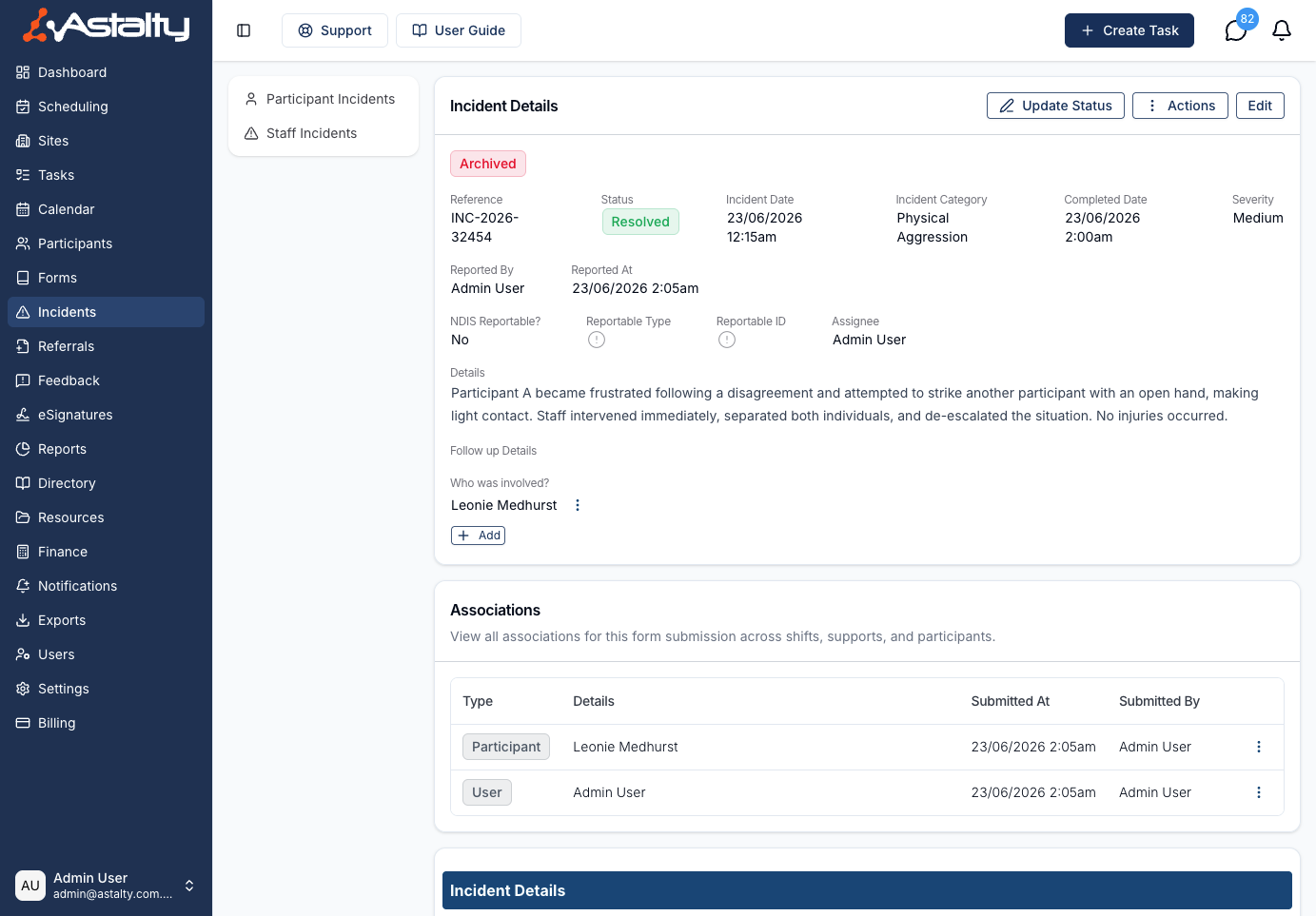
The Archived tag also appears at the top of the incident's detail page when you open it.
Unarchiving an Incident
To restore an archived incident to active:
- Use the Archived filter to find the incident, then open it.
- Click Edit to open the Update Incident panel.
- Click Unarchive.
The incident returns to your active register, and its linked form submission is restored at the same time. The Archive option becomes available again once the incident is active.