- Forms & Quality
- Conditional Logic Forms
Conditional Logic Forms
Overview
Conditional logic allows you to control how fields behave based on the values entered in other fields. You can use it to:
- Show or hide a field until another answer matches your rule
- Show or hide a layout element—headers, dividers, images, and rich text blocks—so whole sections appear and disappear cleanly
- Make a field required only when another answer matches your rule
This is useful for keeping forms focused. For example, you might show follow-up questions only when an incident severity is Low, hide a section's header and divider along with the questions they group, or make extra details required only when a particular checkbox is selected.
How Conditions Work
Each condition is made up of three parts:
- Source field - the field whose value is being evaluated, such as Severity of Incident
- Operator - the rule applied to that value, such as Equals, Is before, or Is after
- Comparison value - the answer or value being compared against, such as Low or 08/04/2026 00:00
When the condition is met, Astalty applies the behaviour you configured on the target field.
Show or Hide a Field
To show a field only when another field matches a condition:
- Go to Forms > Manage Forms and open the form.
- Open the Form Builder.
- Click the field you want to show or hide.
- In the field settings panel, go to Visibility.
- Click Add condition.
- Select the When field.
- Select the Operator.
- Enter or select the Value, if the operator needs one.
- Click Save.
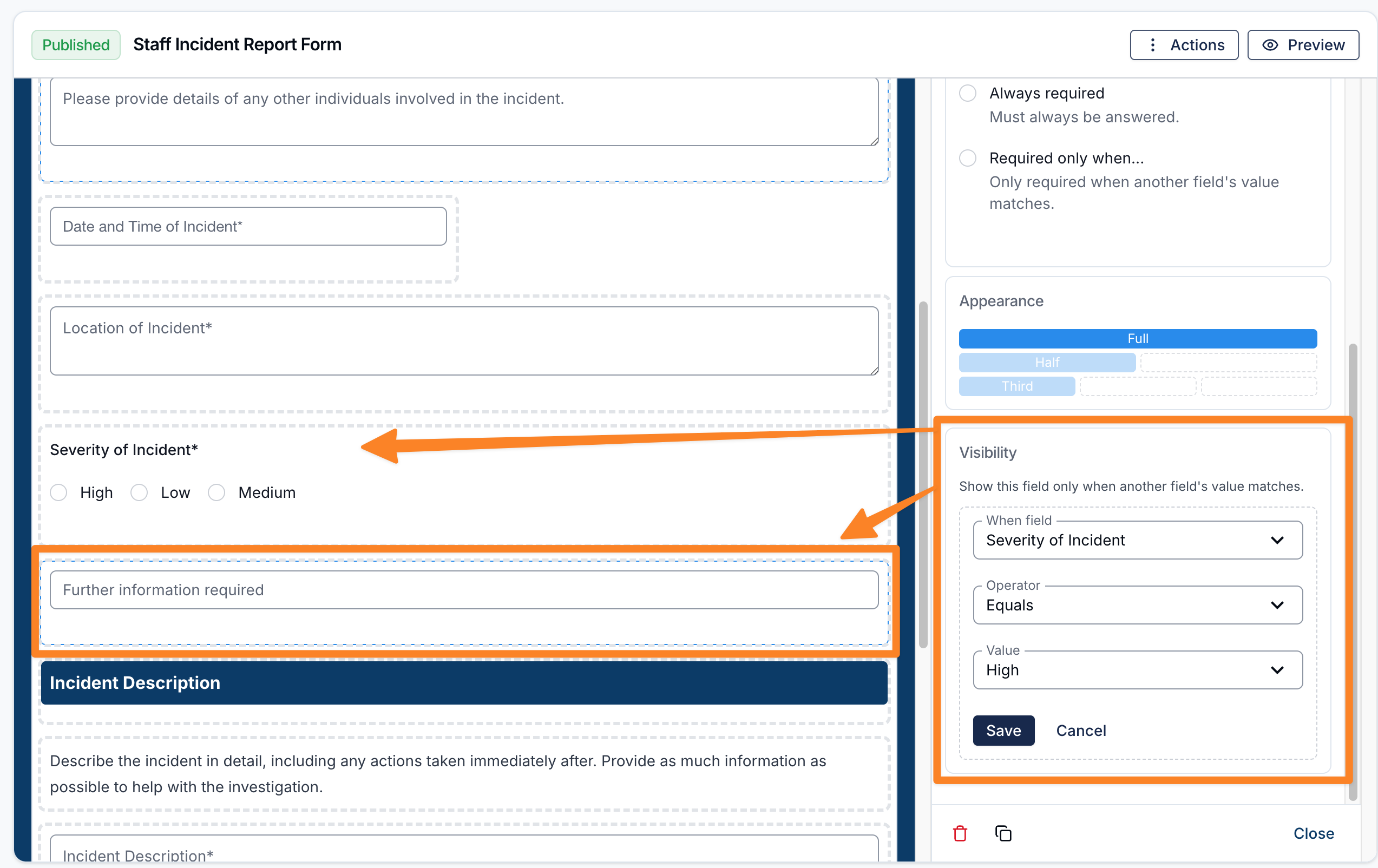
Fields with visibility conditions are hidden until at least one of their conditions is met. If a hidden field has been answered, its value is not submitted with the form.
Show or Hide Layout Elements
Visibility conditions also work on layout elements—headers, dividers, images, and rich text blocks—not just question fields. This means a section's heading and divider can hide along with the questions they group, instead of leaving an empty heading behind.
Set it up the same way as any other field:
- Open the Form Builder and click the header, divider, image, or rich text block.
- In the settings panel, go to Visibility.
- Click Add condition.
- Select the When field, Operator, and Value.
- Click Save.
Layout elements can only be targets of a condition—they don't collect an answer, so they can't be used as the When field, and they don't have a Required setting to control conditionally.
Make a Field Required Conditionally
You can also make a field required only when another field matches a condition:
- Open the field in the Form Builder.
- Under Required, select Required only when....
- Click Add condition.
- Select the When field, Operator, and Value.
- Click Save.
If a field is set to Always required, it cannot also be conditionally required. Change the Required setting to Required only when... before adding required conditions.
Supported Source Fields and Operators
The operators available depend on the type of source field selected:
| Source field type | Available operators | Value needed? |
|---|---|---|
| Dropdown, radio buttons, multi-select | Equals, Does not equal | Select one of the field's options |
| Checkbox | Is checked, Is not checked | No |
| Single line text, multi line text, email | Equals, Does not equal, Contains, Is empty, Is not empty | Text value, except for empty/not empty operators |
| Number, money | Equals, Does not equal, Is greater than, Is less than, Is empty, Is not empty | Number value, except for empty/not empty operators |
| Date, date and time | Equals, Is before, Is after, Is empty, Is not empty | Date or date/time value, except for empty/not empty operators |
For example, a date or date/time source field offers these operators:
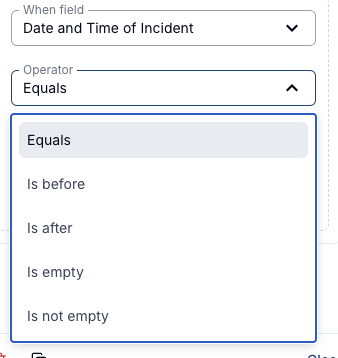
Some field types can be condition targets but cannot be used as the When field because Astalty cannot compare their answers in conditions. Examples include layout elements, file uploads, address fields, mobile phone fields, Participant/user/site select fields, and rating fields.
Multiple Conditions
You can add more than one condition to the same field. Astalty treats multiple conditions as or rules, meaning the field is shown or required when any one of the saved conditions is met.
For visibility conditions, Astalty also checks whether the source field is visible. If a condition depends on a source field that is currently hidden, that condition is not met. Astalty prevents circular visibility rules, such as Field A depending on Field B while Field B also depends on Field A.
Examples
Show a follow-up field for a selected severity
A form includes a Severity of Incident dropdown with options Low, Medium, High and Extreme. You only want to ask a follow-up question when the person selects Low.
On the follow-up field, add a visibility condition:
- When field: Severity of Incident
- Operator: Equals
- Value: Low
The follow-up field stays hidden until Low is selected.
Hide a whole section until it's relevant
A form has an Anything else to report? checkbox followed by a section made up of a header, a divider, and a few follow-up questions. You only want the whole section to appear when the checkbox is ticked.
Add the same visibility condition to the header, the divider, and each follow-up field:
- When field: Anything else to report?
- Operator: Is checked
The header, divider, and questions stay hidden together until the checkbox is ticked, so there's no empty heading left behind when the section isn't needed.
Show a field after a specific date and time
A form includes a date/time field. You only want another field to appear when the date/time entered is after 08/04/2026 00:00.
On the target field, add a visibility condition:
- When field: the date/time field
- Operator: Is after
- Value: 08/04/2026 00:00
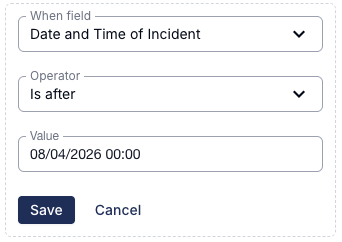
You can use the same date/time field with Equals, Is before, Is empty, or Is not empty depending on the scenario.
For more information on building your form, see the Editing a Forms Appearance - Form Builder guide.