- Forms & Quality
- Register Settings
Register Settings
Each register has its own numbering, defaults, review schedule, access and statuses. Only Admins with access to the register can open its Settings.
Where to Find It
- From the left-hand menu, select Registers (under Library when your menu is grouped into sections).
- Open the register and select Settings.
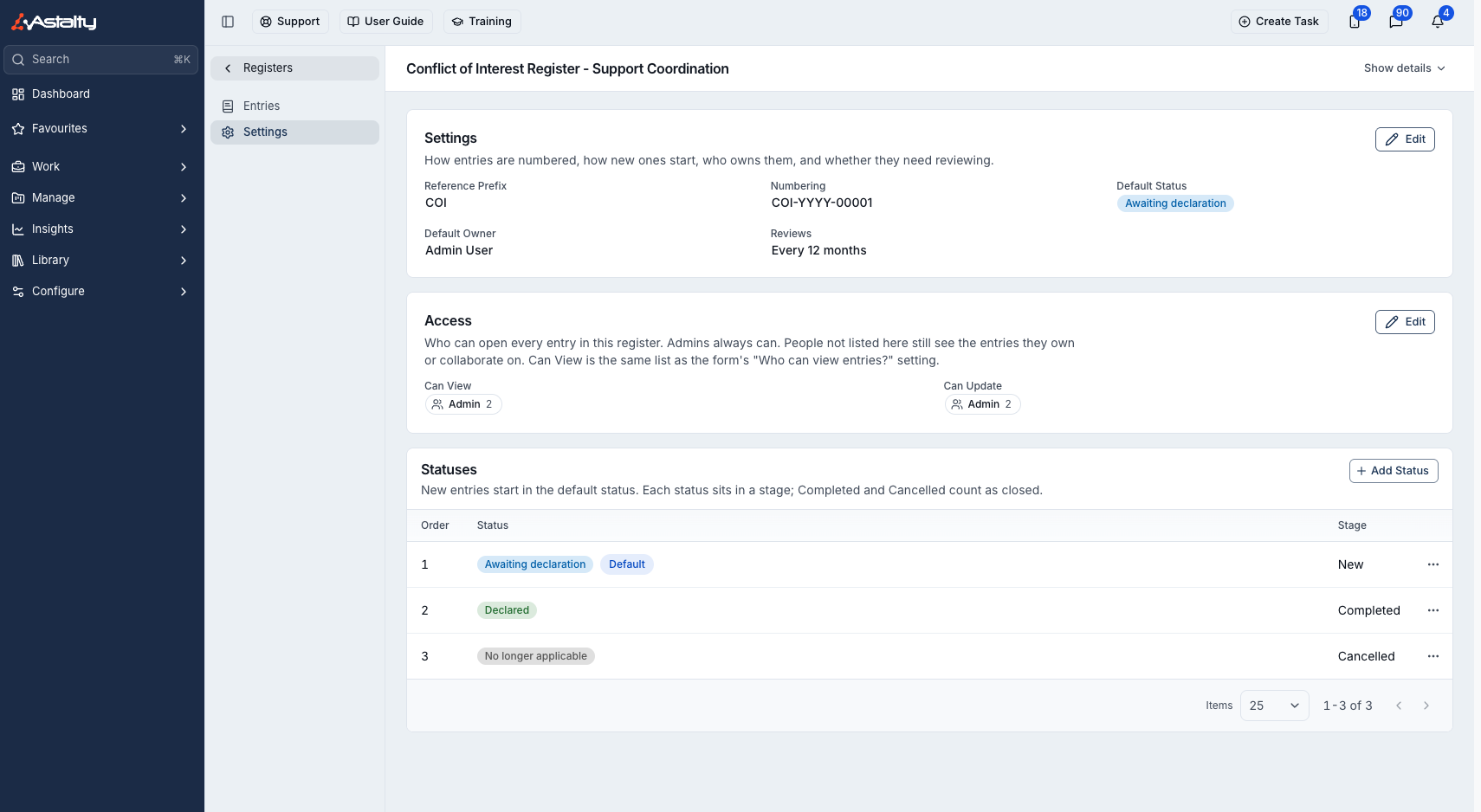
Settings
Click Edit on the Settings card.
| Field | What it does |
|---|---|
| Reference Prefix | 2 to 10 capital letters or digits that start every reference. It must differ from every other register's prefix, and can't be INC, FB or REF. Locked once the register has its first entry. |
| Default Status | The status new entries start in. |
| Default Owner | Who new entries are assigned to. |
| Entries need reviewing | Turns on scheduled reviews. |
| Review every | A count and a unit: Weeks (up to 156), Fortnights (up to 78) or Months (up to 36), each roughly 3 years. |
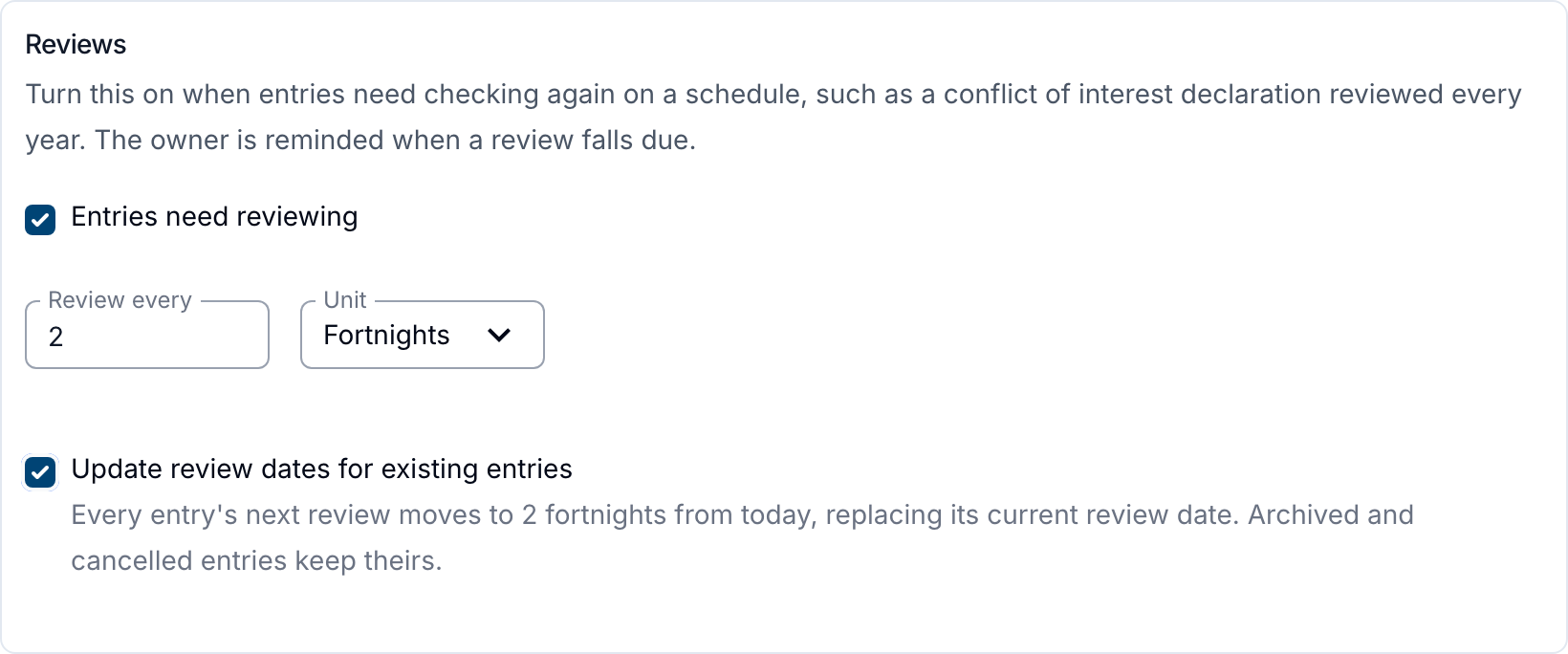
When reviews are on, each entry gets a Next Review date, and its owner is reminded when it falls due. See Reviewing Entries.
Changing the count or unit reveals Update review dates for existing entries. Tick it to move every entry's Next Review to the new cadence from today, replacing its current date. Archived and cancelled entries keep theirs. Leave it off to keep existing review dates. Entries without a review date receive one, and future reviews use the new schedule.
Access
The Access card sets who can open every entry in the register. Click Edit to change it.
| Level | Gives |
|---|---|
| Can View | Read every entry. |
| Can Update | Read and change every entry, including its owner and collaborators. |
Each level takes user groups and individual users, and needs at least one. The Account Owner always has access and does not count towards the required selection. Admins have access only if they are listed, directly or through a group such as the Admin group. An entry's owner and collaborators can see their entry even if they are not listed here.
Can View is the same list as the form's Who can view entries? setting, so changing one changes the other.
Statuses
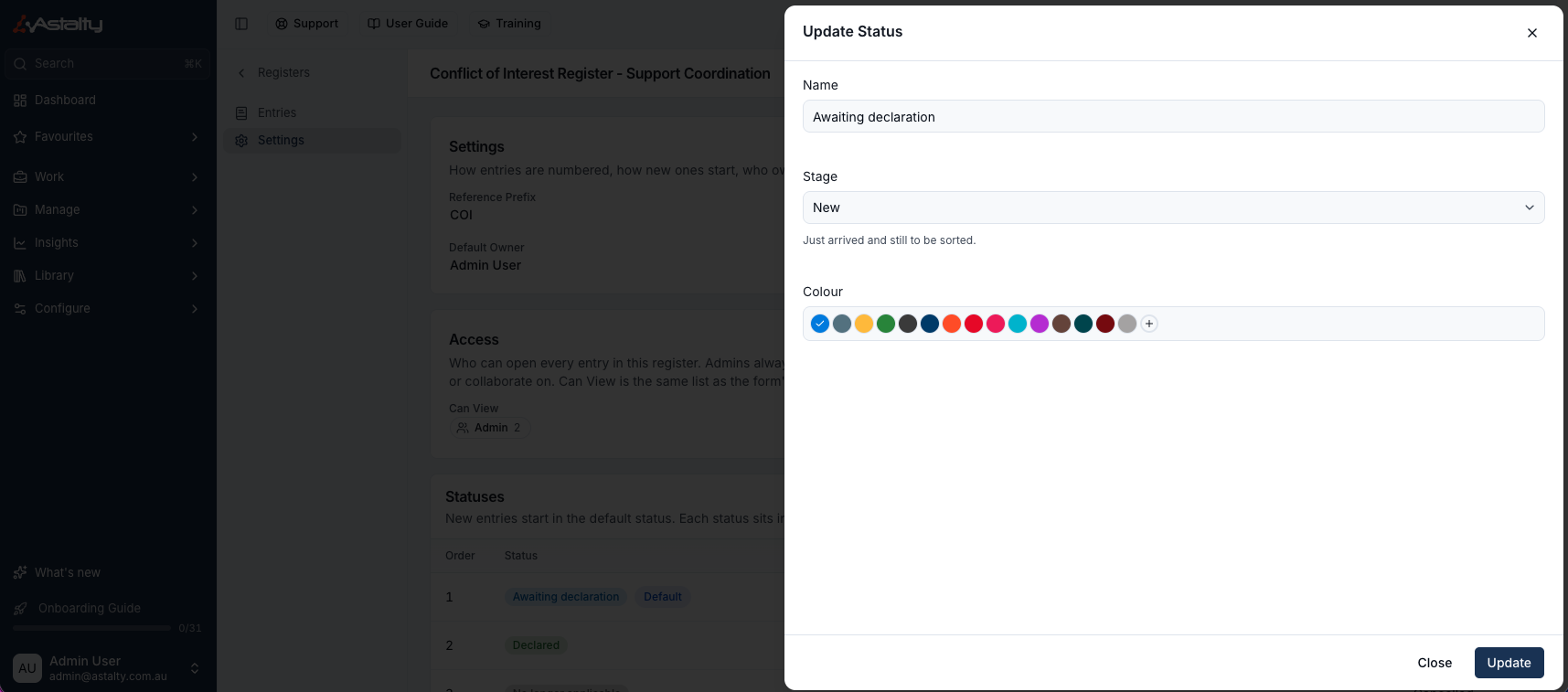
Every status sits in a stage, which decides how Astalty treats the entry:
| Stage | Treated as |
|---|---|
| New, Not Started, In Progress | Open |
| Completed | Closed |
| Cancelled | Closed, and no longer reviewed |
- Click Add Status to add one, with a name, stage and colour.
- Use the ⋯ menu on a status to Edit, Set as Default, Move Up, Move Down or Archive it.
- You can't archive the default status or the last remaining status.
Archiving a Register
The Archive card in Settings shows whether the register is Active, Unpublished or archived.
- Click Archive to move the register to the Archived tab on the Registers page. It stops taking new entries, and its entries, statuses and settings are kept. Review reminders stop for its entries.
- Click Unarchive on an archived register to put it back under All Registers. Its form comes back unpublished, so publish the form again before it takes new entries.
A register can't be deleted.