- Forms & Quality
- Manage Forms
- Commenting on Form Submissions
Commenting on Form Submissions
Overview
A form submission often carries context that isn't in the answers - you rang the submitter to confirm a detail, flagged something for a colleague to follow up, or want to note that a submission was only a test.
Comments let you record that directly on the submission, so whoever opens it next can see what's already happened.
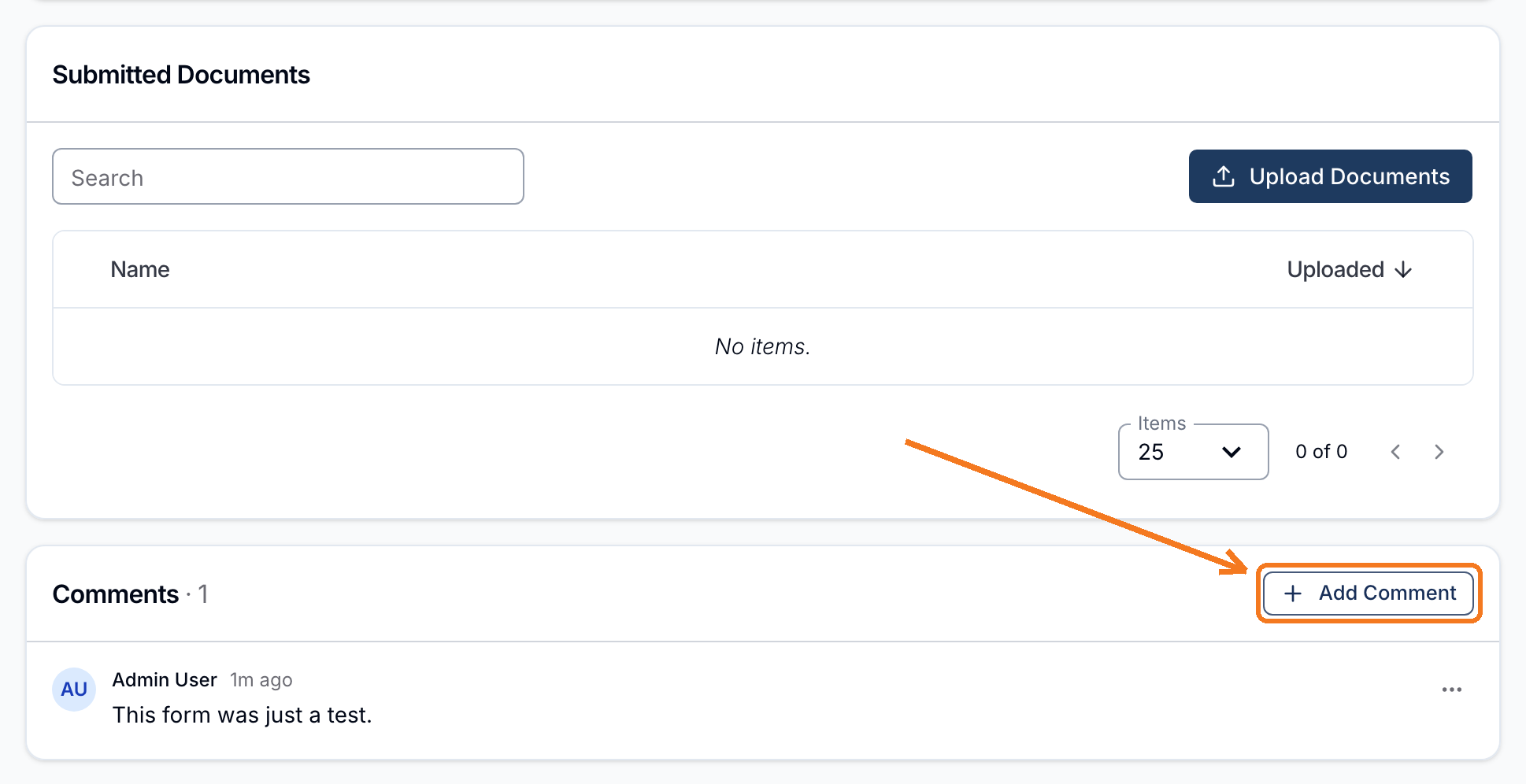
Every submission has a Comments section at the bottom of the page, below its fields and Submitted Documents. The section is always there - a submission nobody has commented on shows No comments yet. with an Add Comment button beside the heading.
Adding a Comment
- Open the form submission - from All Submissions, from a form's own Submissions list, or from wherever else the submission is linked (a Participant's Forms, a Referral, an Incident).
- Scroll to the Comments section at the bottom of the page.
- Click Add Comment beside the heading.
- Type your comment and click Add Comment.
The drawer title confirms which submission you're commenting on - for example, Add Comment on Submission for Intake Form.
Reading Comments
The number beside the heading shows how many comments a submission has - for example Comments · 1.
Each comment shows the author's name, their initials, and how long ago it was posted. Hover the timestamp to see the exact date and time.
Formatting a Comment
The comment box is a rich text editor, not a plain text field. You can use bold, italic, headings, bulleted and numbered lists, and hyperlinks.
Editing and Deleting Comments
You can change or remove a comment you wrote:
- Find the comment in the Comments section.
- Open the actions menu (the three dots) on the comment itself.
- Select Edit Comment to change the wording, then click Save Comment. Or select Delete Comment and confirm.
Who Can Add and See Comments
Comments follow the same access as the submission itself, rather than having their own setting. If you can open a form submission, you can also read its comments and add new ones. If you can't open it, the Comments section doesn't appear at all - there's nothing to switch on to start using comments.
Comments Don't Survive Deleting the Submission
Permanently deleting a form submission removes its comments along with its answers and files, and this can't be undone. Archiving a submission is different - it hides the submission from its usual menus but keeps its comments intact, and you can still read and add comments on an archived submission.
Comments Elsewhere in Astalty
For other kinds of internal notes, see:
- Commenting on Invoices - internal notes on an individual invoice.
- Commenting on Invoice Batches - internal notes on an invoicing run.
- Commenting on Shift Broadcasts - internal notes when filling a broadcast on the Shift Board.
- Messaging - direct conversations with your team in Chat.