Downloading a Blank Form
Overview
Download any Astalty form as a blank PDF with empty lines, tick boxes and answer areas for handwriting. Use it when someone needs to complete a form away from a device, such as during an intake meeting in a Participant's home, at a site with no reliable internet or when a Participant prefers pen and paper.
The download is generated from the form as it currently stands, so it always matches the fields you have in the Form Builder.
Downloading a Blank Form
- Go to Forms → Manage Forms and open the form you want.
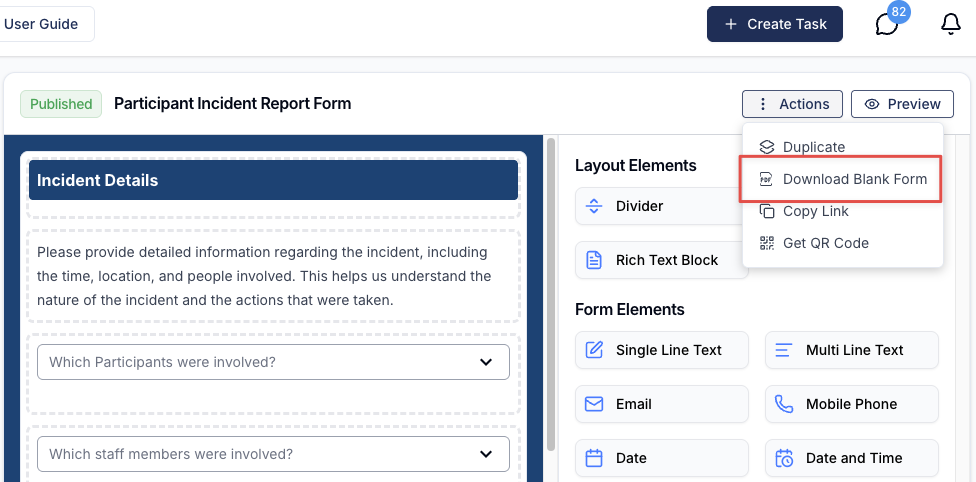
- Click Actions in the top-right corner.
- Select Download Blank Form.
The PDF is generated and downloaded straight away, named with today's date, the form name and the word Blank - for example 13-05-2026 Participant Incident Report Form Blank.pdf.
What the Blank PDF Looks Like
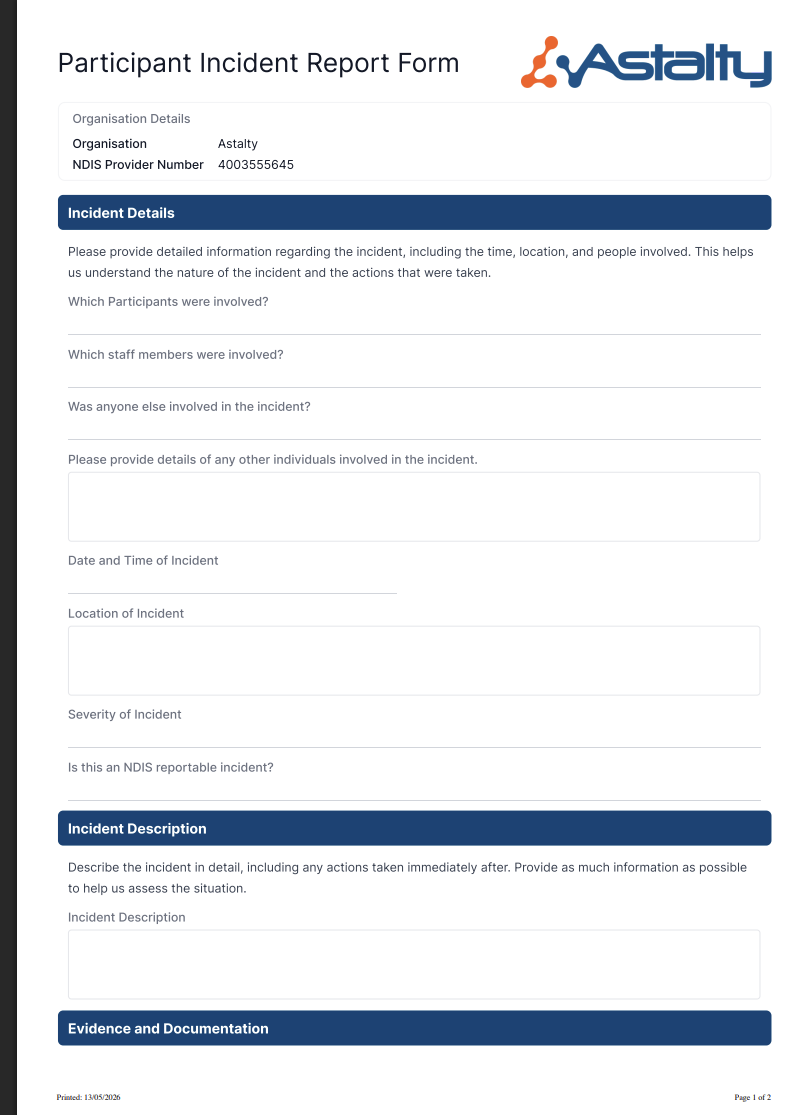
The PDF opens with your form's name and your organisation's logo, followed by an Organisation Details panel showing your organisation name and, where it's recorded, your NDIS Provider Number. Every page is footed with the date it was printed and a page number.
Below that, the form's fields appear in the same order and layout as the Form Builder - including full, half and third widths - with space to write:
| Form element | How it prints |
|---|---|
| Single Line Text, Email, Mobile Phone, Number, Money, Date, Date and Time, Address | A ruled line to write on |
| Participant Select, User Select, Site Select | A ruled line to write the name on |
| Multi Line Text | A larger empty box |
| Checkbox | A single tick box next to the label |
| Dropdown, Multi Select, Radio Buttons | Every option listed with its own tick box or circle, plus an Other: line where that's enabled |
| Rating | The scale printed in full, with its left and right labels and a circle for each point (or stars for star ratings) |
| File Upload | An empty box to attach or note the document |
| Image, Annotated Image | The uploaded image, so it can be marked up by hand - or an empty box if no image has been added |
| Repeater | A table with your column headings and three blank rows |
| Header, Divider, Rich Text Block | Printed as designed, including header background colours and alignment |
Things to Keep in Mind
- Every field is printed. Fields controlled by conditional logic always appear on the blank PDF, because there are no answers yet to decide what should show or hide. Expect the paper version to be longer than the on-screen form.
- Required fields aren't marked. The PDF has no asterisks or Required labels, so if certain answers are essential it's worth saying so when you hand the form out.
- Placeholders aren't included. Hint text that appears inside a field on screen isn't printed.
- Archived fields are left out. Only the form's active fields are included.
- A completed paper form isn't a submission. Nothing written on the PDF comes back into Astalty. To have it counted in Submissions and the Report, the answers still need to be entered into the form in Astalty.