26 November 2026
Ask Astalty Skills and the Skills Library
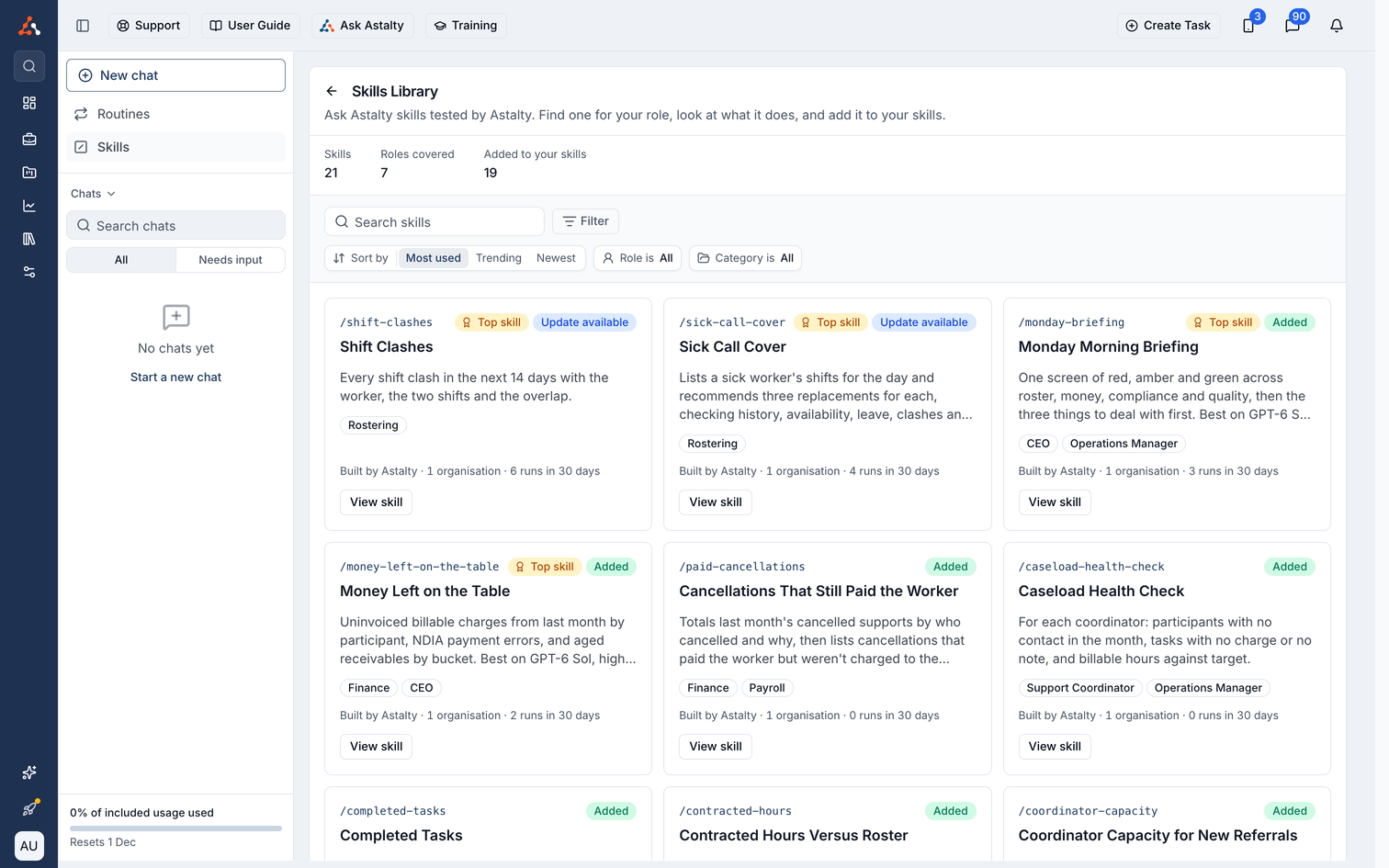
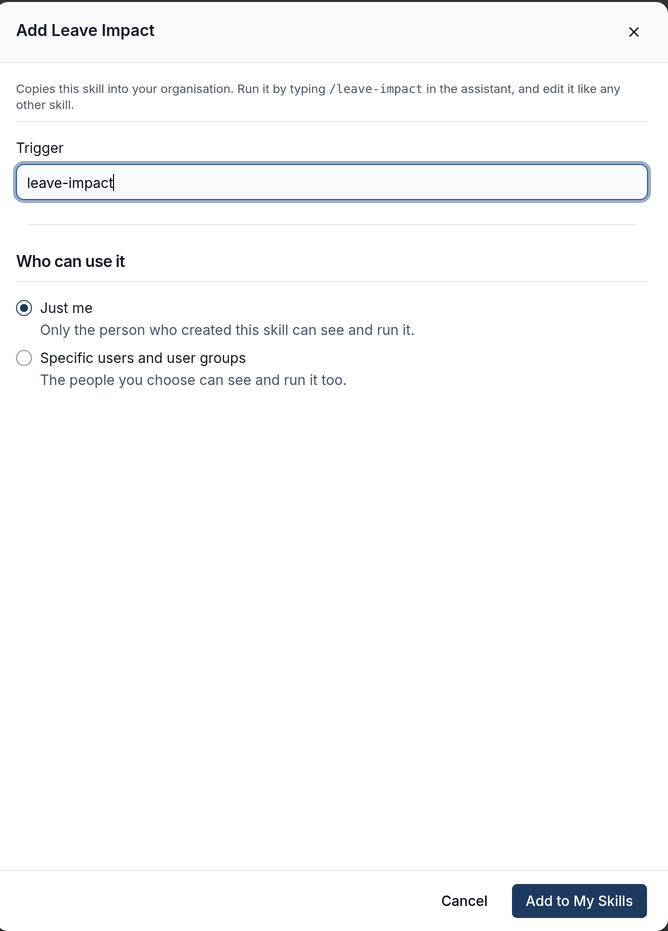
A skill saves instructions you often give Ask Astalty, such as a weekly roster check, so you can run them again by typing / and the skill's trigger in a chat. You can now browse the Skills Library for skills written and tested by Astalty, grouped by role, and add one with Add to My Skills. When Astalty improves a library skill, your copy shows Update available, and you choose whether to get the latest version. Skills need an AI seat, and they only show what the person running them can already see.
For more information, visit the Ask Astalty Skills guide.
Scheduling Chat Messages
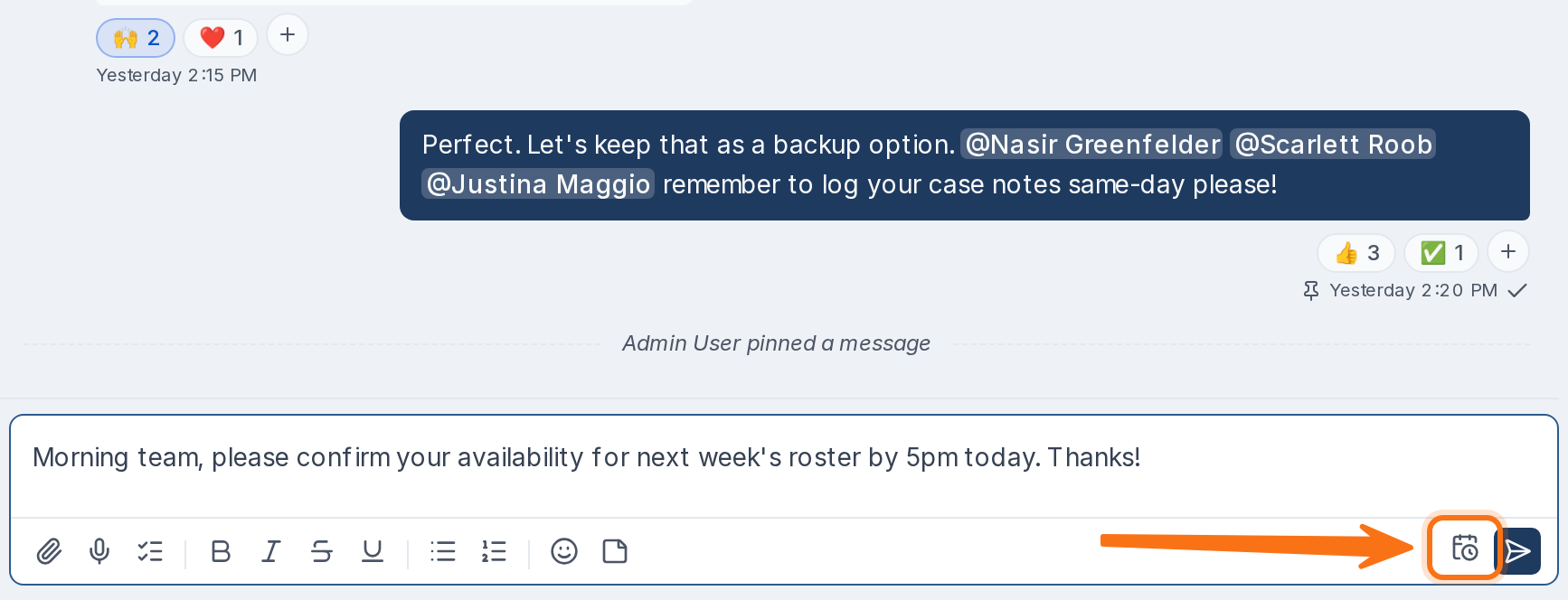
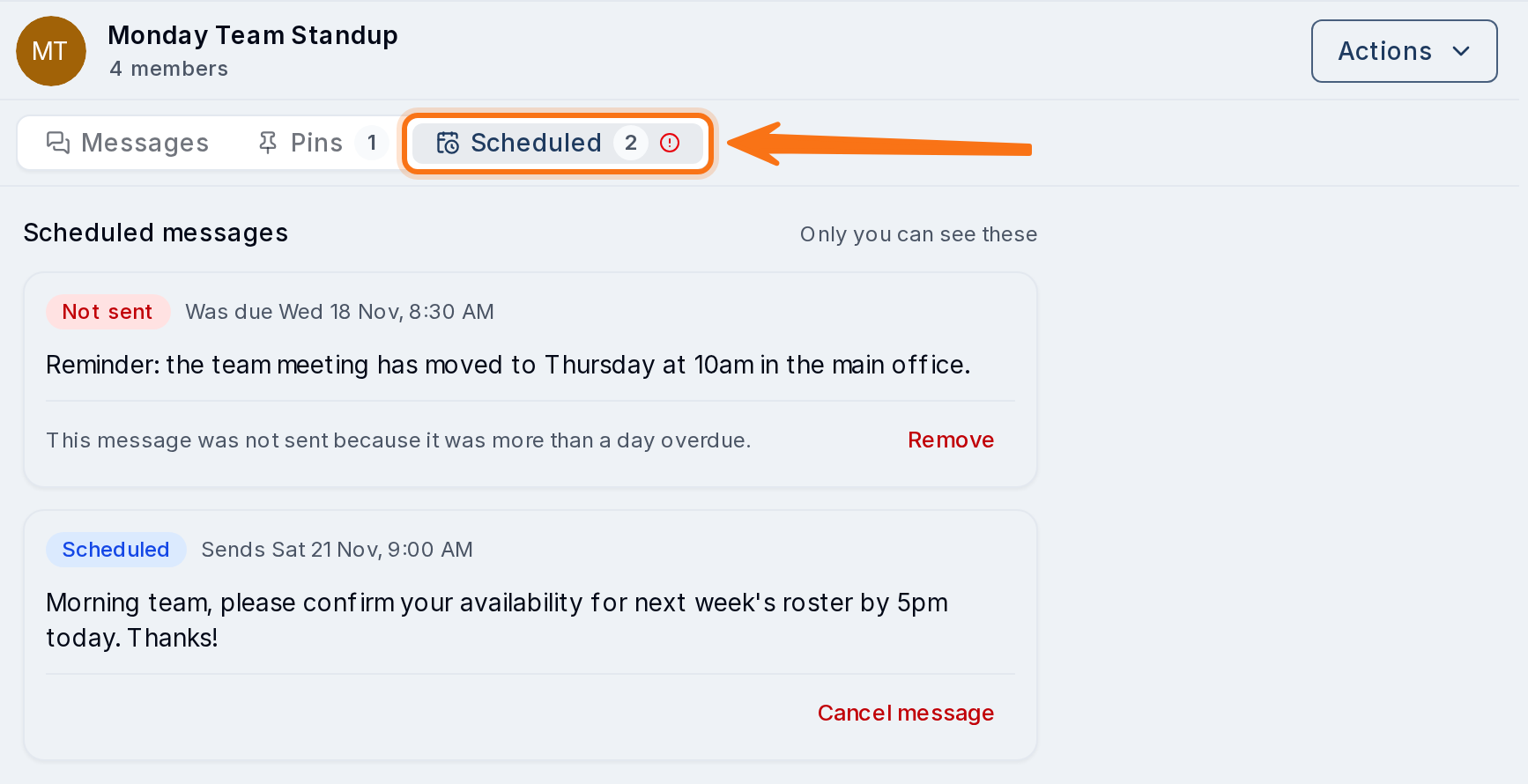
You can now write a Chat message and have it sent later, for example when you write rostering messages after hours but want the team to read them in the morning. Select the Schedule message icon beside the send button and choose when it sends. Your scheduled messages are listed on a Scheduled tab in the conversation, which only you can see, and you can cancel one before it goes. Only text messages can be scheduled, from Chat in the browser.
For more information, visit the Messaging guide.
Approving Several Unavailability and Leave Requests at Once
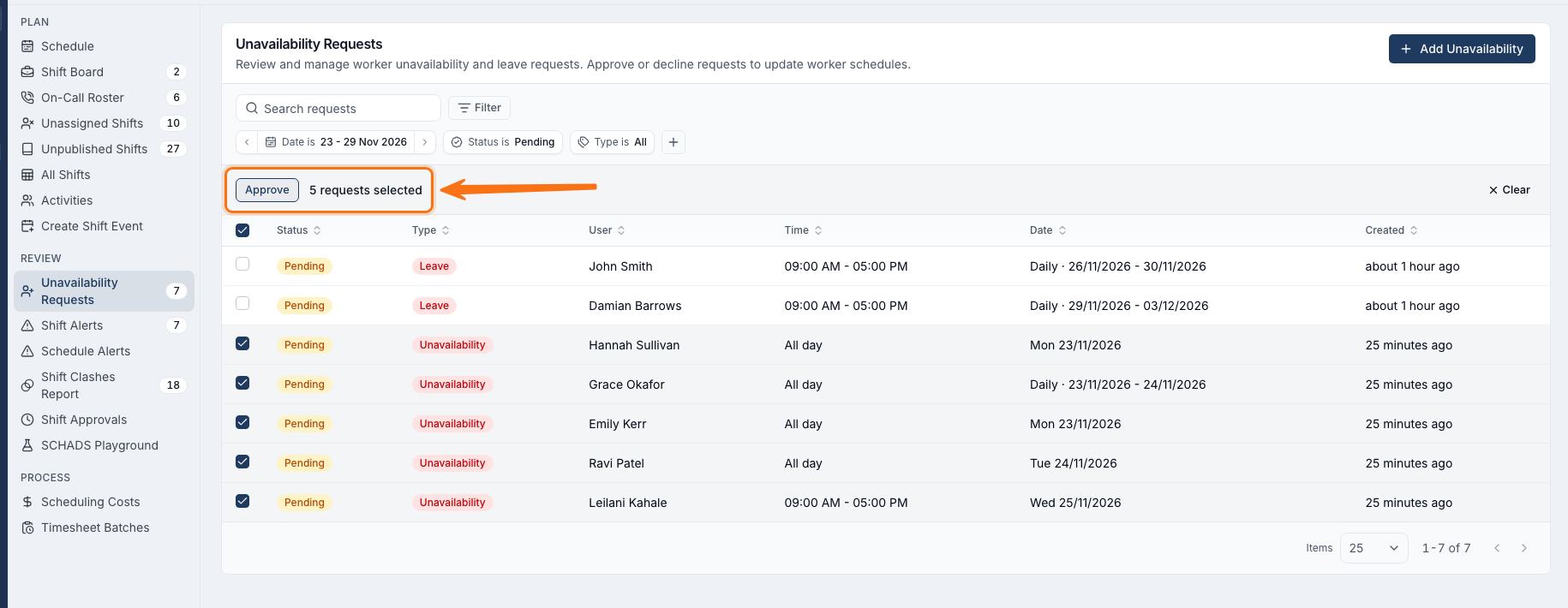
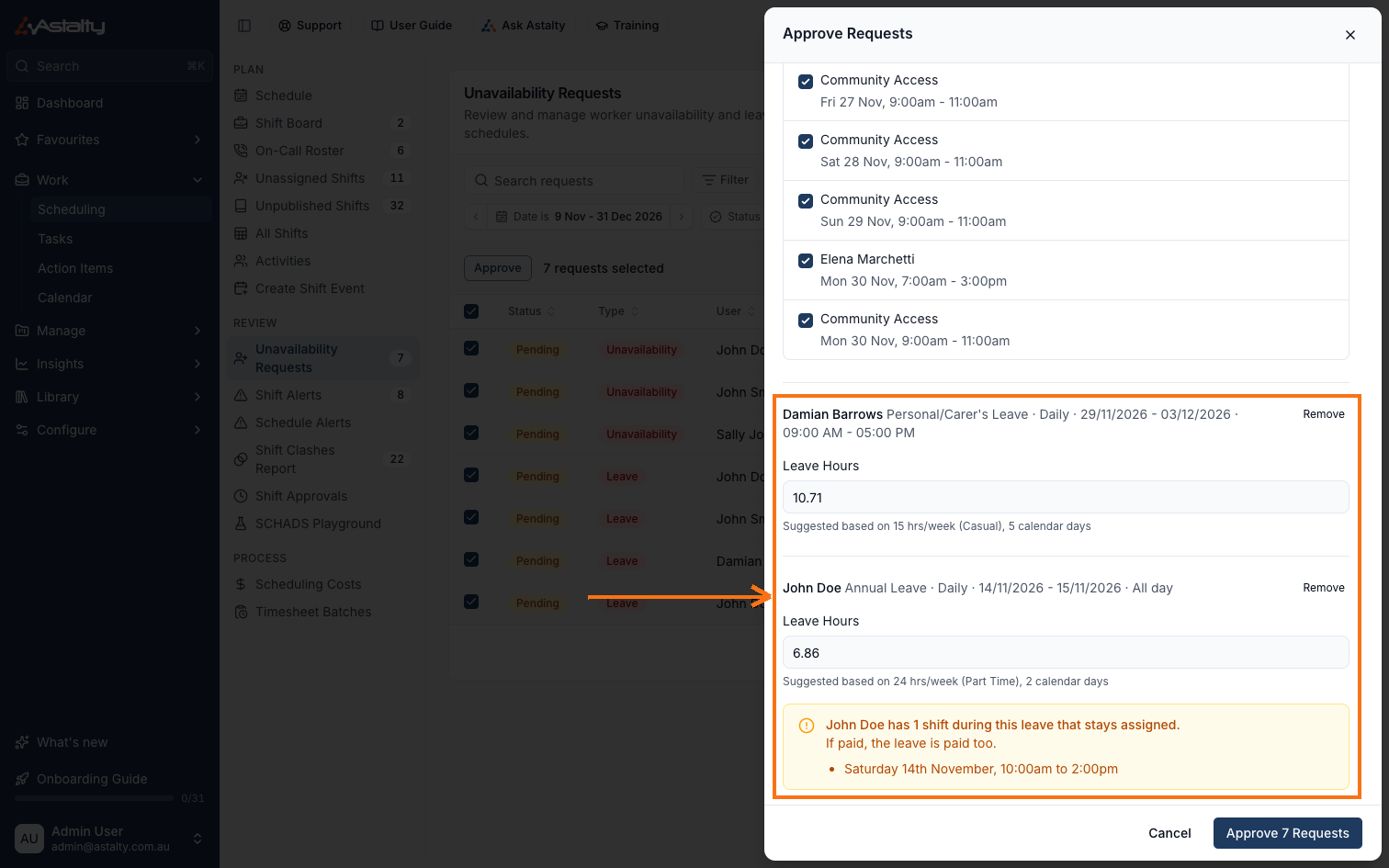
On Unavailability Requests, you can now tick several pending unavailability and leave requests and approve them together, up to 100 at a time, including up to 20 leave requests. Before you confirm, Astalty lists any rostered shifts that clash with each request, and you can untick a shift to keep that worker on it. Each leave request shows its suggested Leave Hours for you to check, and leave balances are checked the same way as when you approve a request on its own.
For more information, visit the Managing Availability guide.
Adding a Note for Support Workers to a Shift Board Broadcast
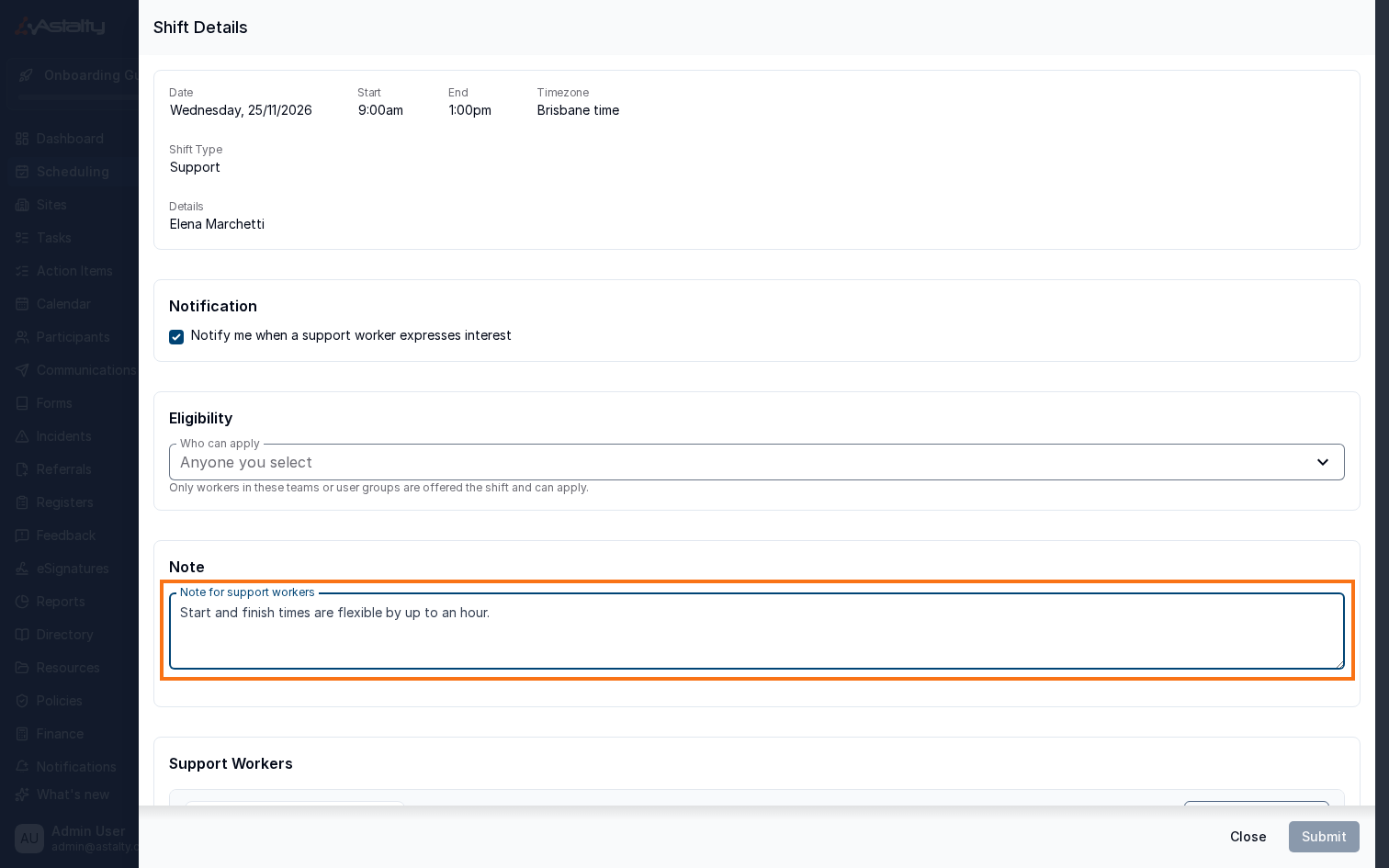
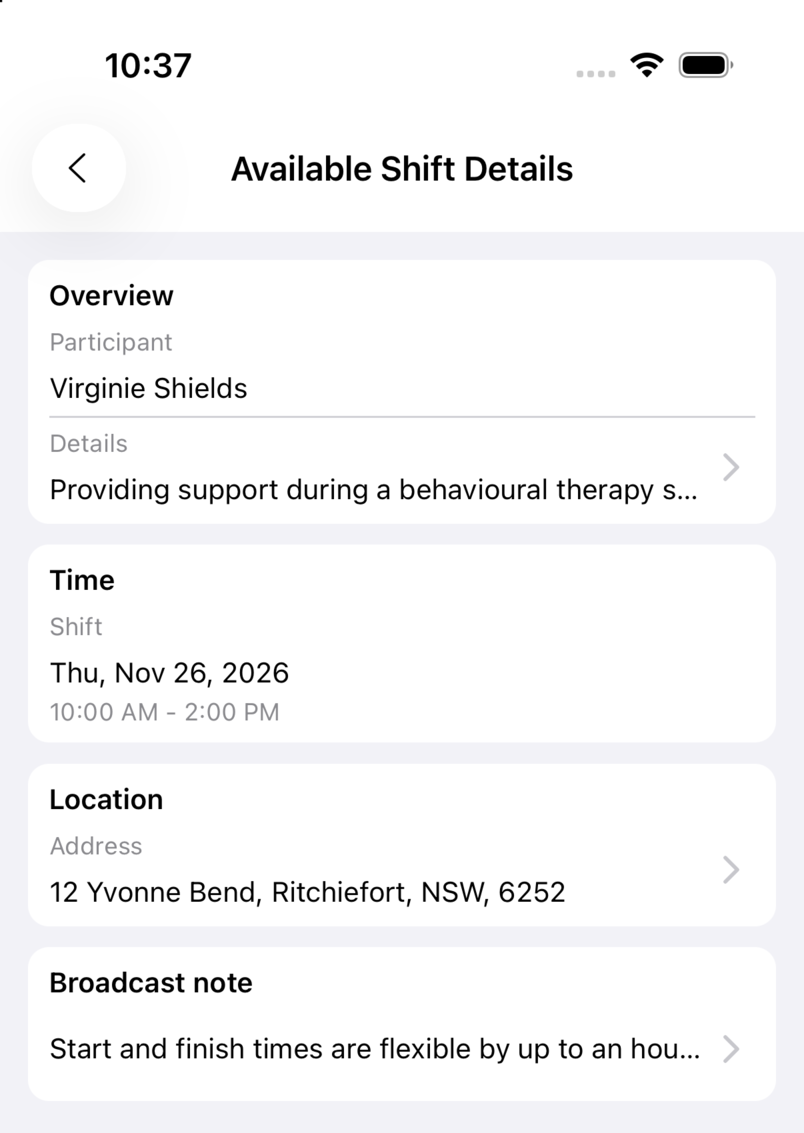
When you broadcast a shift to the Shift Board, you can now add a Note for support workers, such as "Start and finish times are flexible by up to an hour". Workers read it under Broadcast note when they open the offer in the Astalty app. The note can't be changed once the shift is broadcast, and comments on a broadcast still stay internal.
For more information, visit the Shift Board Workflow and Shift Board - Support Worker App guides.
Shift Task Due Notifications (Beta)
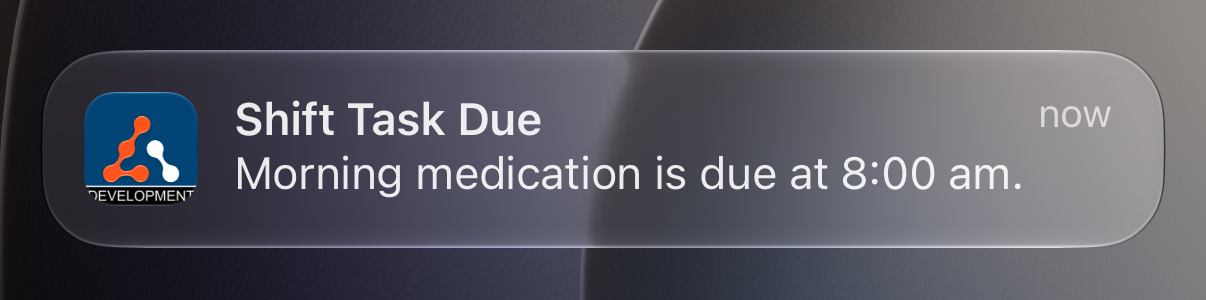
On accounts using assigned and timed Shift Tasks, Support Workers now get a Shift Task Due notification on their phone when a task reaches its due time, such as Morning medication is due at 8:00 am. Selecting it opens the shift. The notification shows the task's name but not the Participant's, so keep that in mind when naming tasks. Assigned and timed Shift Tasks are in beta; contact Astalty Support to turn them on.
For more information, visit the App Notifications and Support Tasks guides.
Sending a Clock-In Reminder From Shift Alerts
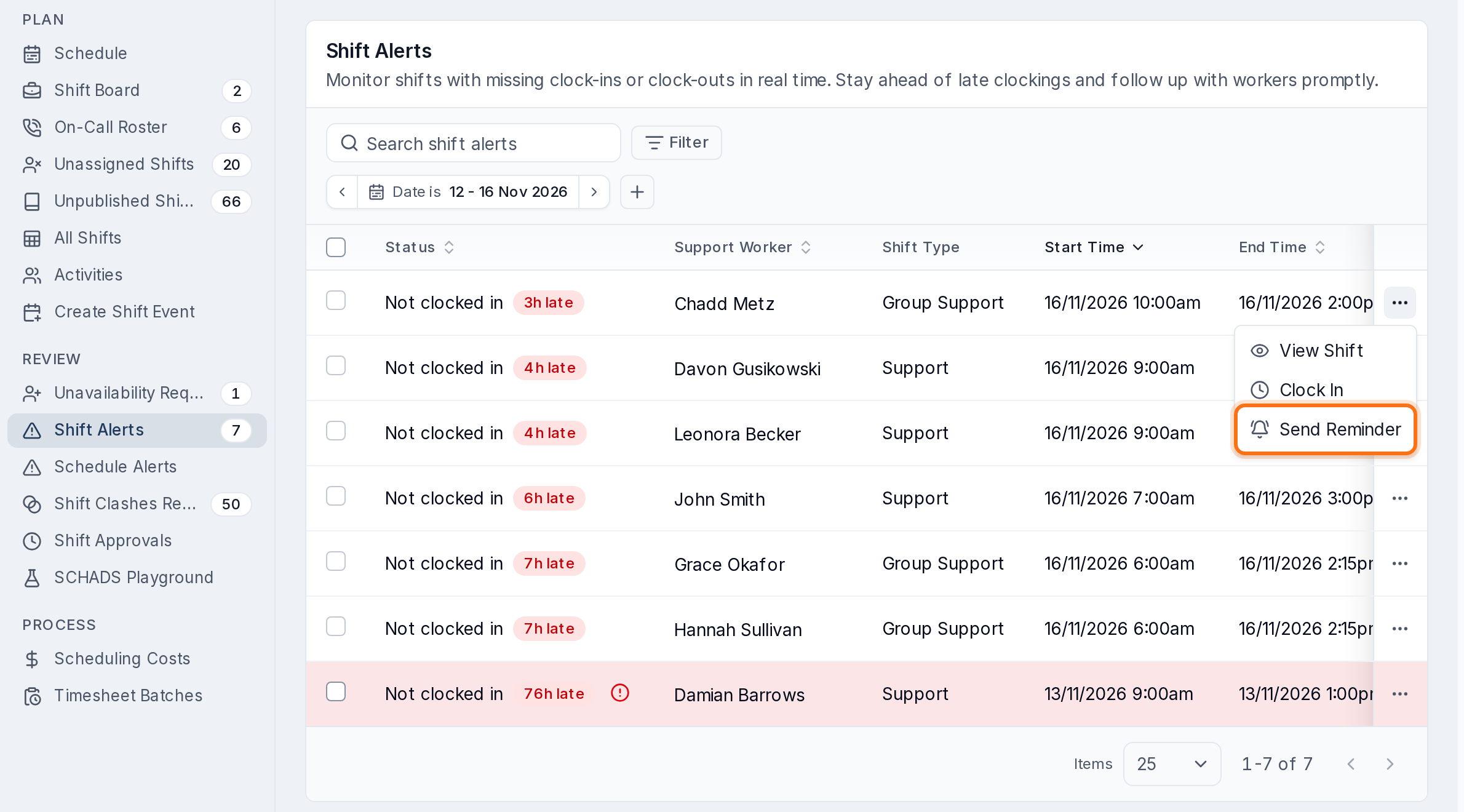
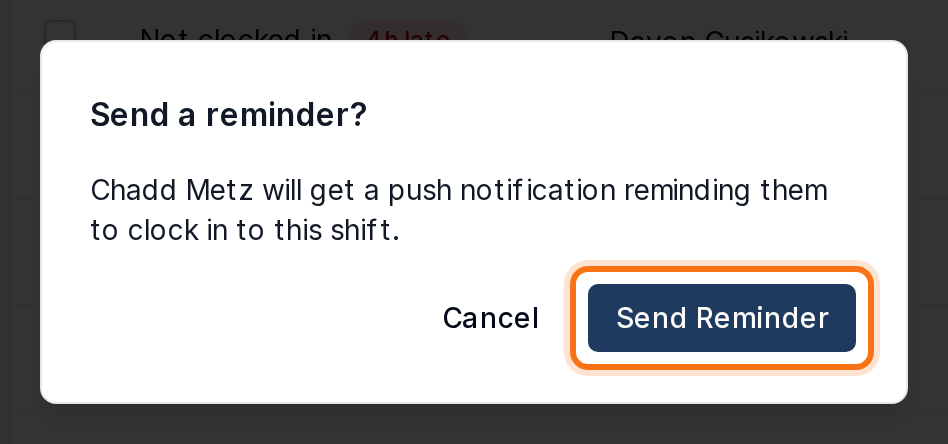
When a Support Worker hasn't clocked in to a shift that has started, you can send them a reminder from Shift Alerts. Open the shift's three-dot menu and select Send Reminder. They get a notification on their phone that opens the shift in the Astalty app. If the worker started on time and only forgot to clock in, use Clock In with their real start time instead.
For more information, visit the Shift Alerts guide.
Charging for a Cancellation Without Paying the Worker
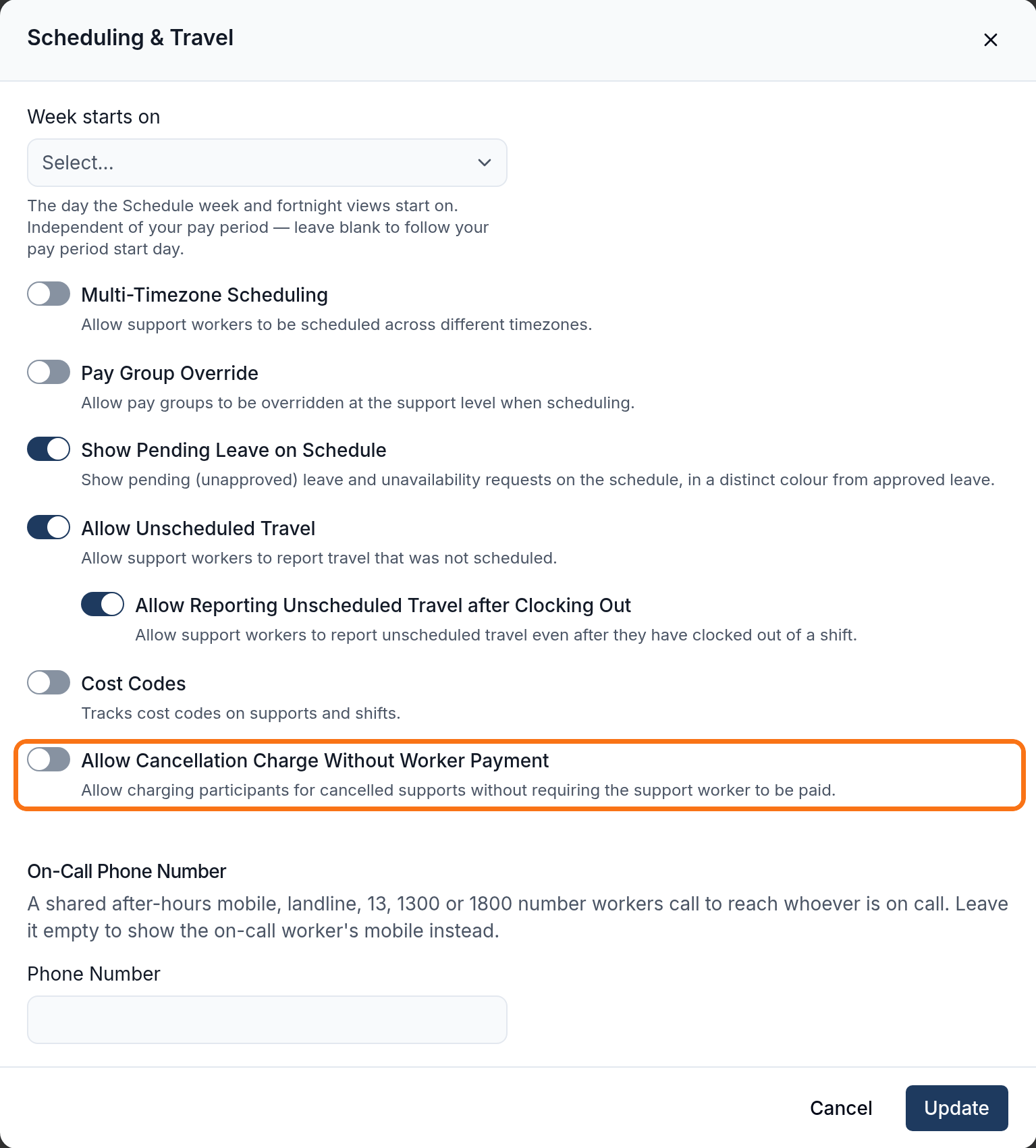
Every organisation can now turn on Allow Cancellation Charge Without Worker Payment in Scheduling Settings. Once it's on, you can charge the Participant for a cancelled support without paying the assigned Support Worker. It's off until you turn it on, and you'll be asked to confirm that your organisation is responsible for meeting its award and NDIS obligations. Check those obligations before you use it.
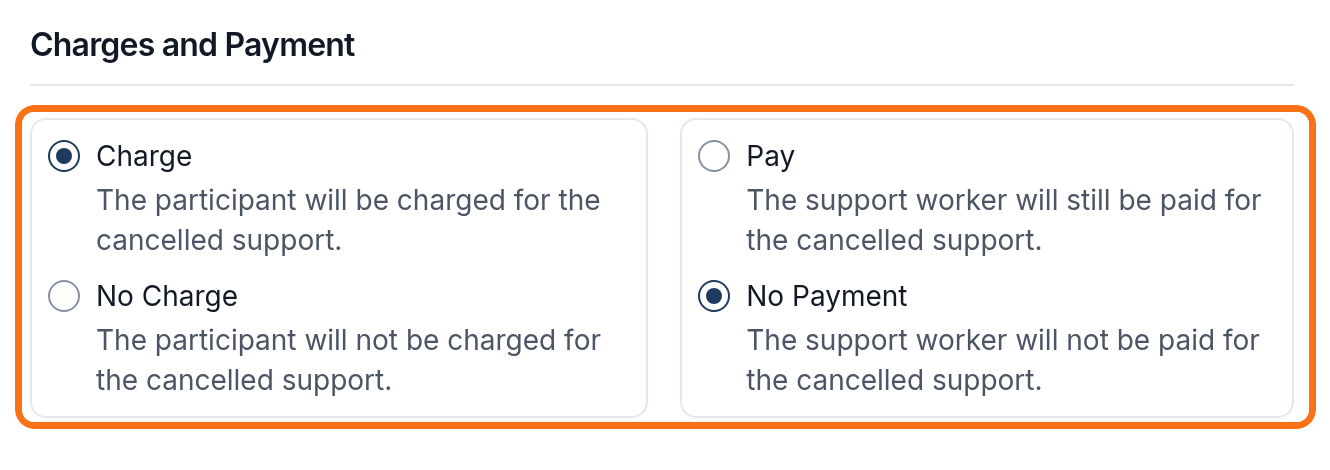
For more information, visit the Scheduling Settings and Support Cancellations guides.
Three New Dashboard Widgets
The Dashboard Widget Builder has three new widgets:
- Plans Ending lists the Participant plans ending soon, soonest first
- Active Participants by Tag shows how many active Participants hold each Participant Tag
- Referral Backlog shows each staff member's open referrals, split by how long they've been in their current status
The Dashboard Widget Builder is in beta; contact Astalty Support to discuss access.
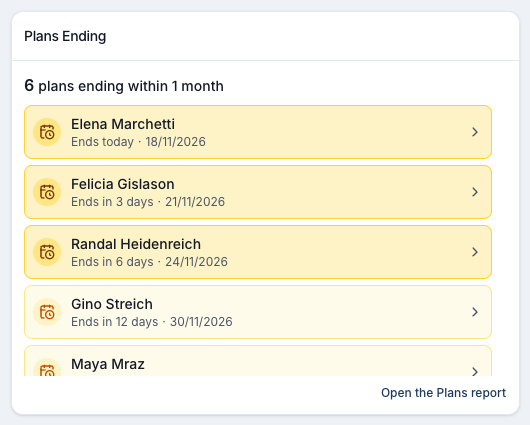
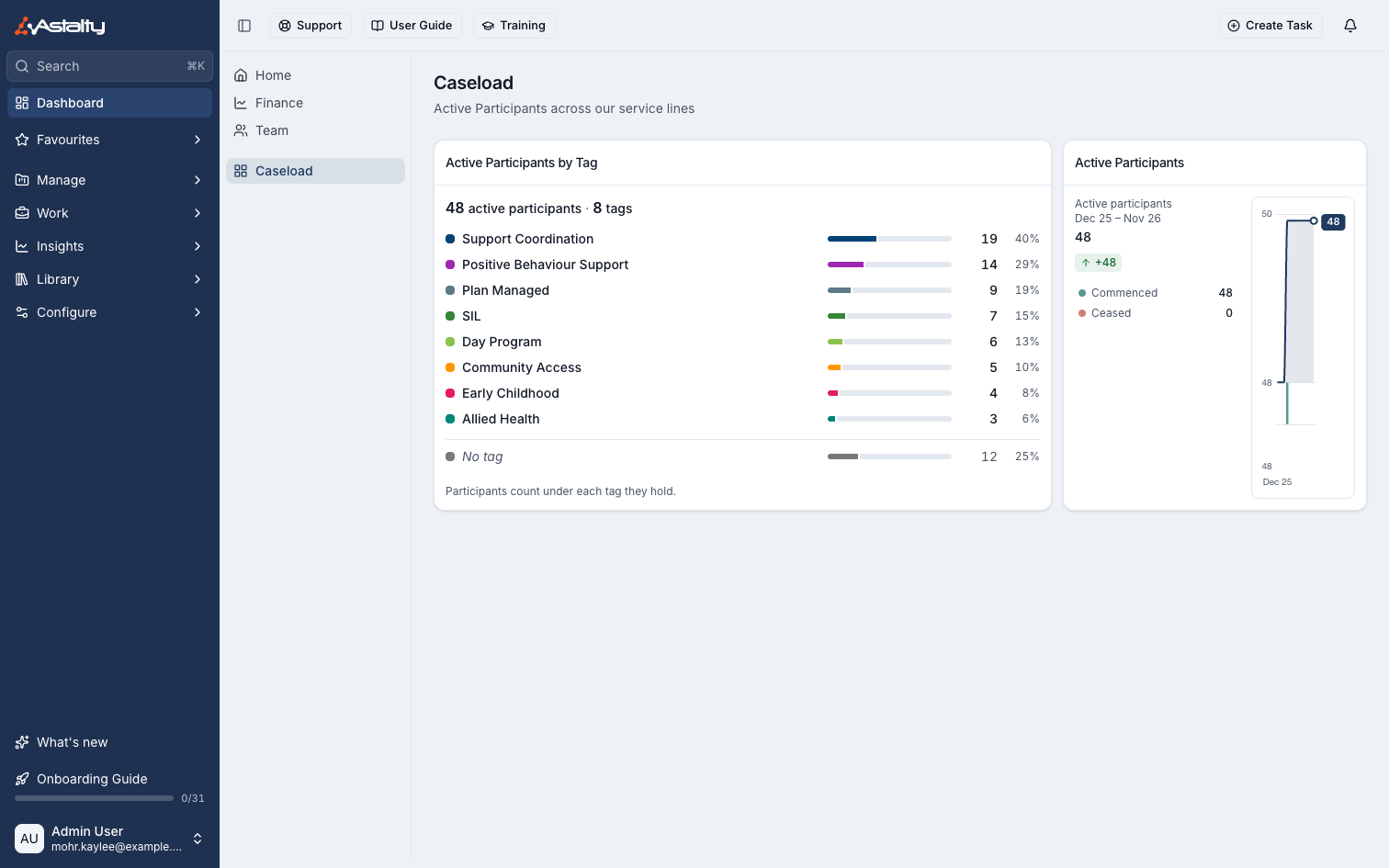
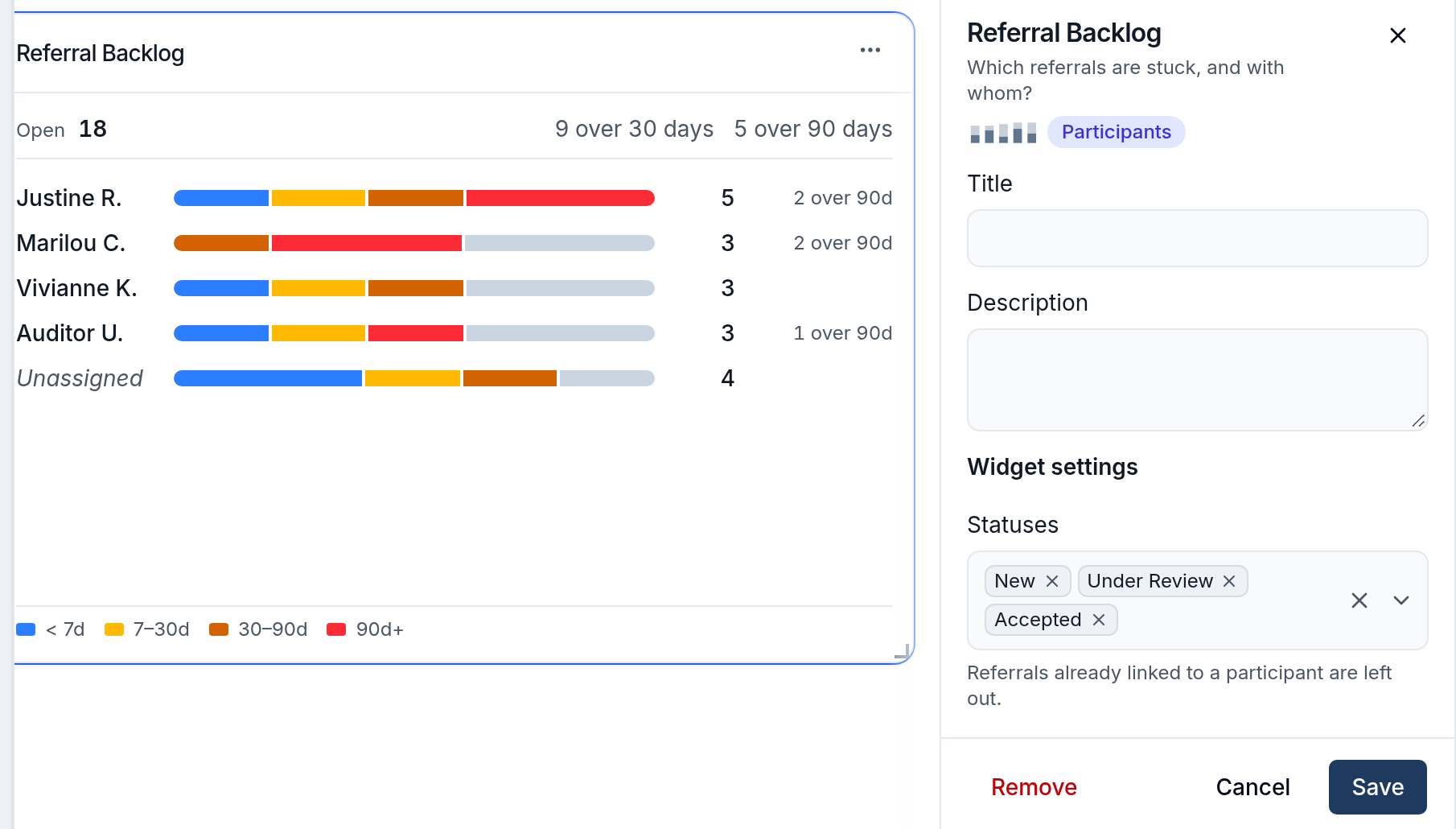
For more information, visit the Dashboard Widget Builder guide.
QR Codes for External Forms
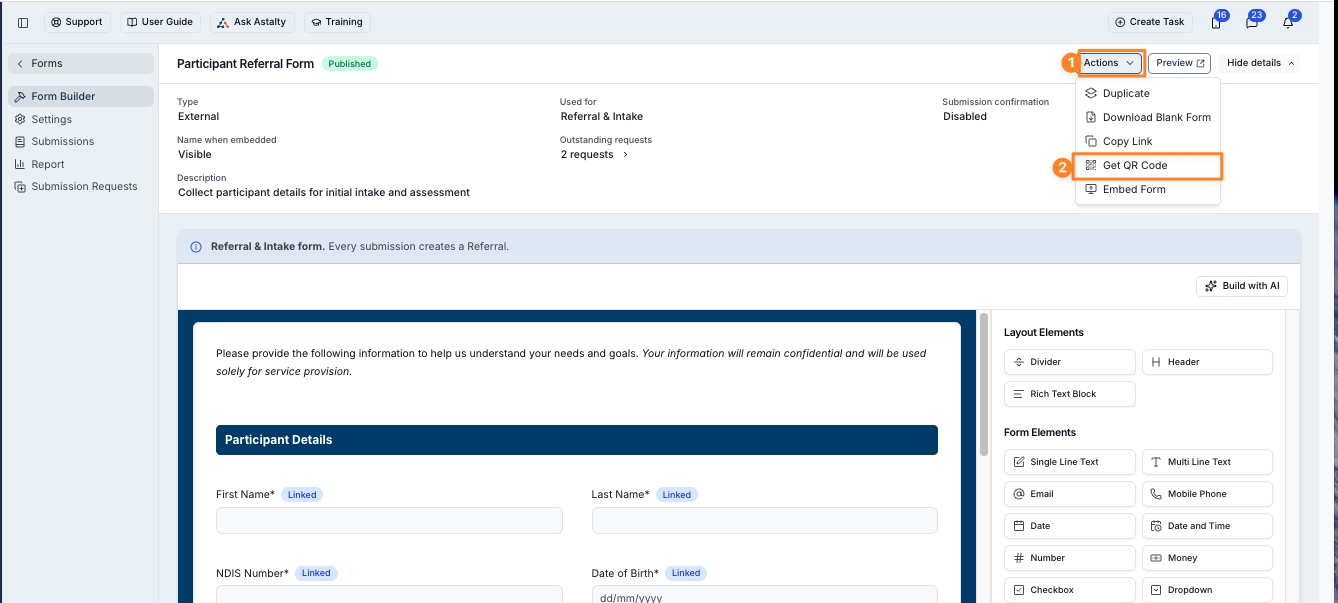
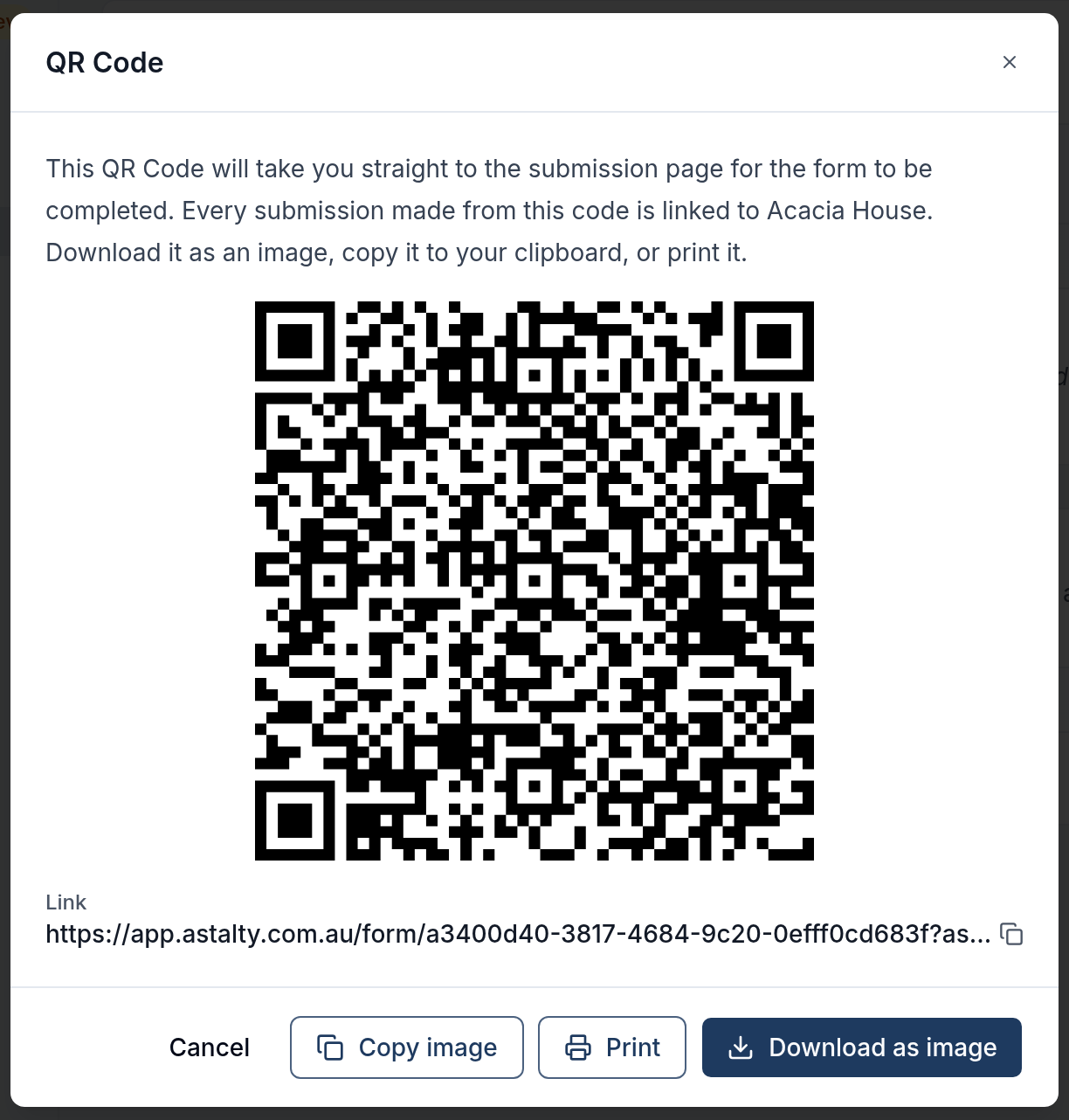
You can print or share a QR code for an external form, so people can fill it out on their phone without signing in. Open the form and select Actions > Get QR Code. With Site QR codes, you can also get a code from a Site's Forms tab, and every submission from that code is filed on the Site, such as a visitor sign-in form at the front door. Site QR codes are in beta and enabled by Astalty Support.
For more information, visit the Form Builder and Site Information, Items & Documents guides.
Choosing Which Columns You See
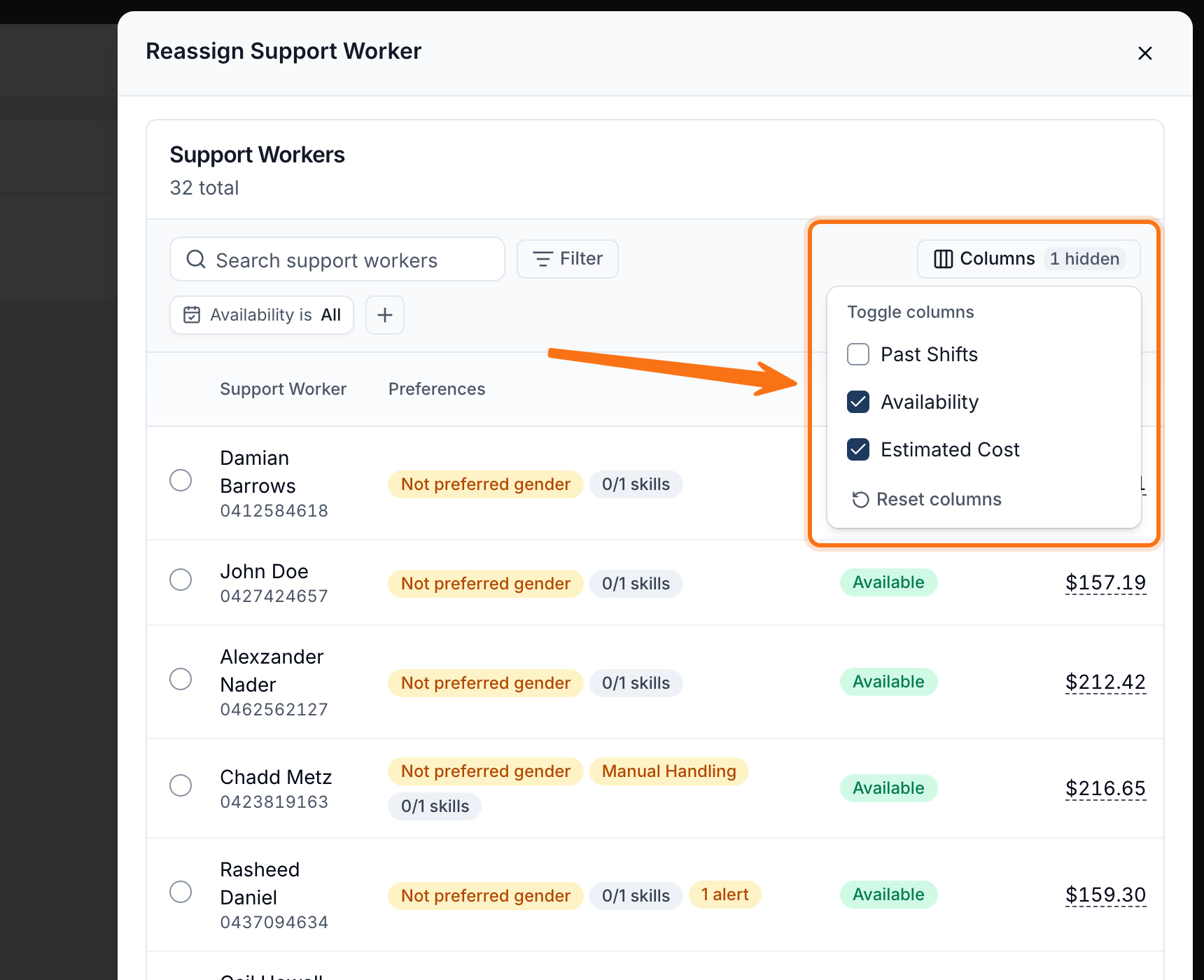
You can now hide columns you don't use on the Participants list, the Billable Charges and My Billable Charges reports, and the Support Worker list when assigning a shift. Select Columns and untick a column, or select Reset columns to bring them back. Your choice is saved to your account and only changes your own view. The Billable Charges reports also have a new Invoice column showing which invoice a charge was billed on; it starts hidden.
For more information, visit the Searching Participants, Billable Charges Report and Unassigned Shifts guides.
Recording a Check-In From the Outlook Add-In
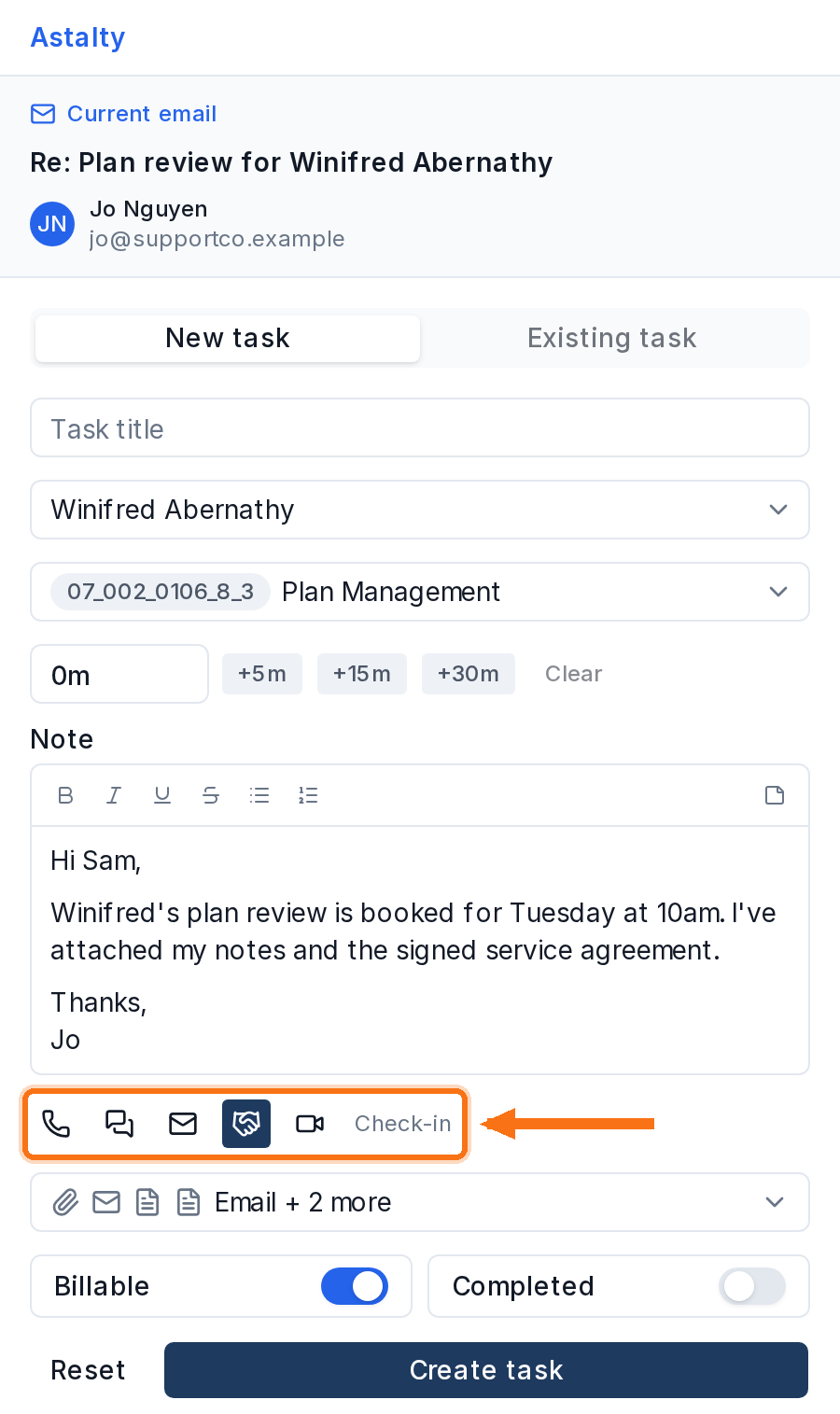
When you log an email as a task with the Astalty for Outlook add-in, you can now record the note as a Participant check-in. Select how you made contact: Phone, SMS, Email, Face to face or Teleconsult. The Participant's next check-in due date is counted from it. Check-ins are available on the Professional and Premium plans.
For more information, visit the Astalty for Outlook guide.
Superannuation on the Staff Payment Batch Page
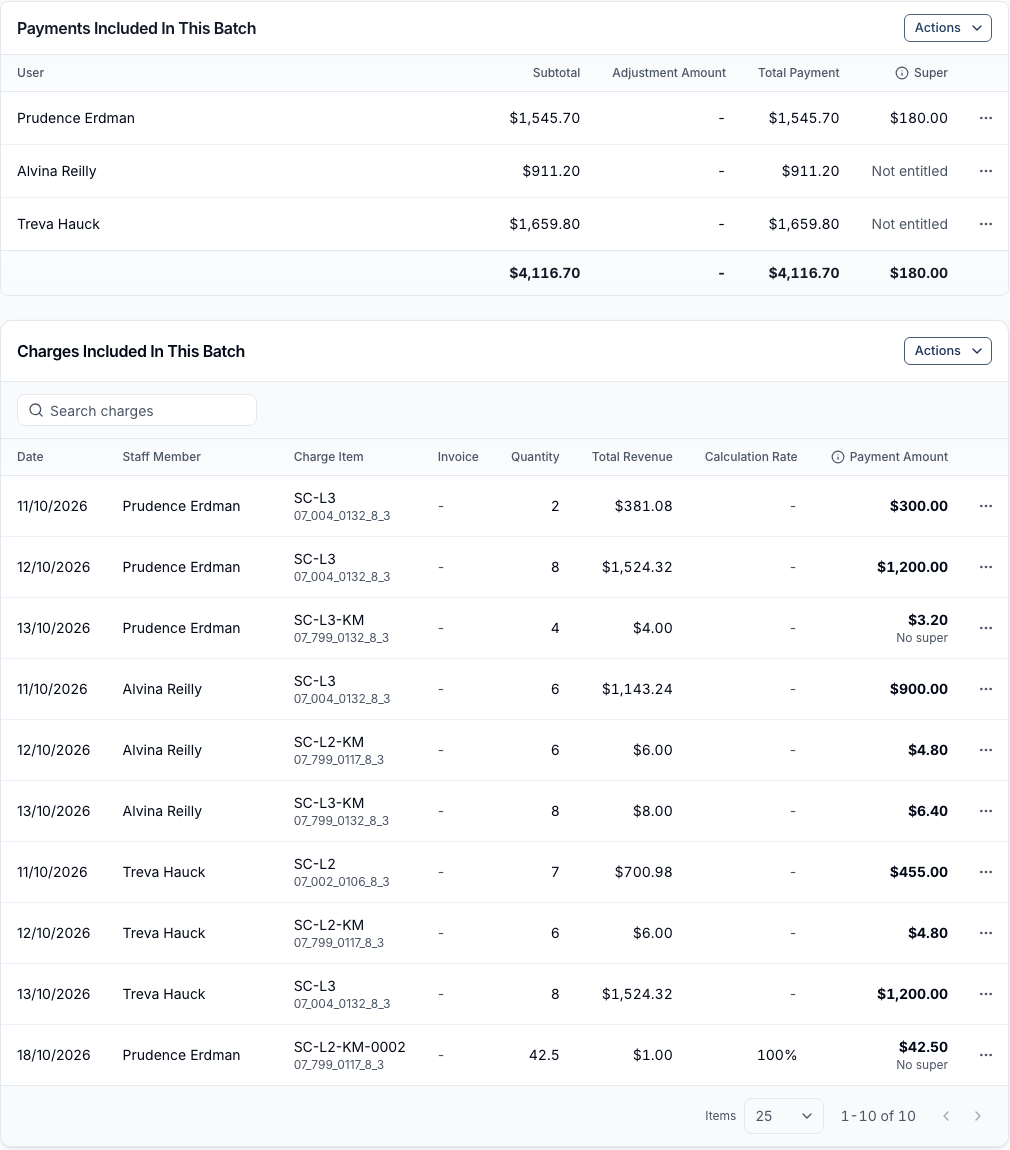
If you pay superannuation to contractors through Staff Payments, you can now see each contractor's superannuation on the batch page, in the Super column of Payments Included In This Batch, with a total for the batch. Until the batch is marked as paid, the column shows an Estimated Super amount.
For more information, visit the Superannuation guide.
Fixing Shifts With No Cost Code
If a Xero timesheet batch can't be exported because its shifts have no cost code, you can fix them all at once instead of one by one. Select Fix issue on the batch's error to open Re-evaluate Existing Records with the batch's dates set and Include timesheet batch shifts ticked, then apply the changes and validate the batch again. The guide also explains when a shift with no cost code blocks an export, and why shifts end up without one.
For more information, visit the Cost Codes and Timesheet Batches guides.
Showing Event Details on the Calendar
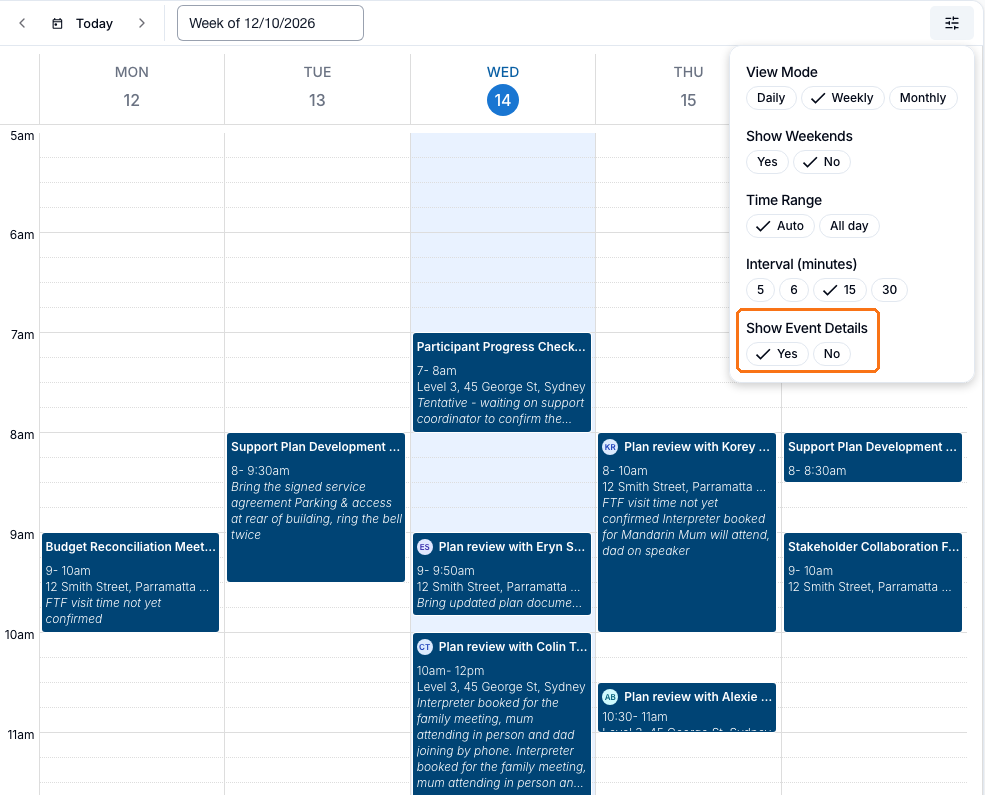
Turn on Show Event Details in the Calendar's display settings to see each event's Details on the Calendar, such as "visit time not yet confirmed", without opening the event. It works in the daily and weekly views and is remembered in the browser you set it in.
For more information, visit the Navigating the Calendar Interface guide.
Age Filter on the Participants by Diagnosis Report
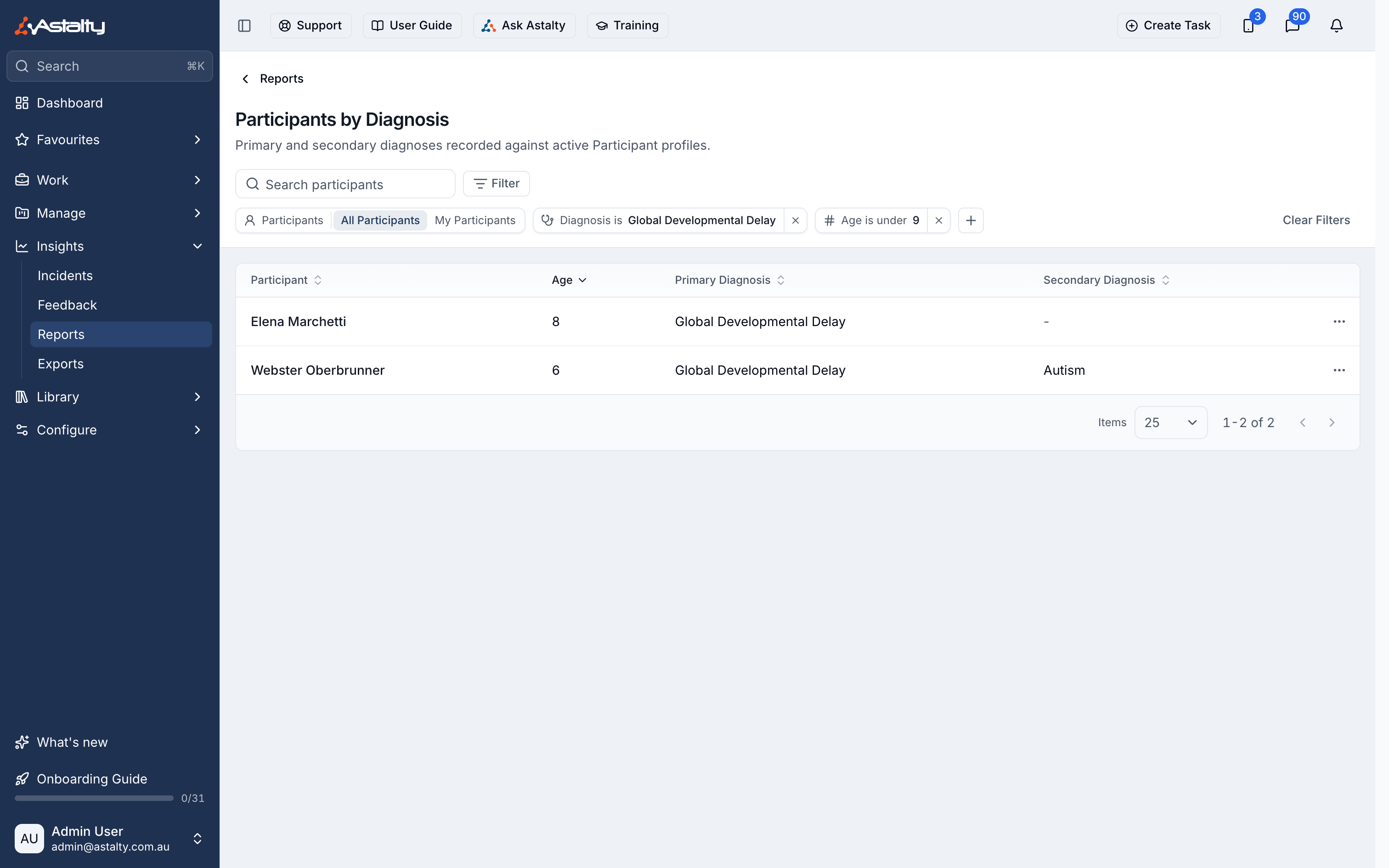
The Participants by Diagnosis Report now shows each Participant's Age and has an Age filter. For example, you can find every Participant with Global Developmental Delay who is under 9. Participants with no date of birth are left out when an Age filter is set.
For more information, visit the Participants by Diagnosis Report guide.
Site Filter on the Participant Risks Report
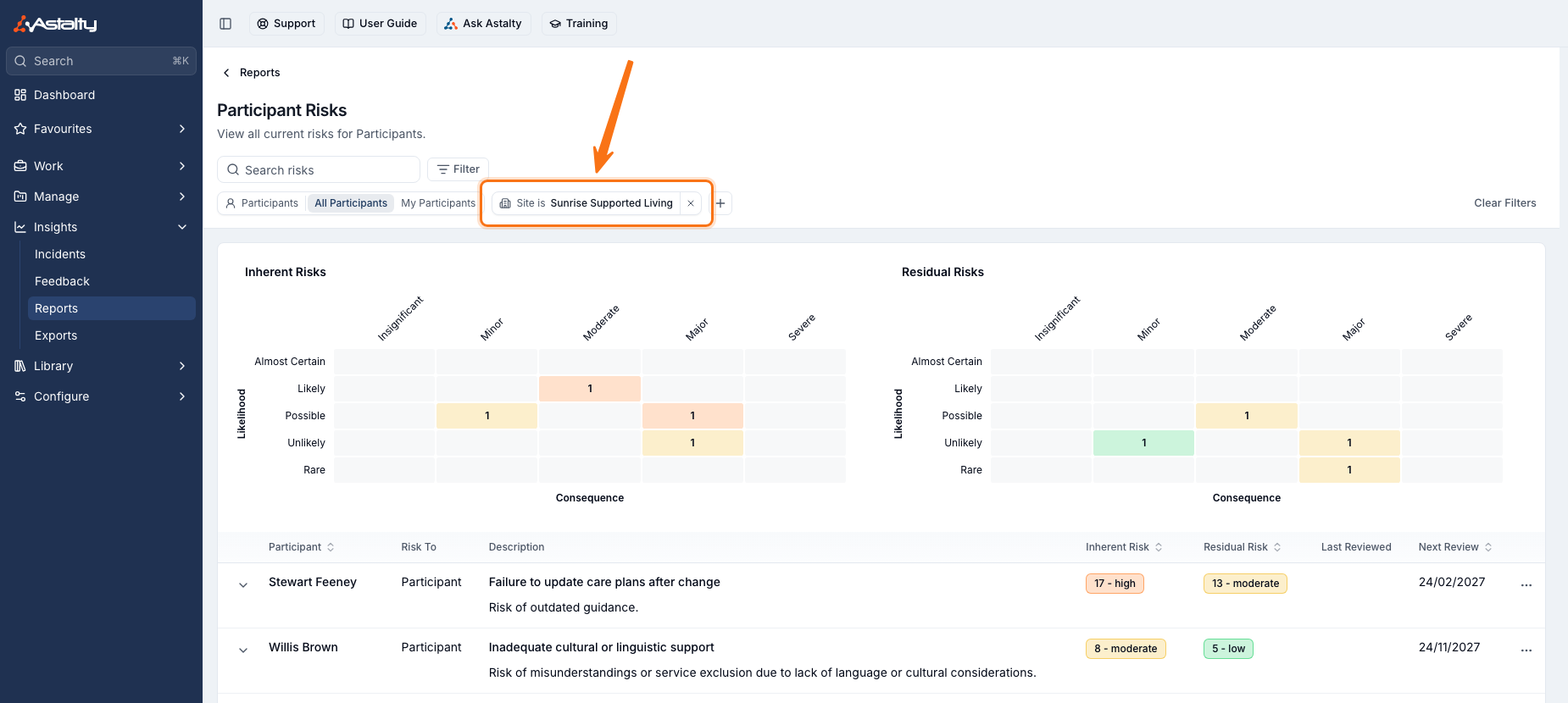
You can now filter the Participant Risks Report by Site, to review the risks of the Participants at one Site, such as a SIL house, or at several Sites. The table and both risk matrices show only those Participants.
For more information, visit the Participant Risks Report guide.
Saved Emails Show Who Was Copied In
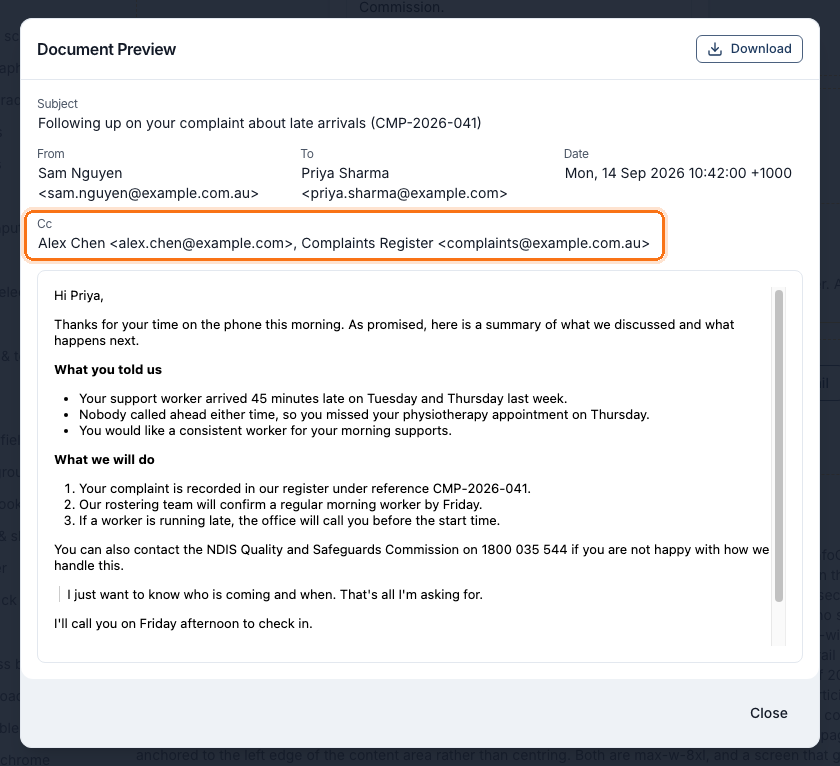
When you open an email saved to Astalty, such as one saved from the Outlook add-in, the preview now has a Cc row listing everyone who was copied in.
For more information, visit the Documents guide.
Contact Notes Shown Without Hovering
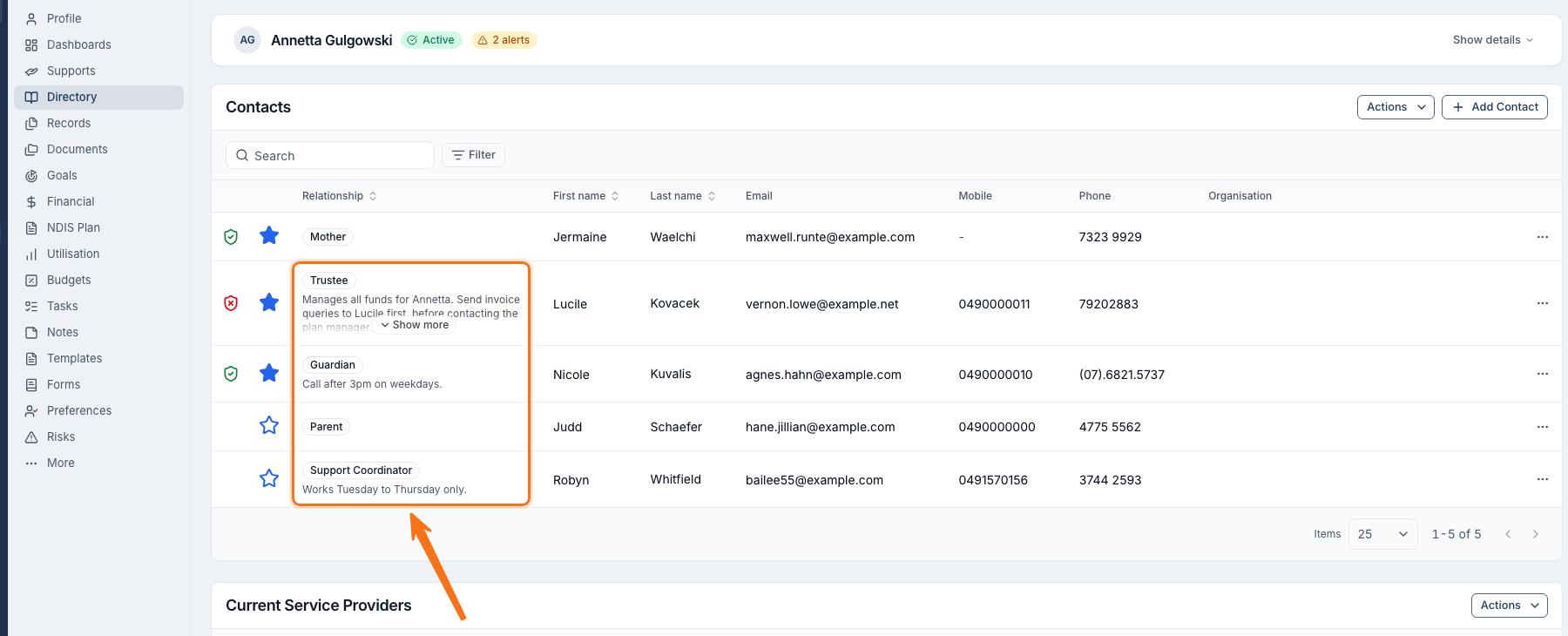
A Contact's Additional Detail note now shows under their relationship on the Participant's Contacts table and on the Starred Contacts card, so you can read it before getting in touch without hovering. Longer notes have a Show more button.
For more information, visit the Participant Contacts guide.
Filtering a Finalised Invoice Batch
When you open a finalised invoice batch, the Filter button beside the Invoices search lets you narrow its invoices by Status or by Site.
For more information, visit the Invoice Batches guide.
Owner Filter on Register Entries
A register's entries list now has an Owner filter, so you can see the entries owned by one or more people, such as your team. It includes deactivated users, so you can still find the entries of someone who has left. Owner is the person responsible for an entry; use Linked User to find entries linked to a user instead.
For more information, visit the Register Entries guide.
Plan Management Type Placeholder
Add ${PlanManagementType} to a Service Agreement template to show how the Participant's NDIS plan funds the supports in the agreement: NDIA Managed, Plan Managed or Self Managed. It's filled from the Budget you select when you generate the agreement.
For more information, visit the Available Document Template Placeholders guide.
Date of Birth in the Users Export
The Users Export now includes each user's Date of Birth.
For more information, visit the Users Export guide.
Status Changed At in the Referrals Export
The Referrals Export now includes a Status Changed At column, showing when each referral's status last changed.
For more information, visit the Referrals Export guide.