Ask Astalty Skills
A skill saves instructions you give Ask Astalty often, such as a weekly roster check or a payroll review. Run one by typing / and its trigger in a chat instead of writing the request again. You can write your own skills, or add one that Astalty has already tested from the Skills Library.
You need an AI seat to use skills. See AI & MCP Access to give one.
Run A Skill
In an Ask Astalty chat, type / followed by the skill's trigger, such as /shift-clashes. Choose the skill from the list that appears, add anything else you want to say, and send the message. You can use up to three skills in one message.
A skill runs with your own access. It never shows you a Participant, user or report you could not already open yourself, so two people running the same skill may see different results.
Find A Skill In The Skills Library
The Skills Library lists skills written and tested by Astalty, grouped by the roles they suit, such as Rostering, Payroll, Finance and Support Coordinator.
- Open Ask Astalty, then select Skills.
- Select Explore Library.
- Search for a skill, or use Role and Category to narrow the list. Sort by shows the Most used skills first, or the Trending or Newest ones.
- Select View skill to read what a skill does and the full instructions it gives Ask Astalty.
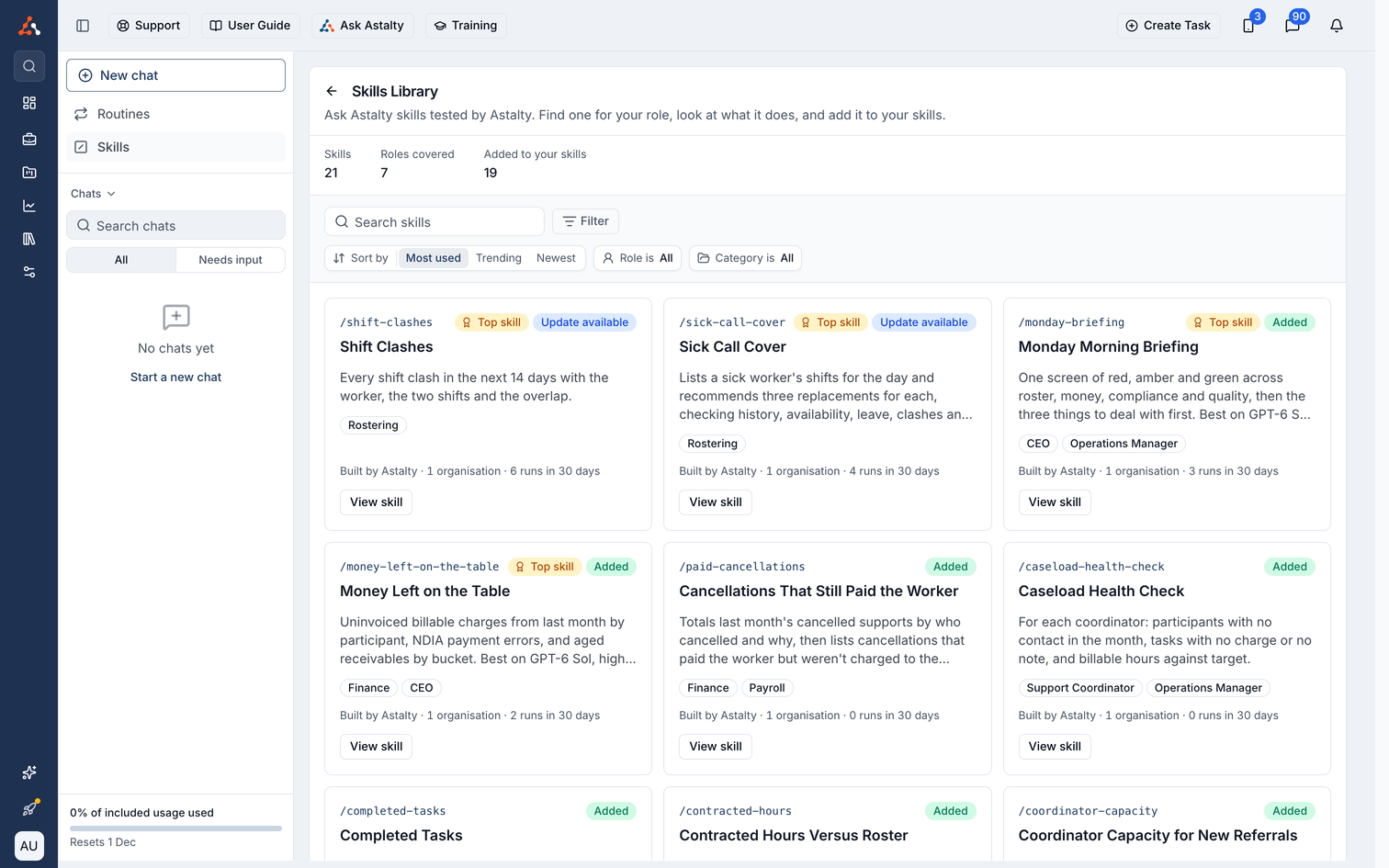
Each card shows how many organisations have added the skill and how often it ran in the last 30 days. These are totals only; the library never shows which organisations use a skill. The badges on a card mean:
- Top skill: one of the three most-run skills for one of its roles in the last 30 days.
- Added: the skill is already in your skills, or a colleague has shared their copy with you.
- Update available: Astalty has improved the skill since your copy was added.
Add A Skill From The Library
- On the skill's card or in its details, select Add to My Skills.
- Check the Trigger. It starts as the library's trigger. Change it if your organisation already has a skill with that trigger. A trigger uses lowercase letters, numbers and hyphens.
- Under Who can use it, choose Just me, or Specific users and user groups and choose the people or groups.
- Select Add to My Skills.
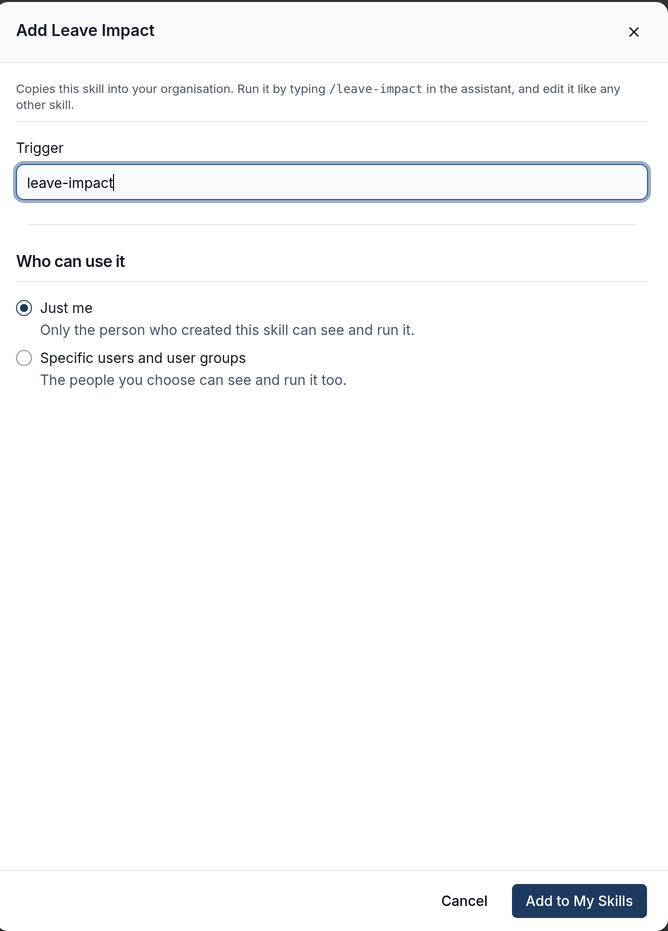
The skill is copied into your organisation and appears on the Skills page. You can run it straight away and edit it like any other skill.
Get The Latest Version Of A Library Skill
When Astalty updates a library skill, your copy shows Update available on the Skills page and in the library. Updating is your choice; your copy keeps working as it is until you update it.
To update, select Get Latest Version from the skill's three-dot menu on the Skills page, or from its details in the library, then select Update to confirm.
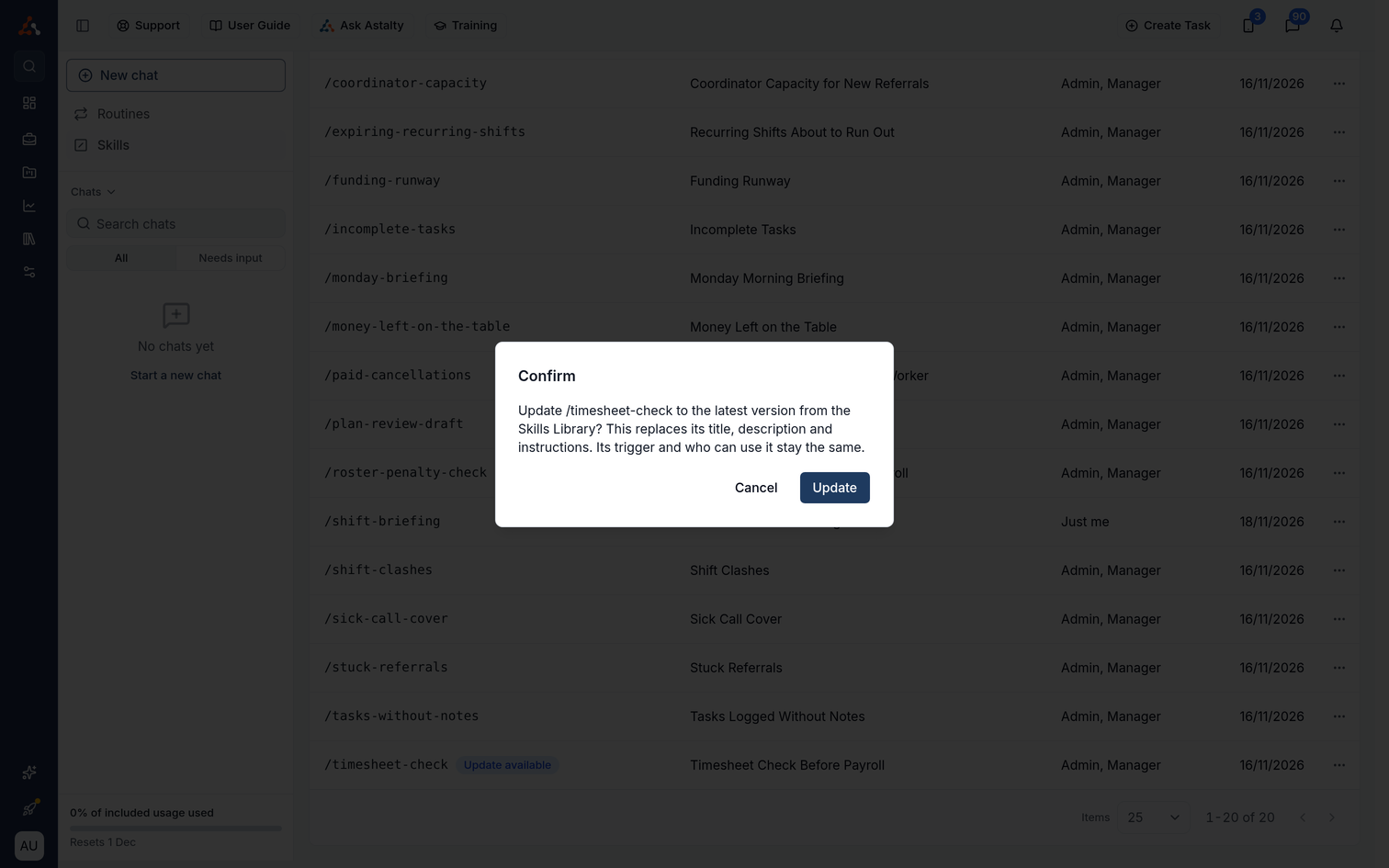
The person who added the skill can update it. An Admin can also update a copy that is shared with them.
Create Your Own Skill
- Open Ask Astalty, then select Skills.
- Select Create Assistant Skill.
- Enter a Trigger, a Title and the Instructions you want Ask Astalty to follow. A Description is optional.
- Under Who can use it, choose who can see and run the skill.
- Select Create.
To change a skill later, open its three-dot menu on the Skills page and select Edit. Only the person who created a skill, or an Admin it is shared with, can edit it.