- Changelog
- 17 September 2026
17 September 2026
Public Holiday Notifications
Astalty can remind your team before a public holiday, so the supports scheduled that day can be reviewed and manual charges corrected before they bill at the wrong rate.
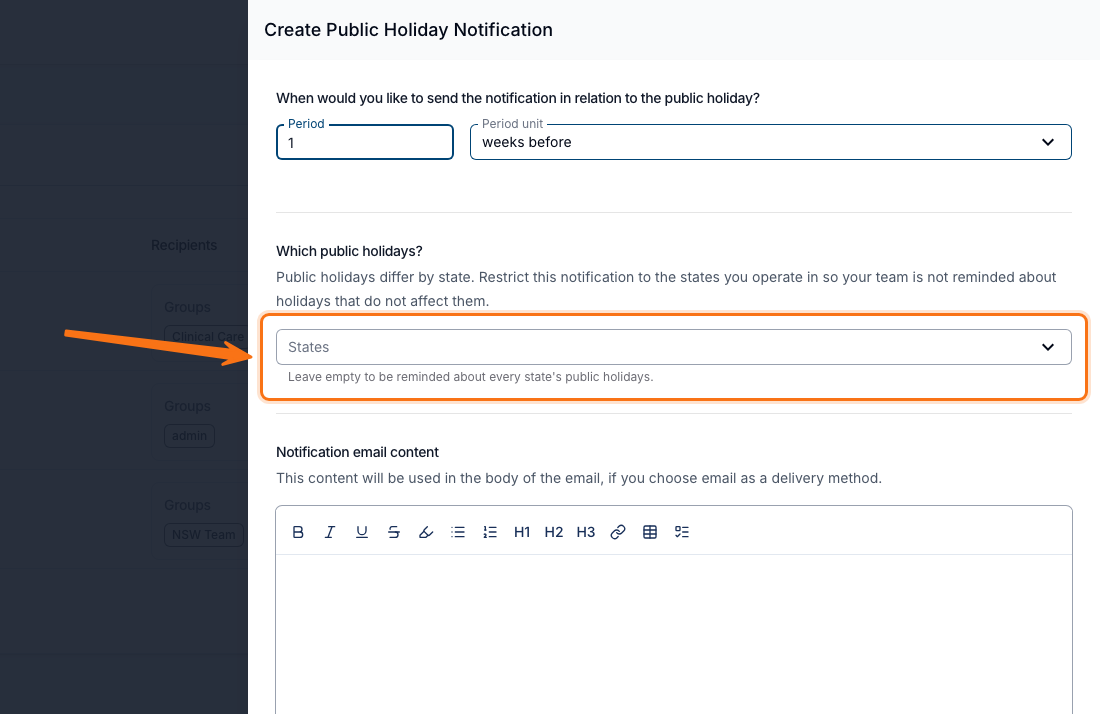
- Set them up under Notifications → Scheduling → Public Holidays - nothing is sent until you create one
- Choose on the day, days before or weeks before, with a Period from 1 to 365; the Period field is disabled on on the day
- Restrict it to particular States, or leave the field empty to hear about every state's public holidays, including manually added local ones
- Notify User Groups or Users - at least one recipient and one method (Within Astalty, Email) is required. The Team Member group covers Team Members only, so add Admin and Manager as well
- The alert reads "Public holiday coming up - Christmas Day", names the states where a holiday is observed in only some of them, and carries a View Public Holiday Supports Report button
- A holiday observed everywhere sends one reminder, not one per state, and Public Holiday Groups aren't taken into account - a local holiday still reminds anyone watching that state. Requires the Scheduling add-on
For more information, visit the Public Holiday Notifications guide.
One Threshold for Broken Shift Alerts and the Allowance
Set the Broken Shift Minimum Gap and it now decides both halves of a broken shift - the roster alerts a scheduler sees, and the Broken Shift Allowance paid on a timesheet. A gap that pays the allowance also warns the person rostering it.
- The setting sits in the Smart Award Alerts area of Settings → Scheduling, as a whole number of minutes from
0to599 - With a value set, gaps up to that length count as continuous work; only a longer gap between two same-day shifts forms a broken shift, raising the Broken Shift Periods alert and, on a day of 2 or 3 work periods, paying the allowance
0makes every break count, though shifts that run straight into each other with no gap are still continuous work- Left empty, both sides now use the same standard rule: the day forms a broken shift once the next shift starts more than 2 hours after the earlier one began, or after it ends, whichever is later - so a 45-minute break after a 3-hour shift both pays the allowance and warns the scheduler
- Two same-day shifts more than 10 hours apart count as separate engagements rather than a broken shift, and no longer raise the alert
- A broken shift now raises its alert in the Suggested Support Worker table as well, so the scheduler sees it while choosing a worker rather than only on the roster
- Where Broken Shifts is set to Prevent Selection, a broken shift alert now stops the worker being assigned. Previously it was the one category the setting never blocked. A small gap can block rostering that a larger one allows. Requires the Scheduling add-on
For more information, visit the Scheduling Award Alerts guide.
Claiming Short Term Accommodation by the Hour
From the 1 July 2026 NDIS price guide, Short Term Accommodation is claimed by the hour rather than by the day. The respite guide has been rewritten around the new line items, and two Charge Item Set presets set them up for you.
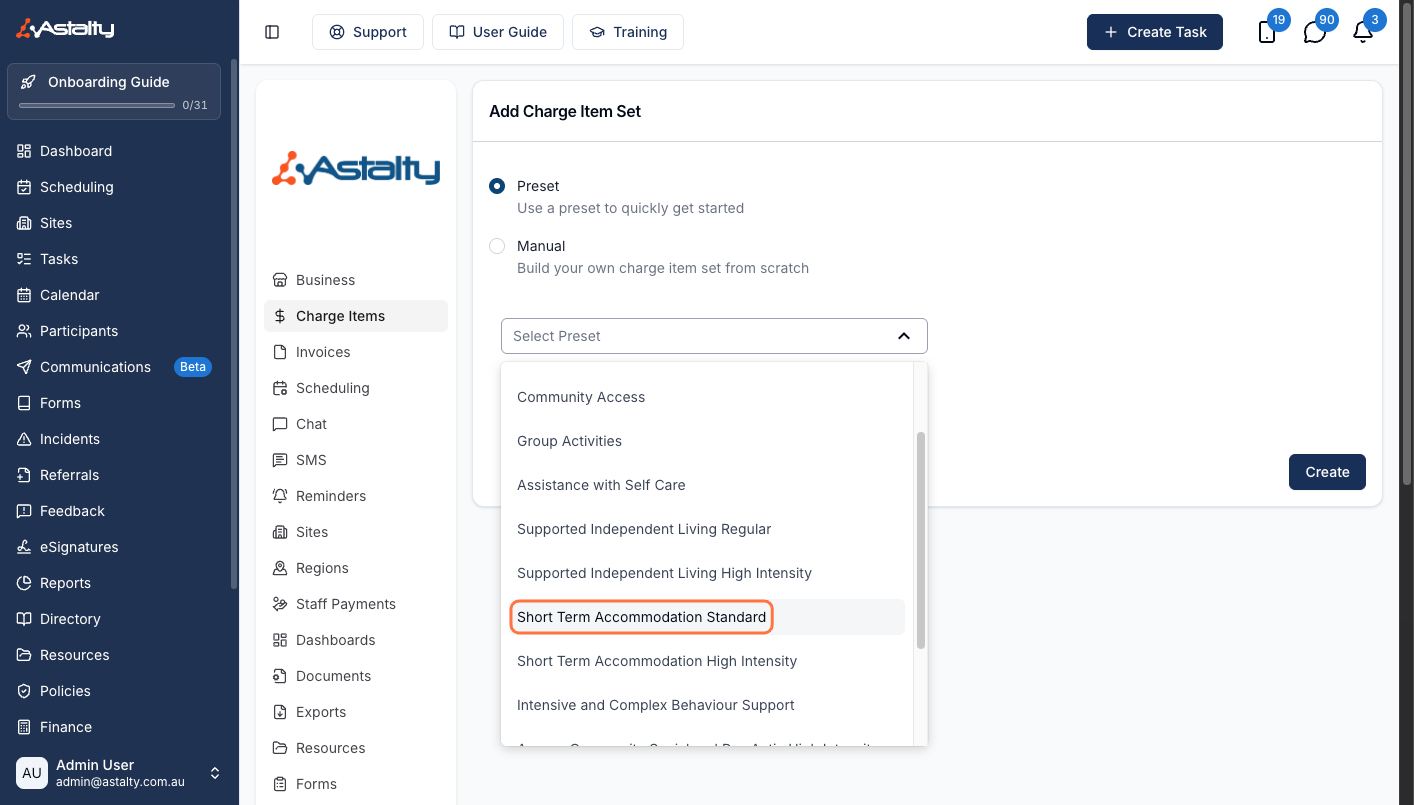
- The hourly items replace STA And Assistance (Inc. Respite) 1:1 to 1:4, which stay claimable until 30 June 2027
- Add a Short Term Accommodation Standard or Short Term Accommodation High Intensity preset under Settings → Charge Items → Add Charge Item Set; each fills in weekday daytime, evening and night, Saturday, Sunday and public holiday rates for your Region, plus the per-night sleepover item
- They are the only presets that include no provider travel Charge Item - add those yourself if you charge provider travel on respite
- Accommodation is claimed per day and raised as a Direct Charge rather than put in the Charge Item Set, which would bill it on every shift: Short Term Accommodation - Participant Accommodation (
01_250_0115_1_1) and - Support Worker Accommodation (01_251_0115_1_1), quantity in days, one per night, with a Claim type of Direct Service - Set the Service's Support category to the
01Assistance with Daily Life category - every STA line item sits there, and a Charge Item can only belong to one Service at a time - Roster with a Support Type of Short-Term Accommodation and Astalty charges each shift against the matching item, so there is no quantity to work out by hand; use a sleepover window for an on-site overnight. Requires the Scheduling add-on
For more information, visit the How to Claim for Respite guide.
Information Items Required by Participant Tag
An Information Item can be made mandatory only for Participants carrying particular Tags - a communication plan required for everyone tagged Non Verbal, without asking for it on every profile.
- Tick Required for some participant tags on the Information Item, then choose the tags in Required for participant tags
- Matching is any one of the tags you select: a Participant carrying any of them has to provide the details, and everyone else is unaffected
- The requirement follows the tag - it applies the moment the tag is added and lifts when it is removed, though details already saved stay on the profile
- Required and Required for some participant tags are mutually exclusive; ticking one disables the other, and unticking the tag option clears the selected tags on save
- The list reads Required for everyone, Required for Non Verbal for a single tag, or Required for 5 tags for several
- A required item is listed on the Participant's profile without being added first, so it no longer appears under Add Item
For more information, visit the Information Items guide.
Three New NDIA Plan Request Forms
The NDIA has retired the Change of Details or Change of Situation Form and split it into three, each with its own tile in Astalty.
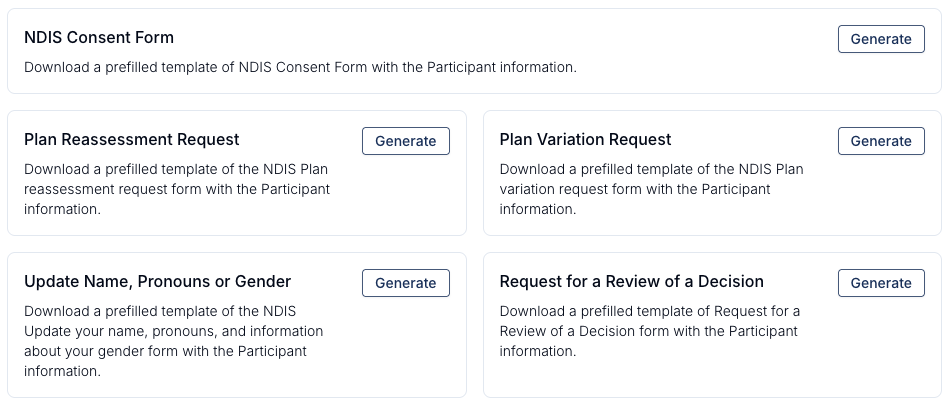
- Plan Reassessment Request asks for a whole new plan, Plan Variation Request for an urgent, short-term or minor change to the current one, and Update Name, Pronouns or Gender where the recorded details change
- The Change of Details or Situation tile is gone - the NDIA rejects submissions on that form under rules that took effect 27 August 2026
- Part A: Participant Details is pre-filled read-only from the profile; correct anything wrong on the Participant profile rather than in the form
- Part B asks "Who will be completing this form?" - picking a representative reveals Select a Contact and writes their details in, and picking your own name (you) writes yours. Plan Reassessment Request has no (you) option, because the NDIA accepts it only from the Participant, plan nominee, child representative or legal guardian
- Astalty fills in the signer's details but doesn't tick which relationship they hold - tick it yourself in Part B before submitting
- The consent form's plan-change option now reads Ask for a plan variation; regenerate a fresh consent form rather than reusing one saved before 27 August 2026, which the NDIA is rejecting. NDIA templates are part of Astalty Premium
For more information, visit the NDIA Templates guide.
Tags on the Contacts and Plan Managers Exports
Both exports carry a Tags column, so the Tags you organise by in Astalty come out in the file.
- Tags are listed alphabetically, separated by a comma, and the column is blank where nothing is tagged
- The Contacts Export has one row per contact, sorted by last name, and leaves archived contacts out
- The Plan Managers Export has one row per Plan Manager, sorted by name, and does include archived ones - marked Archived under Status
- The Plan Managers Export's full column list is documented for the first time: Name, ABN, Website, Portal Link, Status, Tags, the contact's first name, last name, email, landline and mobile, and Invoice Email
- Create either one from Exports → Create Export under the Directory group
- An export taking longer than about 20 seconds emails you when the file is ready
For more information, visit the Contacts Export and Plan Managers Export guides.