Adding a Flexible Group Shift
Overview
A Flexible Group Support is a group shift built from blocks instead of a shared billing ratio. Each Support Worker's shift is split into one or more blocks - a time window, the Participants covered in it, and a Charge Item Set per Participant - so one worker can bill different Participants at different rates across the same shift. For the standard ratio-based group shift, see Adding a Group Shift.
Use Flexible instead of an ordinary Group Support when workers don't all cover the same Participants at the same rate.
Understanding Blocks
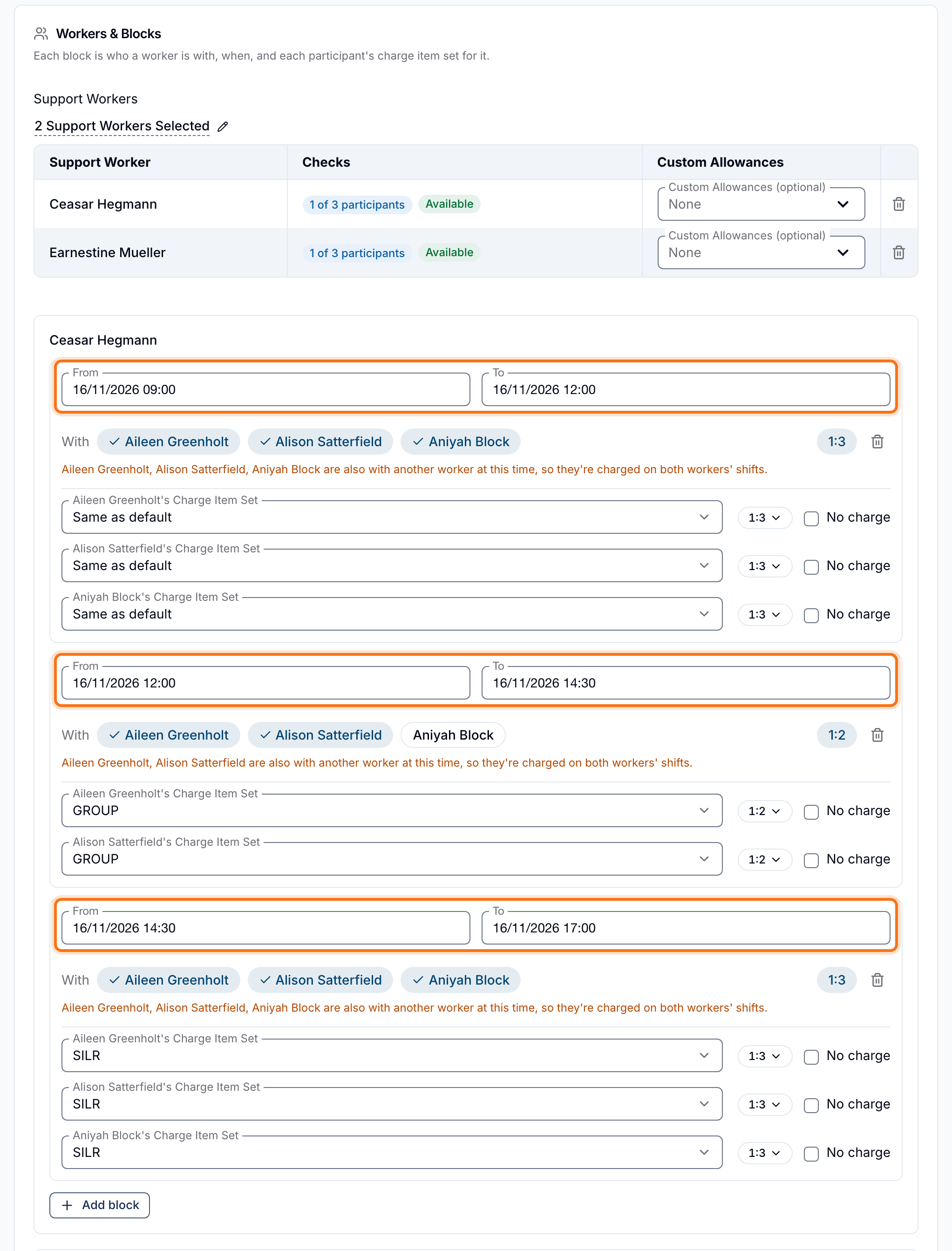
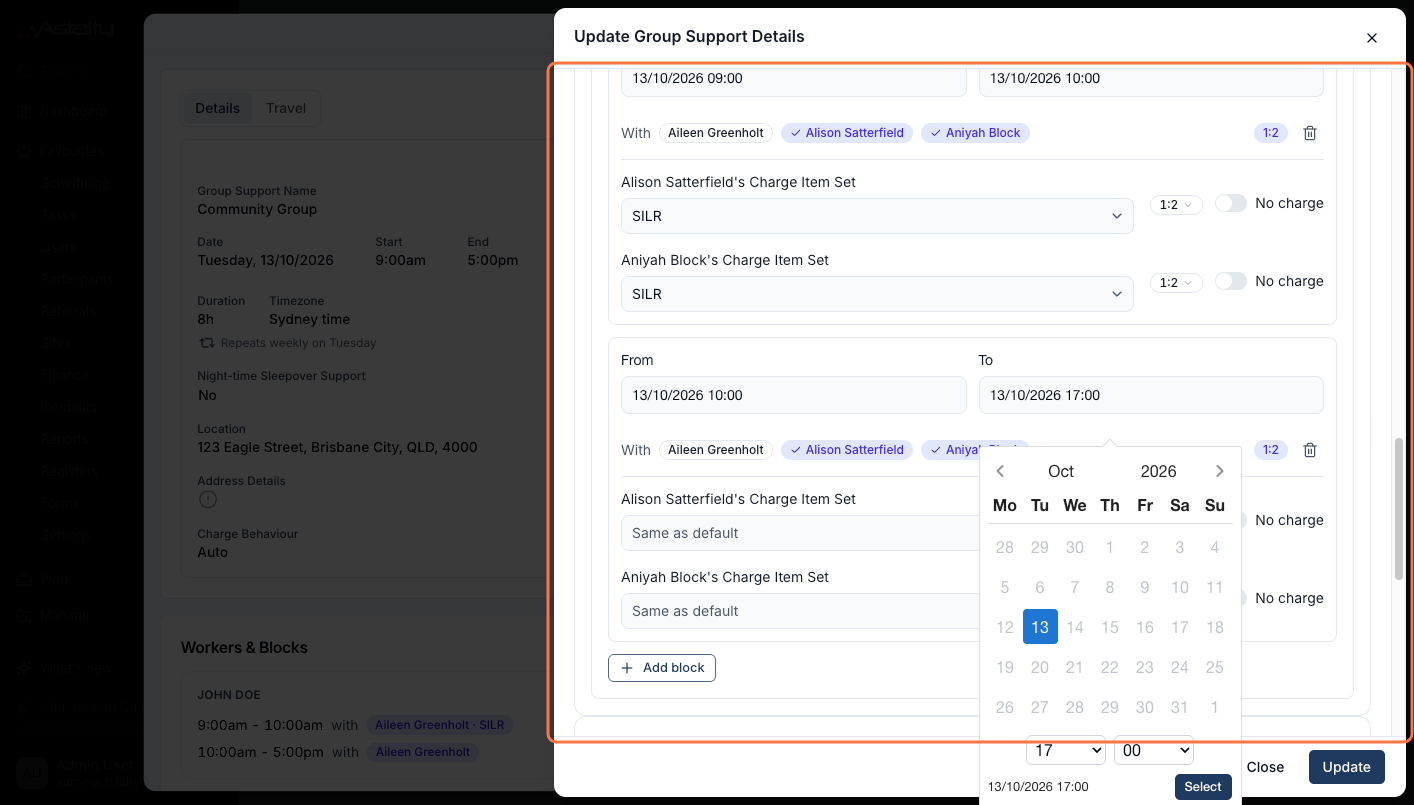
- A block belongs to one Support Worker. It has its own From/To time (a window inside the worker's shift) and the Participants the worker is With during it.
- Each Participant in a block carries its own Charge Item Set, defaulting to Same as default - the Charge Item Set chosen for that Participant when they were added to the support. Pick a different set to bill that block against a different rate for that Participant only.
- The ratio shown next to a block (e.g.
1:2) is the worker against however many Participants are ticked With for that block. - Toggle No charge on a Participant within a block to keep them in the headcount without billing them.
- A worker's blocks must cover their whole shift with no gap between the first start and the last end. Add block defaults to filling the next open window, so building blocks back-to-back is the normal flow.
- Blocks for different Participants on the same worker can overlap - that's how a Participant joins mid-block. A worker can't have two blocks covering the same Participant at the same time.
- A worker holds at most one shift on a Flexible Group Support - you can't add the same worker twice.
How to Create a Flexible Group Support
Navigate to the Schedule
From the left-hand menu, click Schedule, then click Add Shift.
Select the Event Type
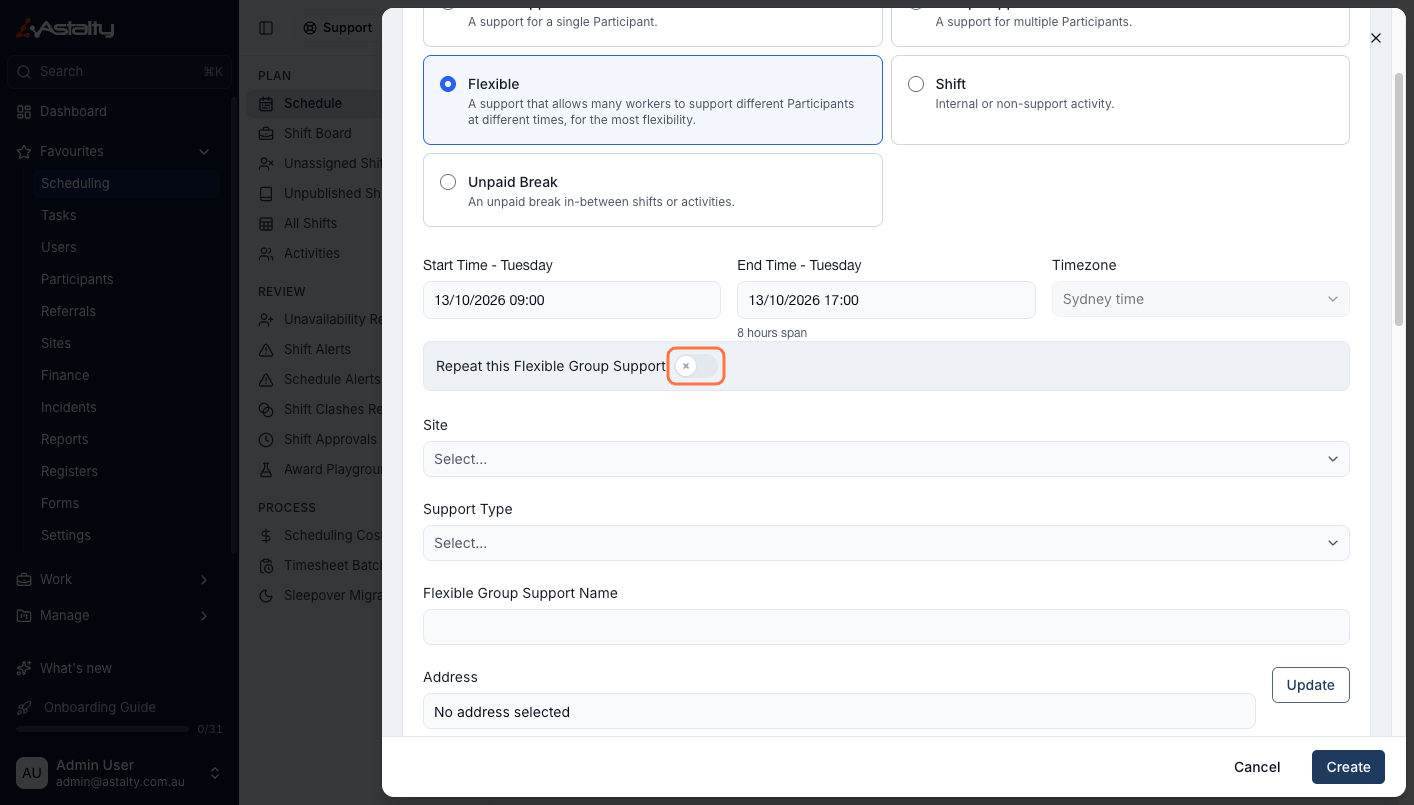
Choose Flexible - "A support that allows many workers to support different Participants at different times, for the most flexibility."
Set the Time and Repeat
Set the Start Time and End Time, and the Timezone. Toggle Repeat this Flexible Group Support to set the recurrence - see Recurring Shifts.
Select the Site and Support Type
Choosing a Site restricts the Participant list to that Site. Choose the Support Type from the searchable dropdown - see Support Types.
Name the Flexible Group Support and Set the Address
Enter a name in Flexible Group Support Name, then click Update next to Address to look up or enter the location the group is actually at.
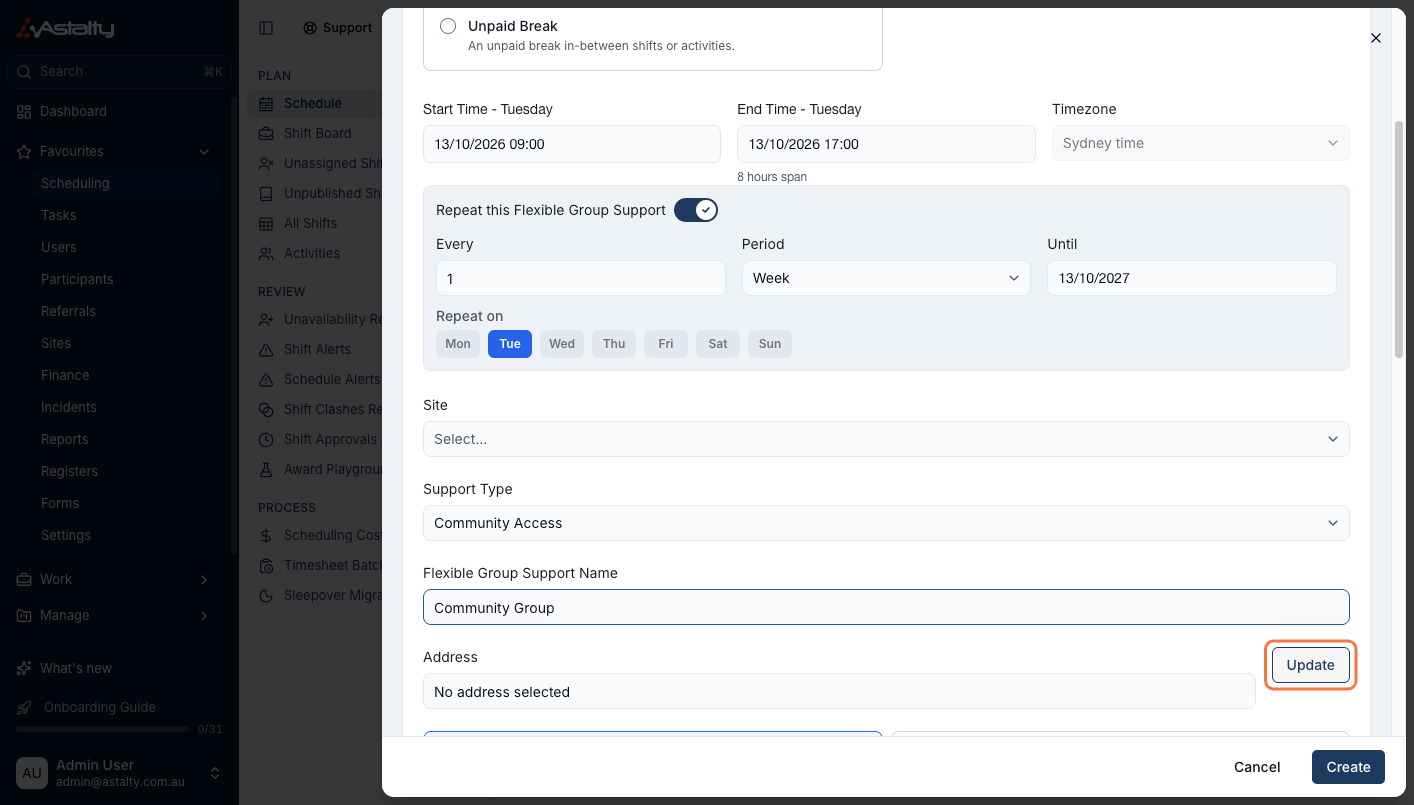
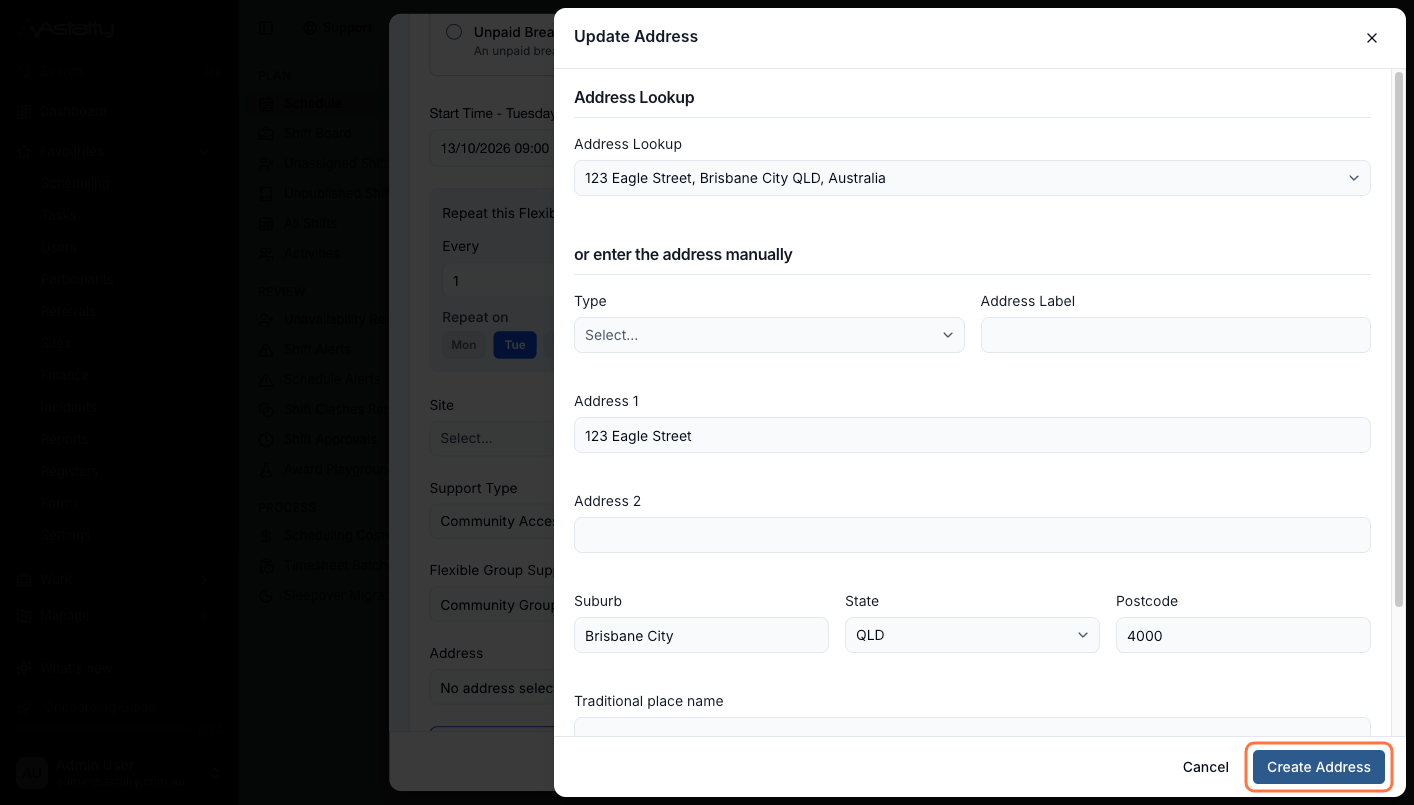
In the Update Address window, search Address Lookup for an existing address, or use or enter the address manually to add a new one, then click Create Address.
Set the Charge Option
Choose Automatic Charges or Manual Charges, and toggle This flexible group support includes Centre Capital Costs if it applies - see Centre Capital Costs.
Select Participants
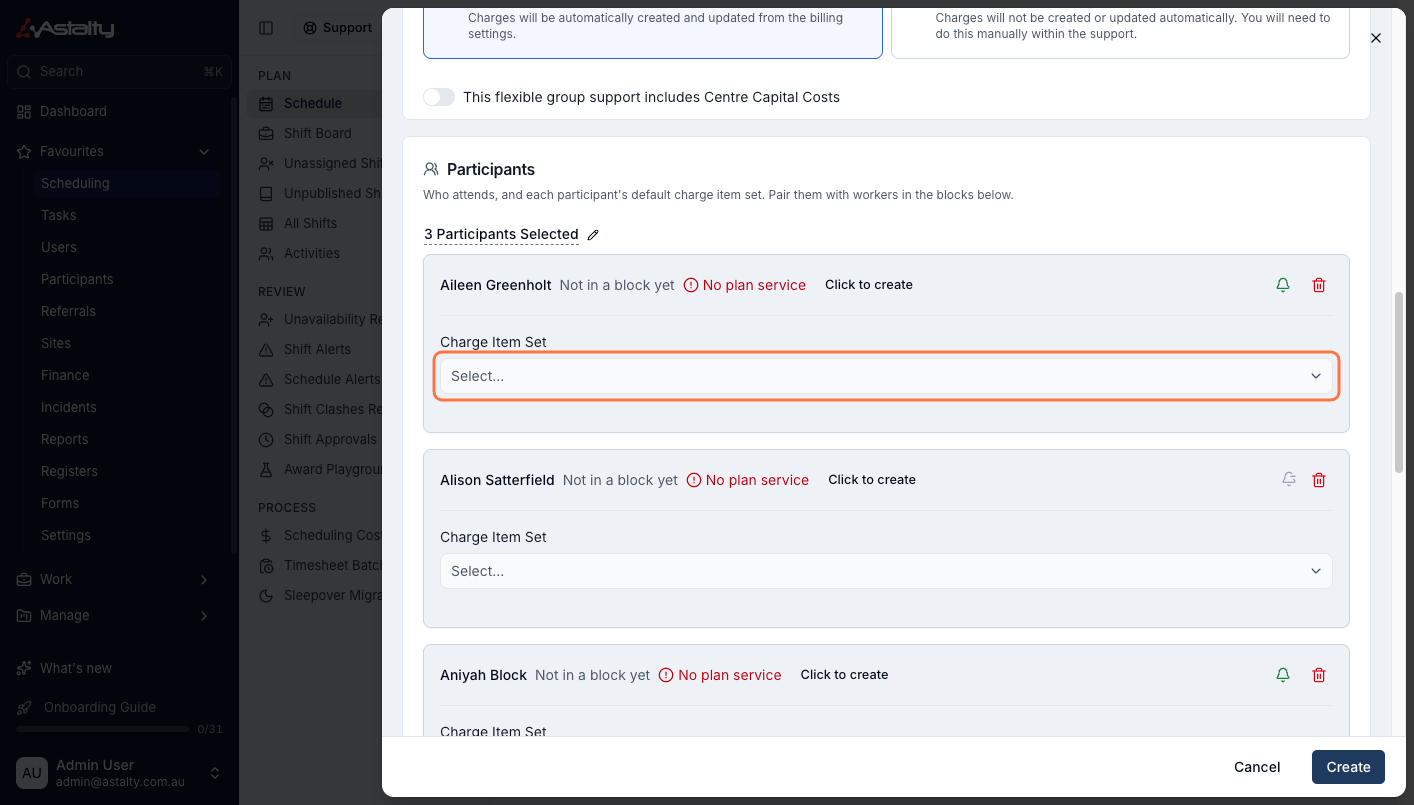
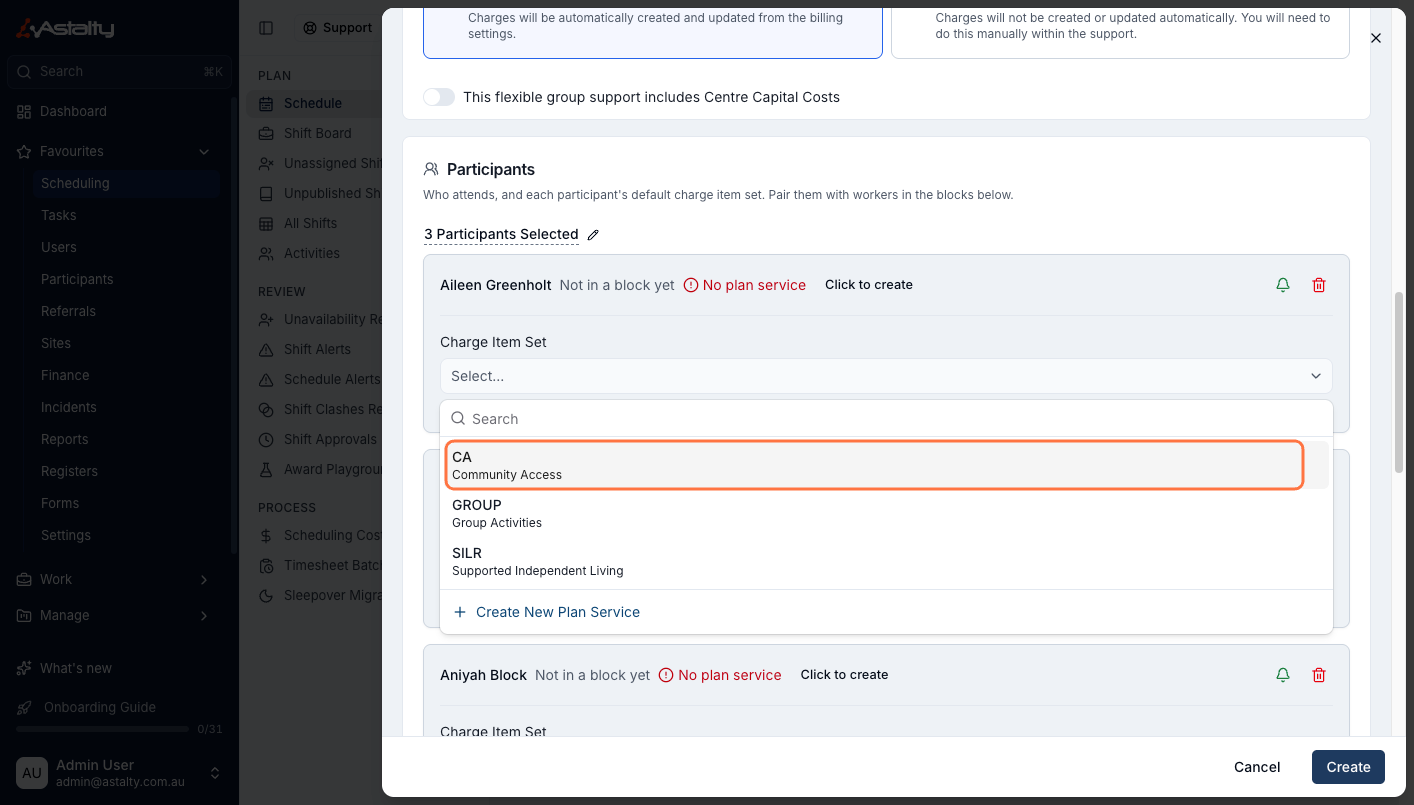
Click No Participants Selected and tick each Participant attending. For each one, choose their Charge Item Set - this is the rate a block falls back to for that Participant when left on Same as default.
Funding Utilisation shows each Participant's funding for their Services, with what this support adds for them when it uses Automatic Charges. See Checking Funding While You Book.
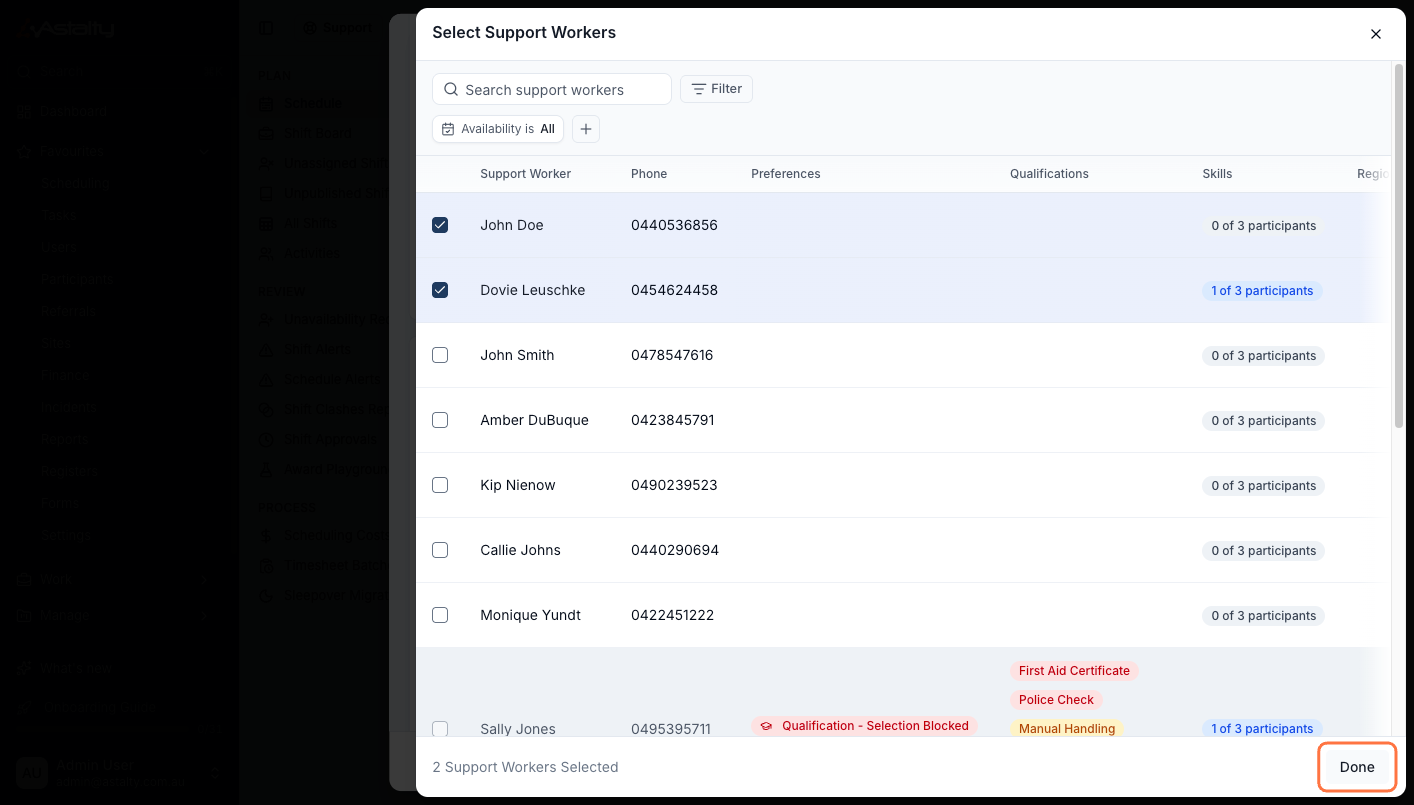
Select Support Workers
Click No Support Workers Selected, tick each worker delivering the support, then click Done. Use Add unassigned shift instead to reserve a slot without naming a worker yet.
If your account uses custom allowances, choose any that apply to each worker in their Custom Allowances (optional) field.
Build Each Worker's Blocks
A newly added worker shows "No blocks yet, so this shift bills nothing." For each worker:
- Click Add block. The From/To defaults to the next open window in that worker's day.
- Tick which Participants the block is With.
- Leave each ticked Participant's Charge Item Set on Same as default, or pick a different set to bill that Participant at a different rate for this block only. Toggle No charge to include a Participant without billing them.
- Click Add block again to add the worker's next window - it picks up where the previous block left off, so the worker's blocks stay gap-free.
Repeat for every worker, then toggle Includes paid meal break if one applies.
Add Support and Admin Details
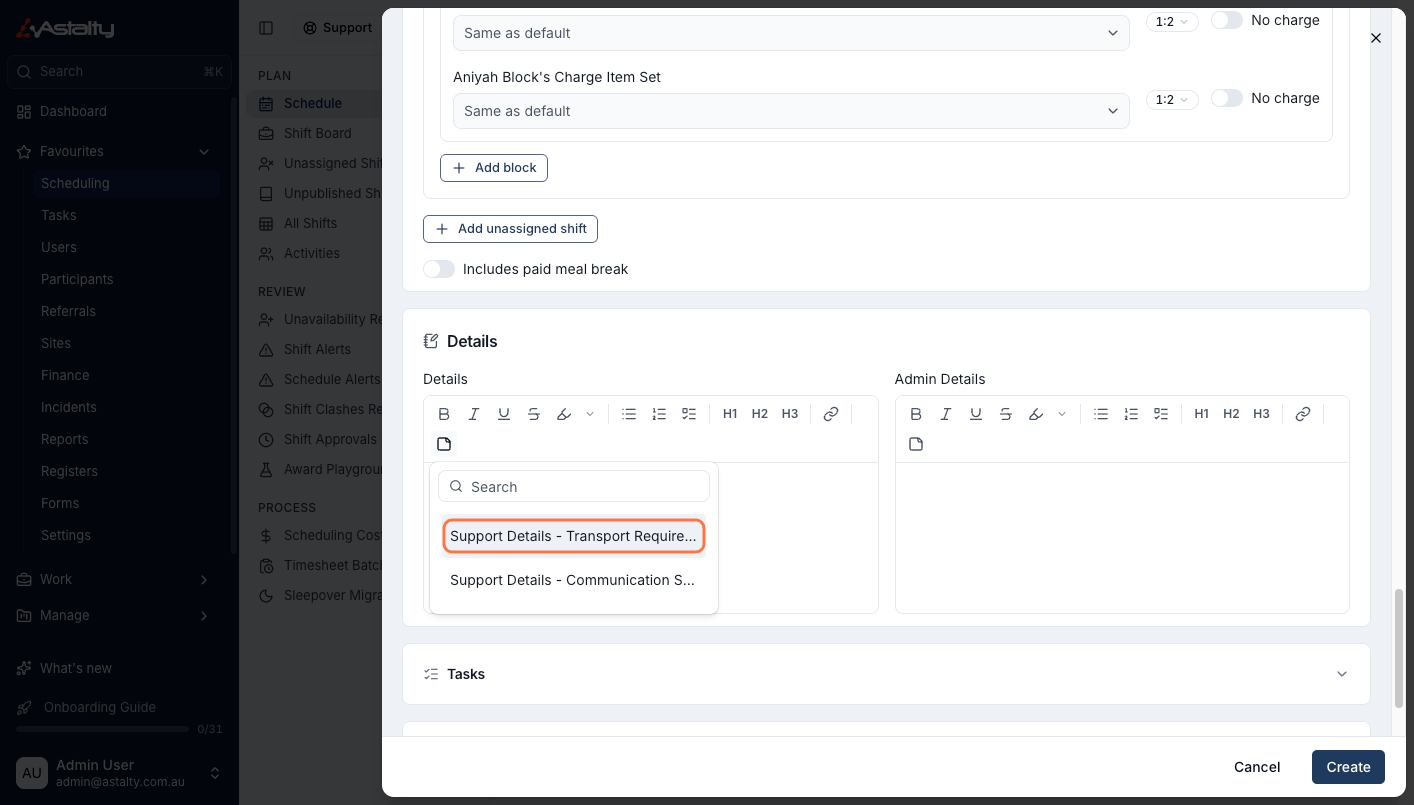
Enter Details (visible to Support Workers) and Admin Details (desktop only). Click the note-template icon to Insert note template - see Note Templates.
Create the Shift
Once all details are complete, click Create.
Editing a Flexible Group Support
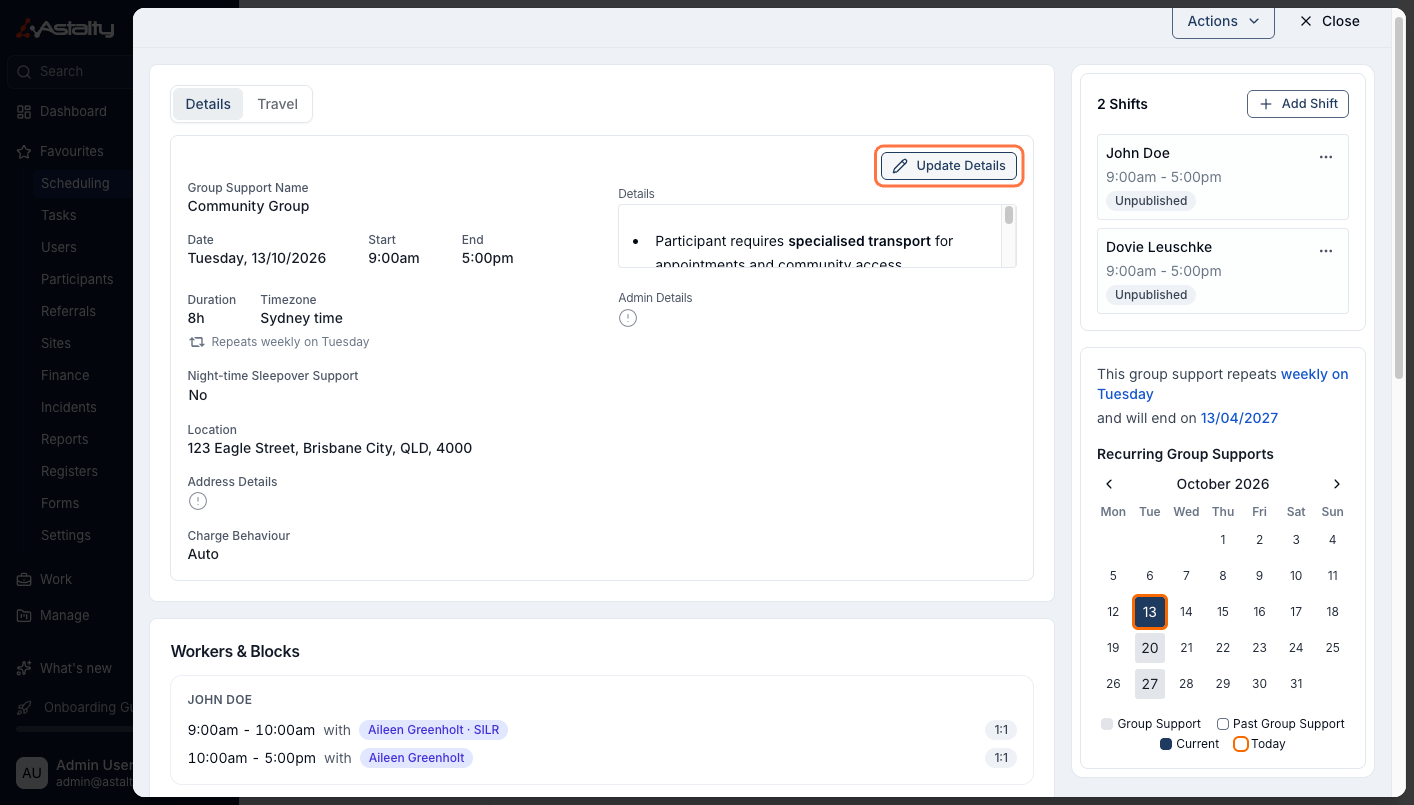
Open the Support and click Update Details. You can change the Group Support Name, Support Type, Site, Start/End time, Charge Behaviour, and the blocks themselves - add, resize or reassign them the same way as at creation.
Things to Keep in Mind
- A Flexible Group Support's billing ratio always comes from its blocks - there's no whole-group ratio override, and Support Time Segments aren't available.
- A worker can hold only one shift per Flexible Group Support.
- "Same as default" bills a Participant on the Charge Item Set chosen for them in Select Participants - picking a different set in a block overrides it for that block only.