- Changelog
- 9 April 2026
9 April 2026
Chat
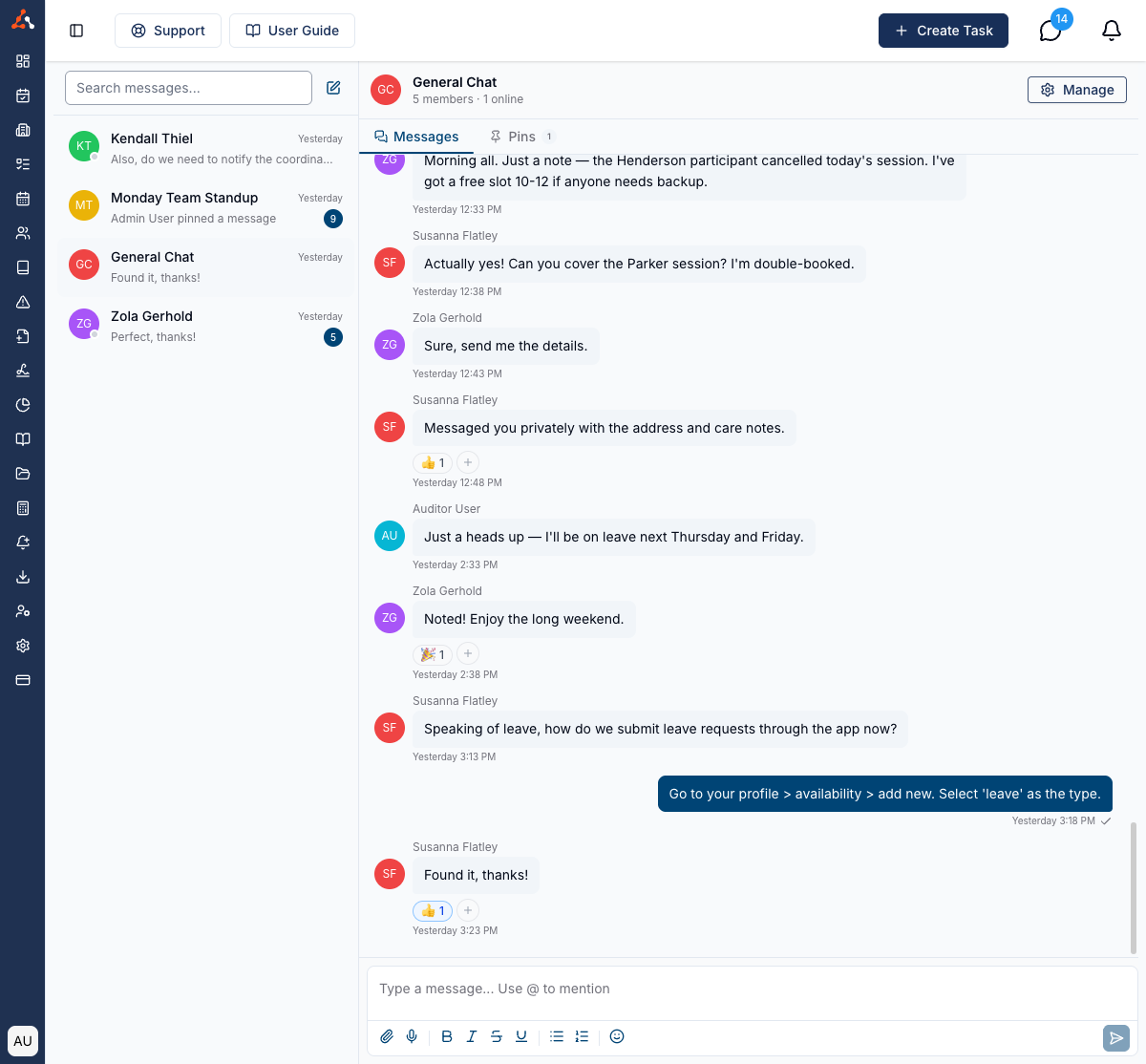
We’ve introduced Chat (Beta), Astalty’s built-in messaging feature that enables teams to communicate directly within the platform.
Chat supports real-time communication across your organisation, including:
- Direct messages for private, one-on-one conversations
- Group channels for team, location, or topic-based discussions
- A structured chat interface with a channel list, message threads, and compose area
- Full conversation history, with the ability to scroll and search across messages
- Rich messaging features, including formatting, file attachments, mentions (@), reactions, and pinned messages
- System messages to track activity (e.g. members added, channels updated, pins)
- Notifications for mentions and new messages
- Online presence indicators to see who is available in real time
For administrators and authorised users, Chat also includes:
- Creation and management of group channels and members
- Ability to link User Groups for automatic channel membership syncing
- Control over Chat settings and permissions (e.g. message editing, deletion, history visibility)
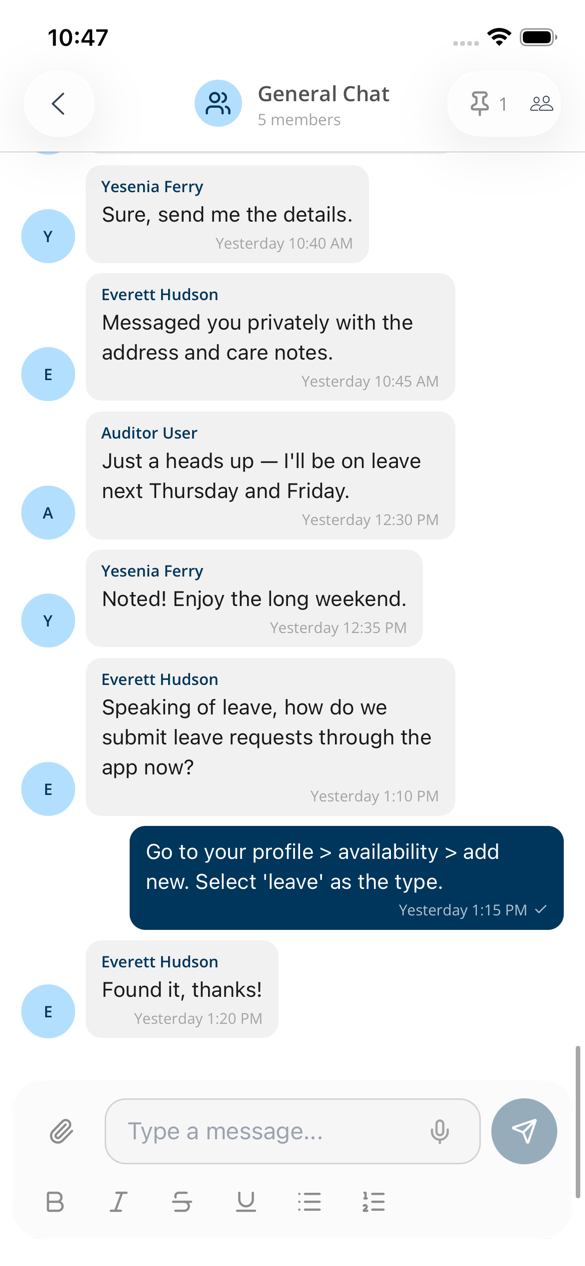
Chat is accessible via both the web platform and mobile app, providing a consistent communication experience across devices.
Important:
- This feature is currently in Beta and must be enabled on your account. Please reach out to support@astalty.com.au to have this feature enabled on your account.
- Available functionality may vary depending on your role and permissions (e.g. support workers vs admins).
For more information, visit the following guides:
Other Improvements
- Filter by Task Invoiced Status
- Adding Additional Recipients for e-signatures
- Setting Required Records by Participant Tags
- Incident Collaborators
- Sending Multiple User Records for Signing
- Participant Documents Report
- Preferred Names now in Participant Export
- Travel Evidence Policy
Chat
We’ve introduced Chat (Beta), Astalty’s built-in messaging feature that enables teams to communicate directly within the platform.
Chat supports real-time communication across your organisation, including:
- Direct messages for private, one-on-one conversations
- Group channels for team, location, or topic-based discussions
- A structured chat interface with a channel list, message threads, and compose area
- Full conversation history, with the ability to scroll and search across messages
- Rich messaging features, including formatting, file attachments, mentions (@), reactions, and pinned messages
- System messages to track activity (e.g. members added, channels updated, pins)
- Notifications for mentions and new messages
- Online presence indicators to see who is available in real time
For administrators and authorised users, Chat also includes:
- Creation and management of group channels and members
- Ability to link User Groups for automatic channel membership syncing
- Control over Chat settings and permissions (e.g. message editing, deletion, history visibility)
Chat is accessible via both the web platform and mobile app, providing a consistent communication experience across devices.
Important:
- This feature is currently in Beta and must be enabled on your account. Please reach out to support@astalty.com.au to have this feature enabled on your account.
- Available functionality may vary depending on your role and permissions (e.g. support workers vs admins).
For more information, visit the following guides:
Filter by Task Invoiced Status
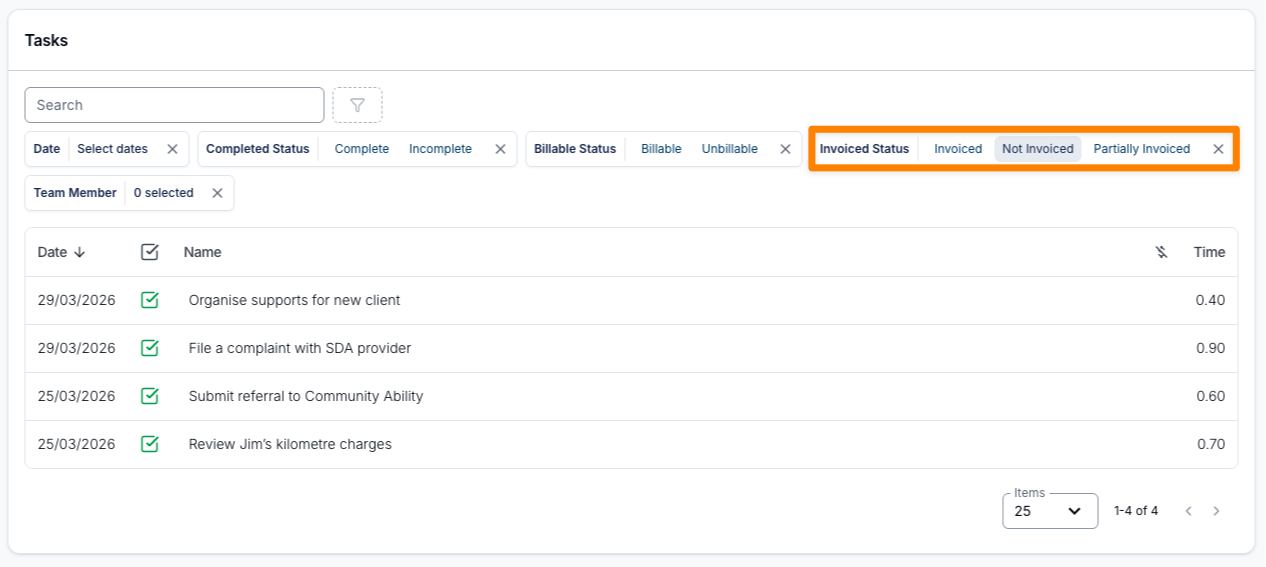
Users can new refine search results within a Participant's Tasks menu to improve visibility of Task billing progress, make outstanding invoice items easier to identify, and support more accurate tracking of Task status.
For more information, visit the Tasks guide.
Adding Additional Recipients
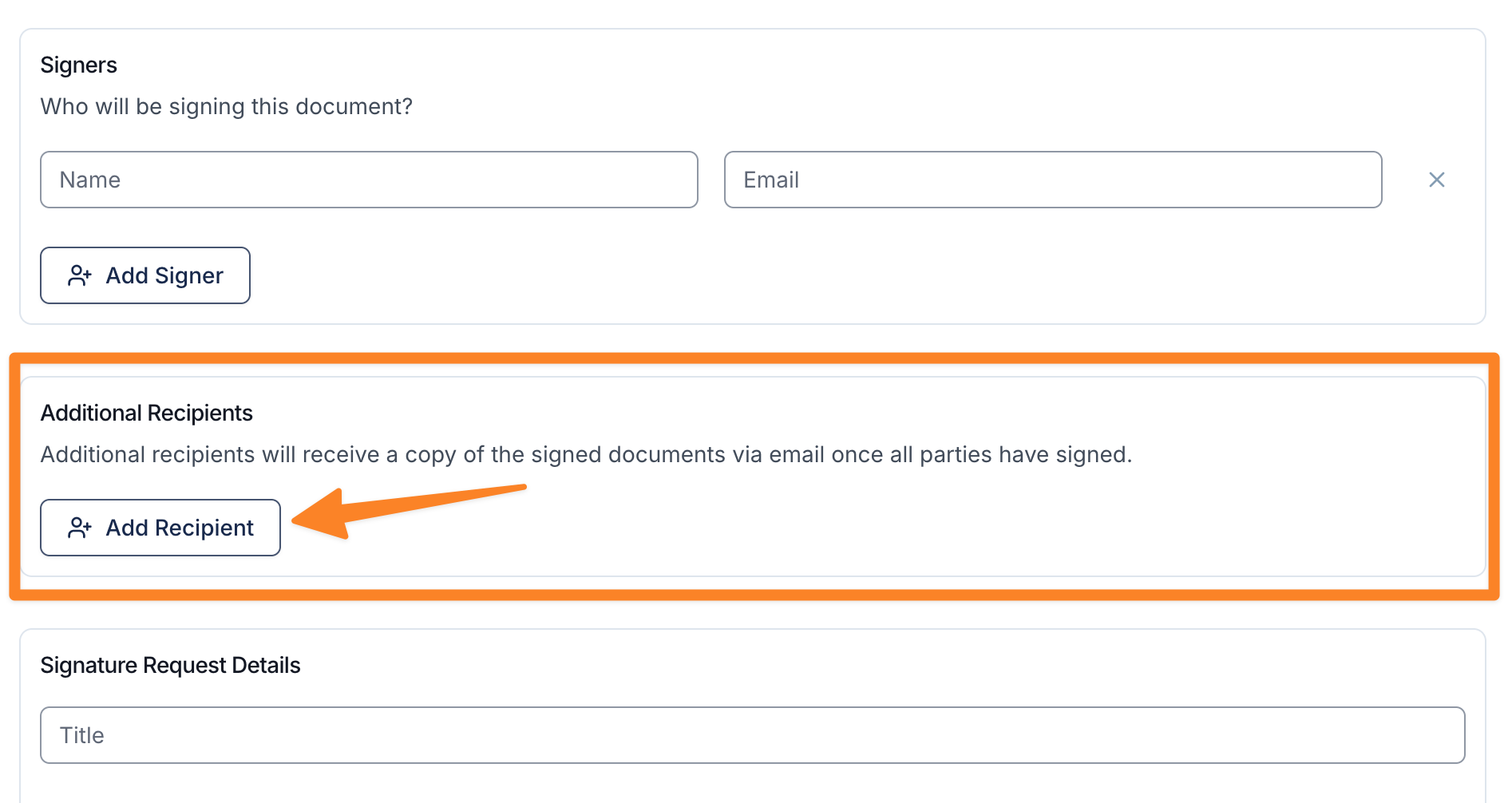
When creating an eSignature request, you can add additional recipients to receive a copy of the completed document once all parties have signed.
Additional recipients are not required to sign the document but will be notified and provided with a copy after the request is finalised.
How to Add Additional Recipients
- While creating a Signature Request, locate the Additional Recipients section.
- Click Add Recipient.
- Select a recipient from the suggested list, or
- Enter a new recipient’s name and email address.
The recipient will be added to the request and will receive a copy of the signed document once all signatures are complete.
For more information, visit the Requesting Signatures guide.
Setting Required Records by Participant Tags
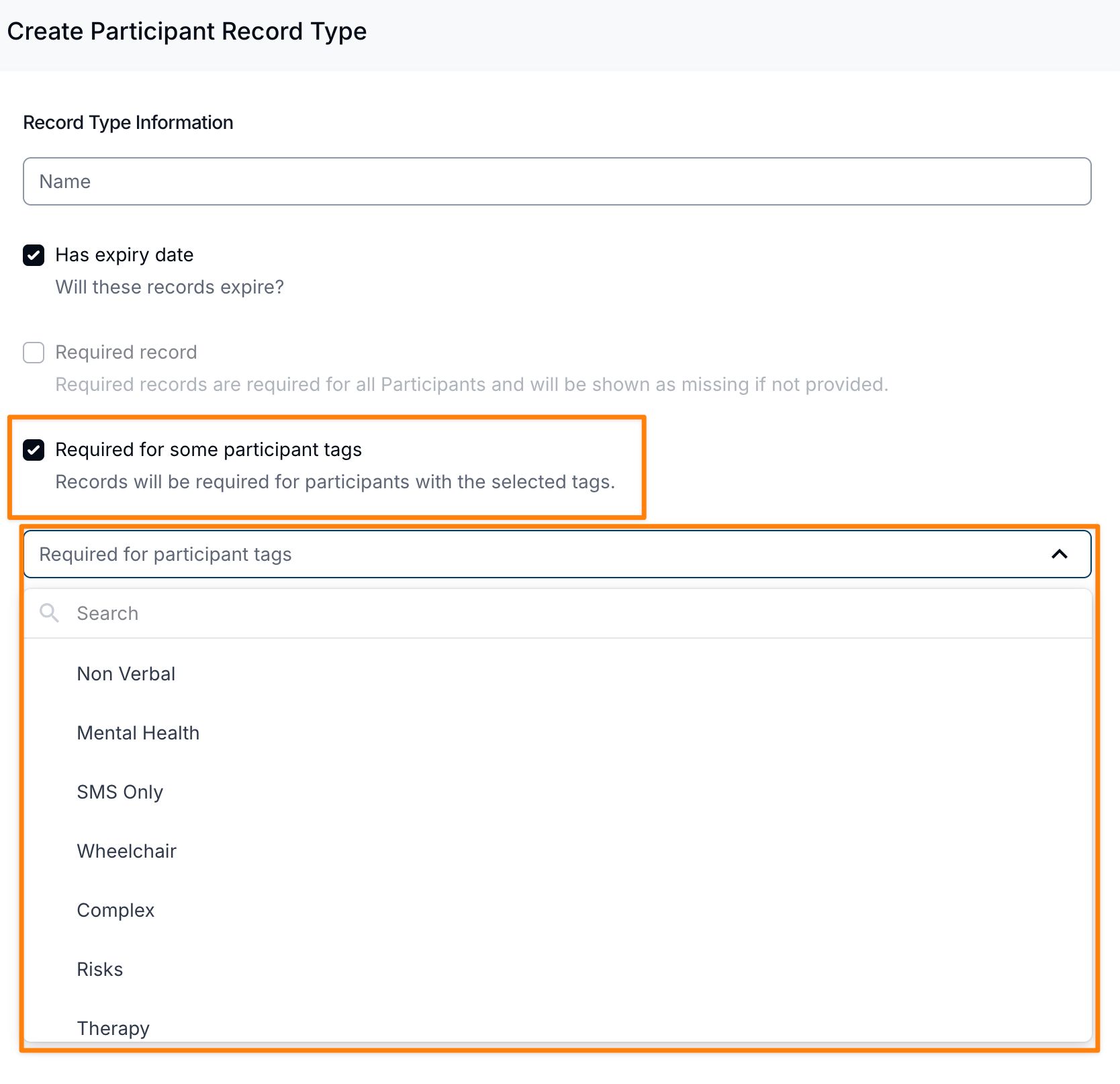
When creating a Participant Record Type, you can now specify whether the record is required for all participants or only for participants with selected tags.
This allows you to tailor record requirements based on specific participant groups, rather than applying the same requirement across your entire organisation.
Configuring Required Records by Tag
When setting up a Participant Record Type:
- Navigate to Settings and select Participants.
- Click Create Participant Record Type or edit an existing record.
- Locate the Required Record option.
- Choose whether the record should be:
- Required for all participants, or
- Required only for participants with selected tags.
- If selecting tags, choose the relevant Participant Tags the requirement should apply to.
- Click Create or Save.
For more information, visit the Participant Records guide.
Incident Collaborators
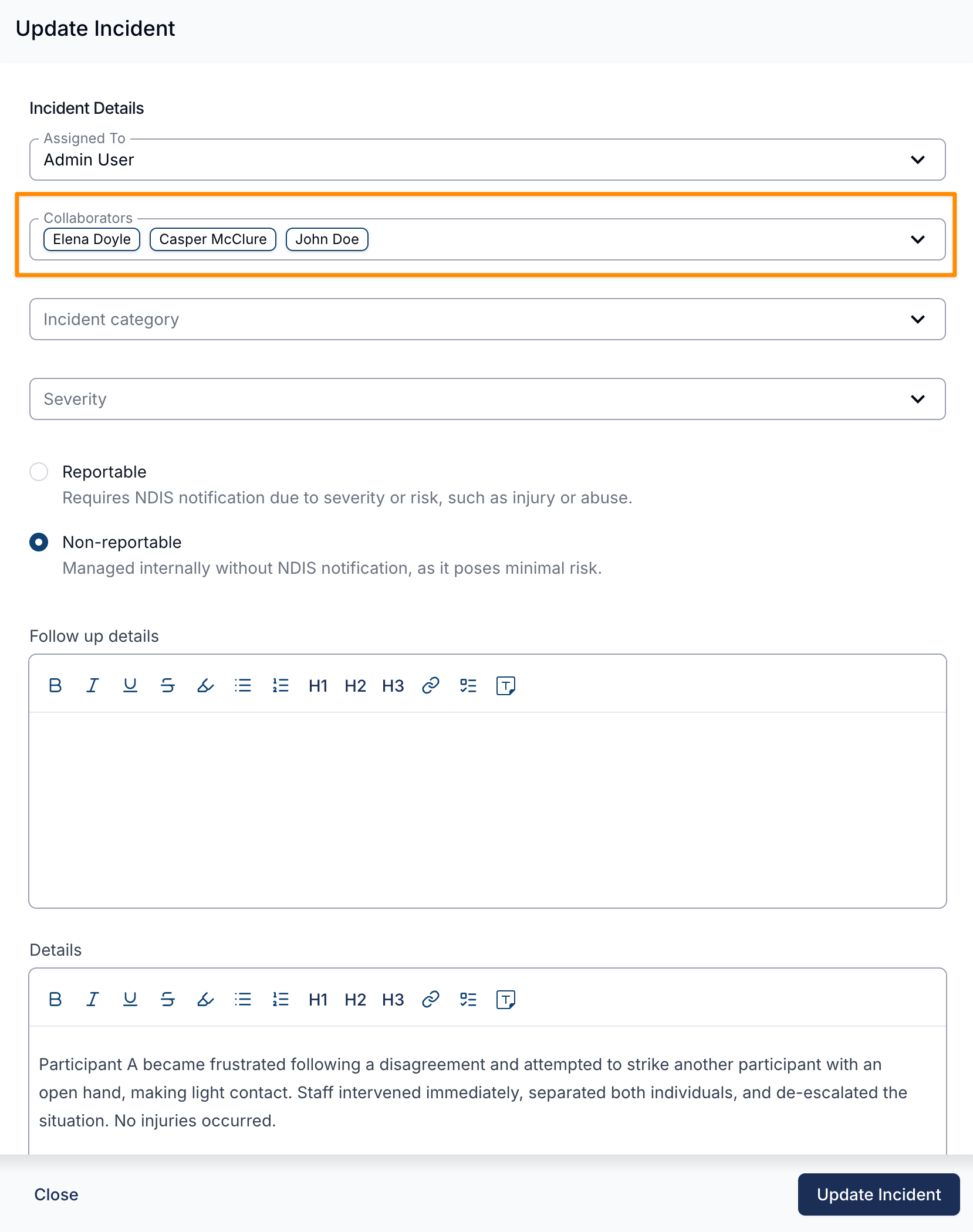
You can add collaborators to an incident to allow additional users to view and contribute to the incident record.
Collaborators are users other than the primary assignee who require access to the incident. Once added, collaborators will be able to view and edit the incident, supporting better collaboration and shared responsibility when managing incidents.
This functionality applies to both Participant and Staff Incidents, ensuring consistent access across all incident types.
Adding a Collaborator
- Open the relevant incident from the Incidents register.
- Locate the Collaborators section.
- Click Add Collaborator.
- Select the user you want to add.
The selected user will now have access to view and update the incident.
For more information, visit the Incidents guide.
Sending Multiple User Records for Signing
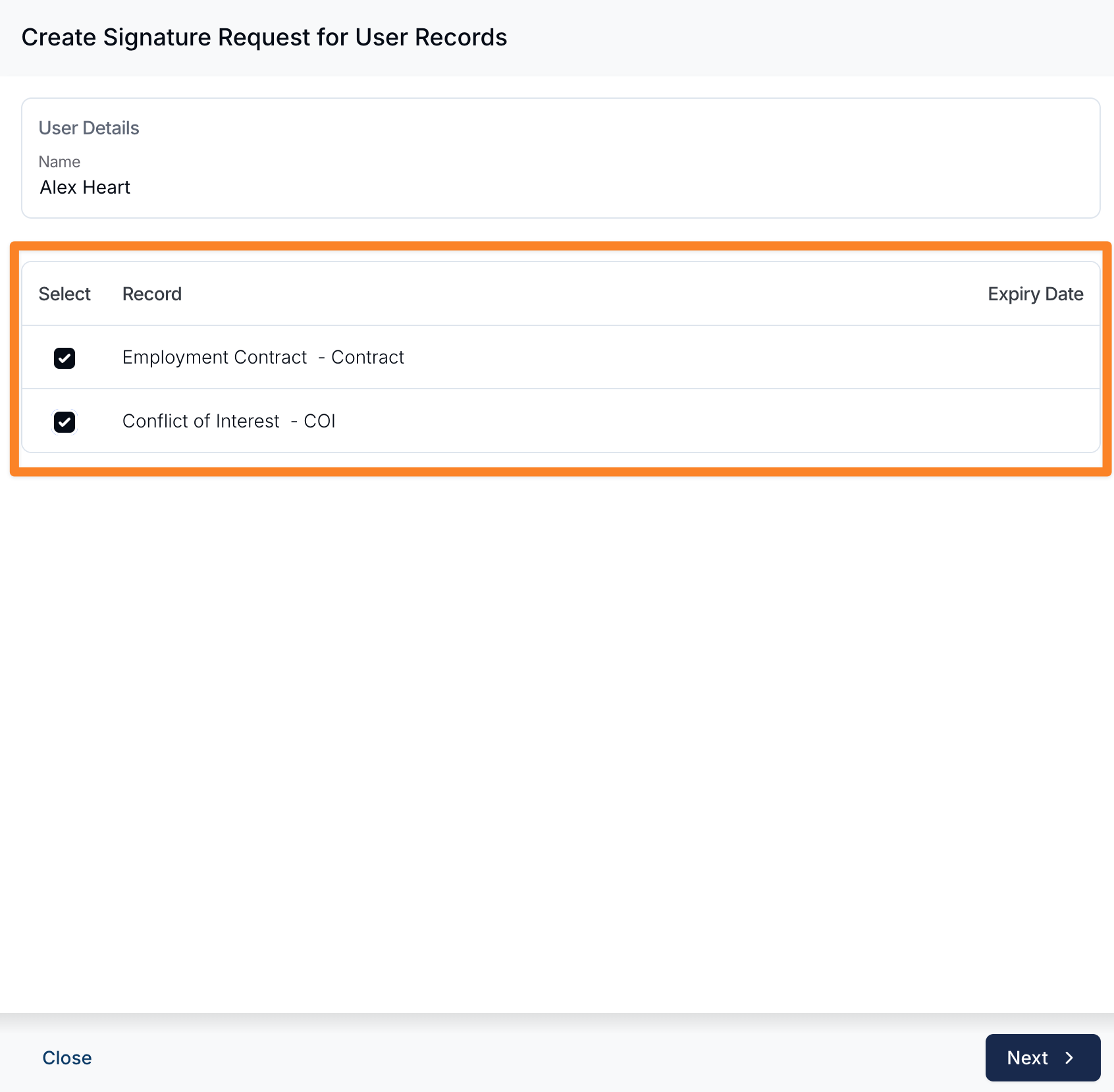
You can send multiple User Records in a single eSignature request, allowing you to streamline the signing process and reduce the need to send individual requests.
This is useful when multiple documents need to be reviewed and signed at the same time. Recipients will receive a single request containing all selected records, improving efficiency and simplifying document management.
For more information, visit the User Records guide.
Participant Documents Report
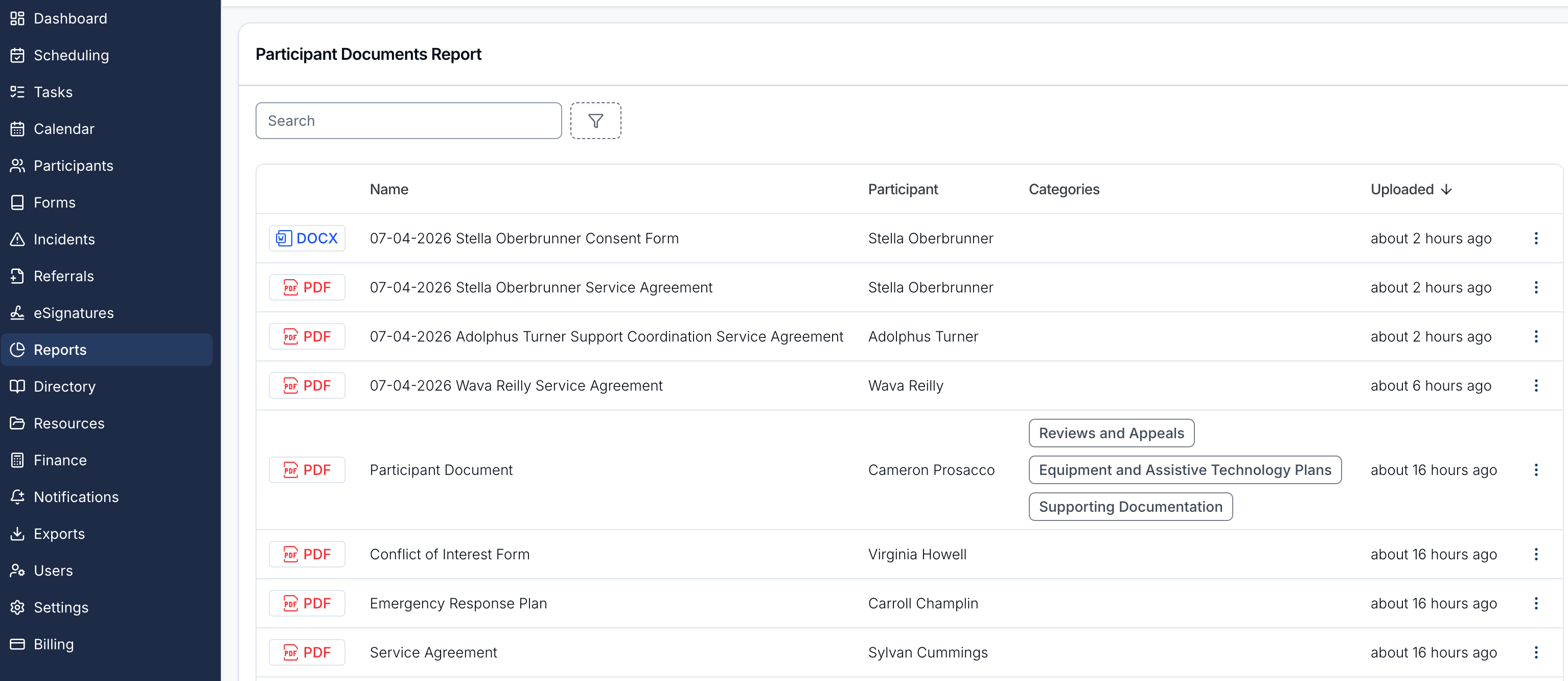
You can find the Participant Documents Report by navigating to the Reports page in Astalty and selecting Participant Documents.
This report is only accessible by Users with Admin role assigned.
Report Overview
This report provides an overview of all Participant Documents stored within the system.
The report displays key document information, allowing you to search, filter, and review documents across all participants.
If you do not have access to view all participants, you will only see documents related to your assigned participants.
For more information, visit the Participant Documents Report guide.
Preferred Names now in Participant Export
The Participants Export has been updated to include a new “Preferred Name” column. This enhancement allows teams to better personalise their communication with participants, ensuring messages feel more appropriate and respectful. It is particularly useful for activities such as mail-outs, group SMS communications, and sending cards, where using a participant’s preferred name can improve engagement and overall experience.
For more information, visit the Participants Export guide.
Travel Evidence Policy
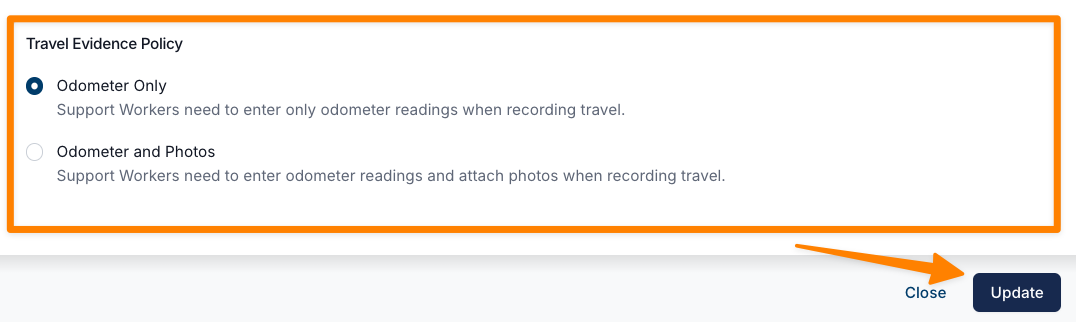
This update introduces stronger travel tracking and verification by allowing organisations to require photographic evidence alongside odometer readings. It improves accuracy, transparency, and audit readiness across travel-related claims.
What's changed
- Added configurable Travel Evidence Policy with options for:
- Odometer readings only, or
- Odometer readings with photographic evidence
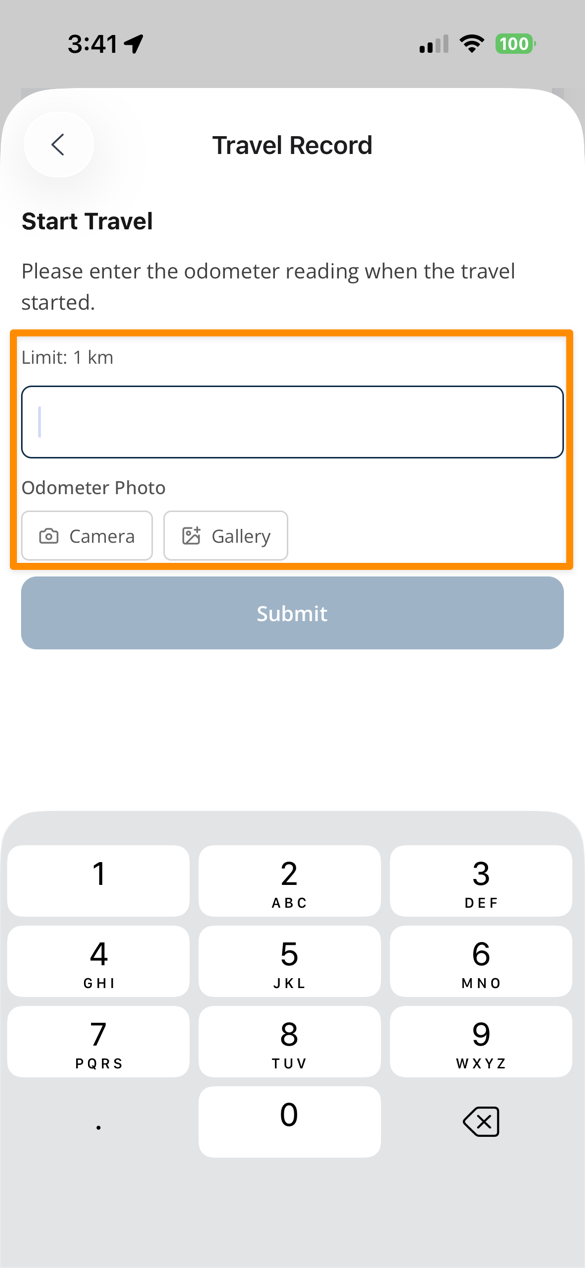
- Enabled ability for support workers to capture odometer evidence using their camera or selecting images from their gallery.
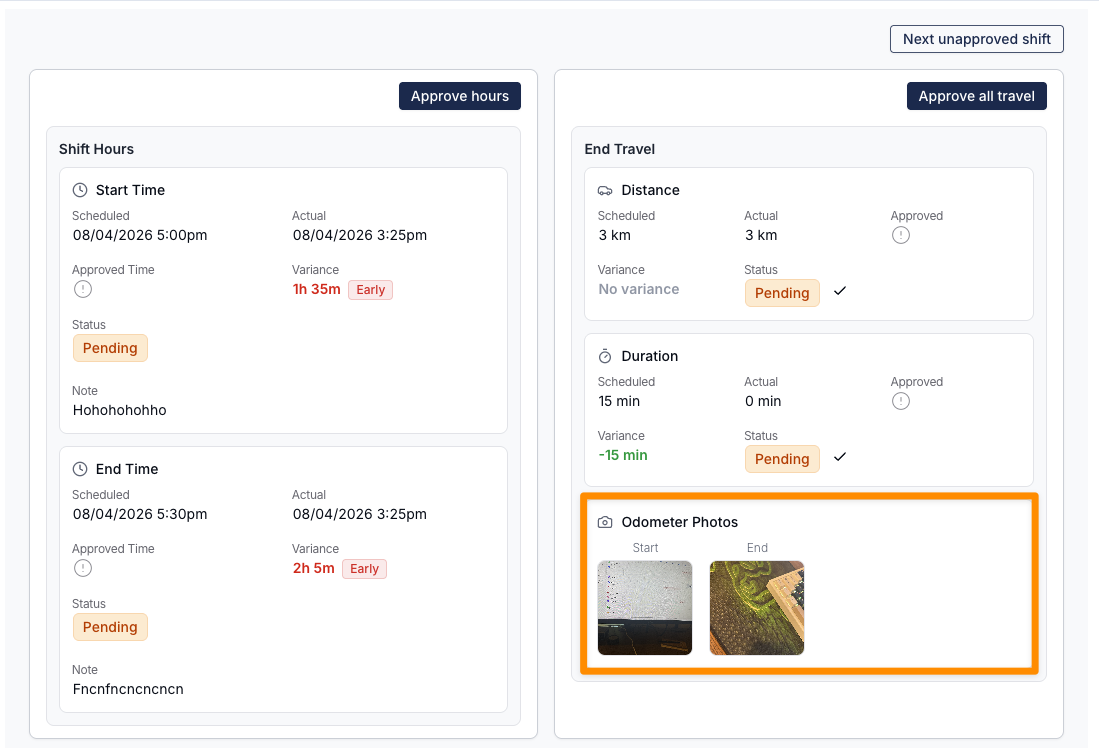
- Enabled visibility of photographic evidence within Shift Approvals via a drop-down menu
Why this improves compliance
These enhancements ensure travel data is more reliable and easier to verify. Photographic evidence reduces the likelihood of incorrect or falsified entries by providing a clear visual record of odometer readings. Capturing this information at both the start and end of travel creates a complete and traceable audit trail.
By surfacing this evidence during Shift Approvals, administrators can efficiently validate travel claims before approving them. This supports compliance, strengthens accountability, and reduces the risk of errors or misuse while maintaining a streamlined workflow for Support Workers.
For more information, check out the following guides: