- Changelog
- 28 May 2026
28 May 2026
Clock Location Variance Report
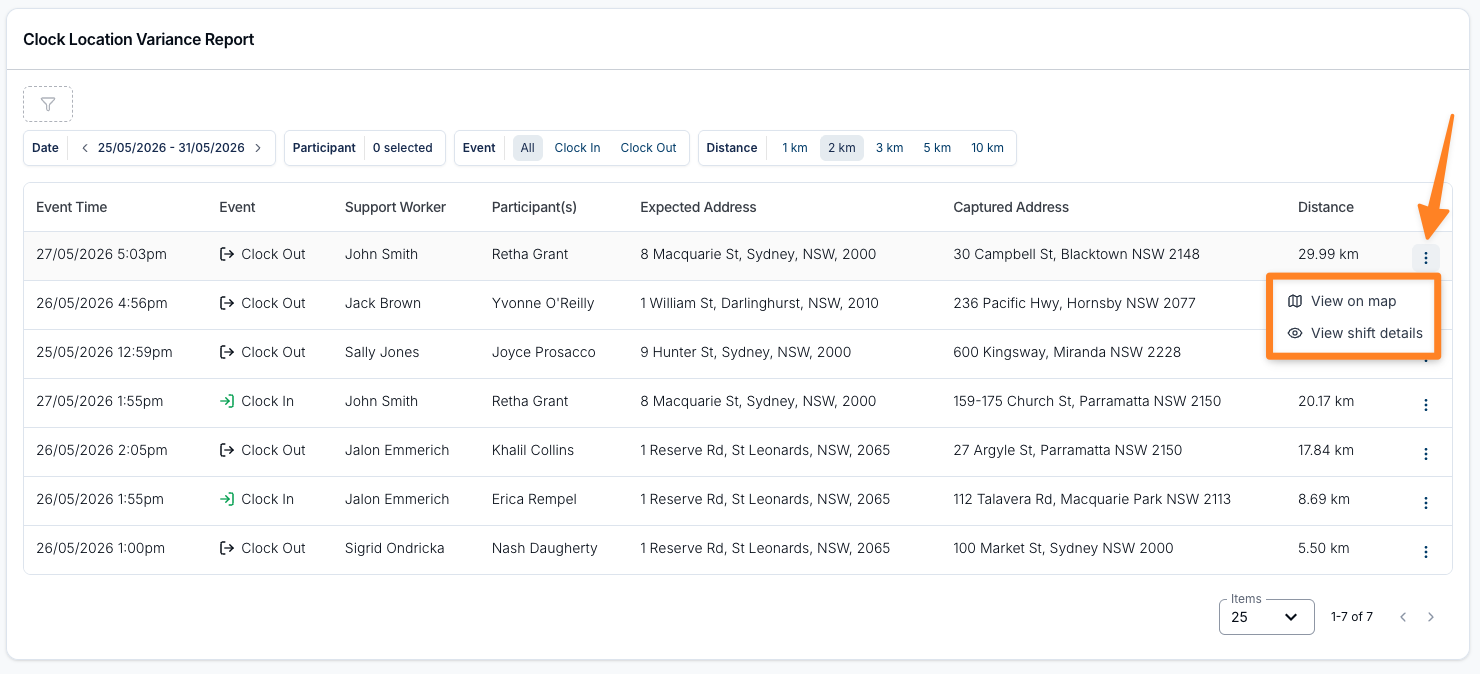
We've added a new Clock Location Variance Report to the Scheduling section of Reports. This report makes it easier to identify clock events that were recorded away from a Participant's expected service address, helping providers spot potential attendance and compliance issues without needing to review each shift individually.
- A new Clock Location Variance Report is now available under Reports > Scheduling, showing clock events where the captured location didn't match the expected service address
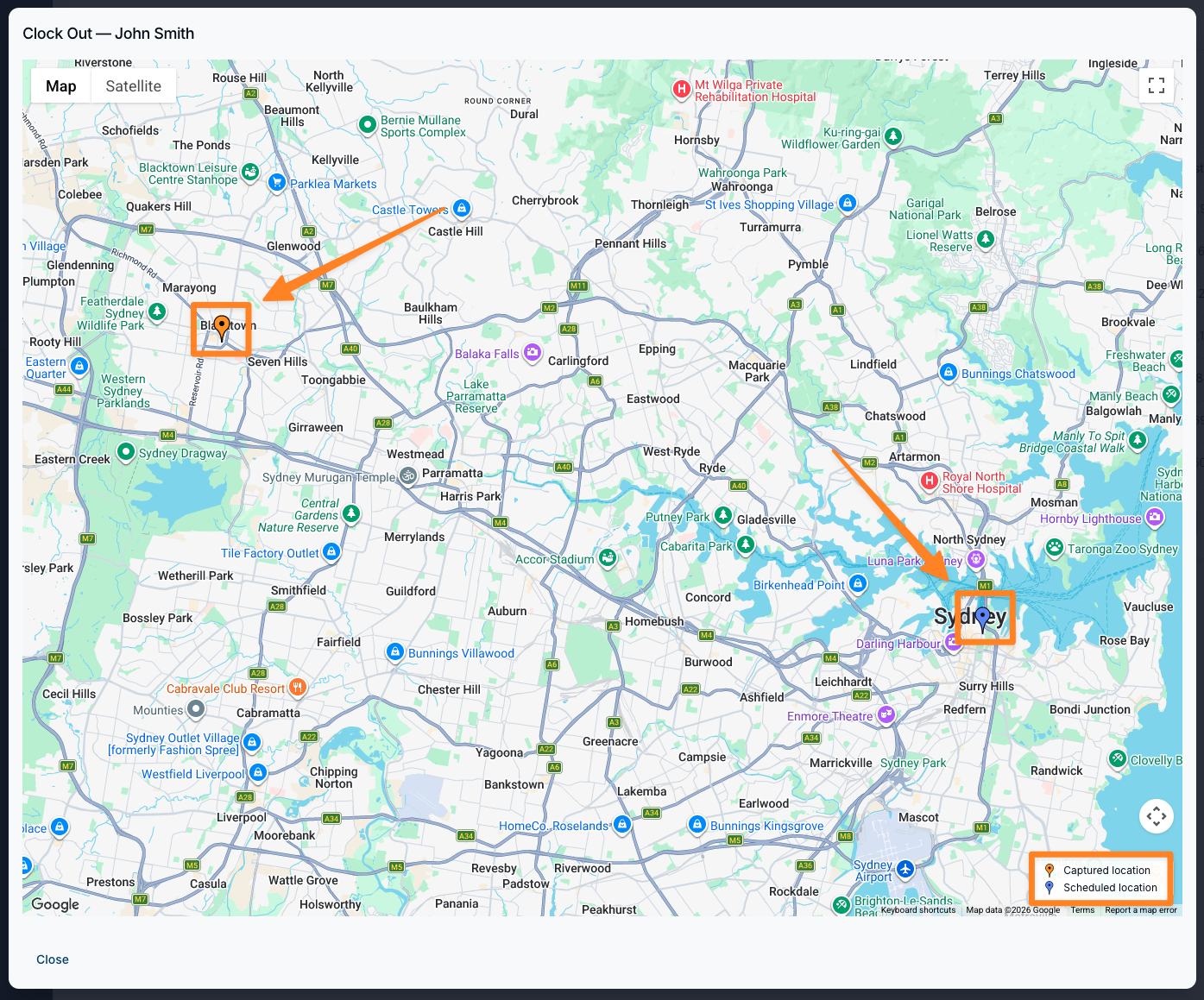
- The report compares the Expected Address and Captured Address for each clock event, and displays the straight-line distance between the two locations
- A Distance filter lets you set the minimum variance to review, with thresholds of 1 km, 2 km, 3 km, 5 km, and 10 km
- A new Event filter allows you to view All clock events, or narrow results to Clock In or Clock Out events separately — making it easier to focus on the most relevant exceptions
- Each result in the table can be expanded to view the locations on a map or open the related shift for full context
- The report table includes Event Time, Event type, Support Worker, Participant(s), Expected Address, Captured Address, and Distance
For more information, visit the Clock Location Variance Report guide.
Participants Without Plan Manager Report
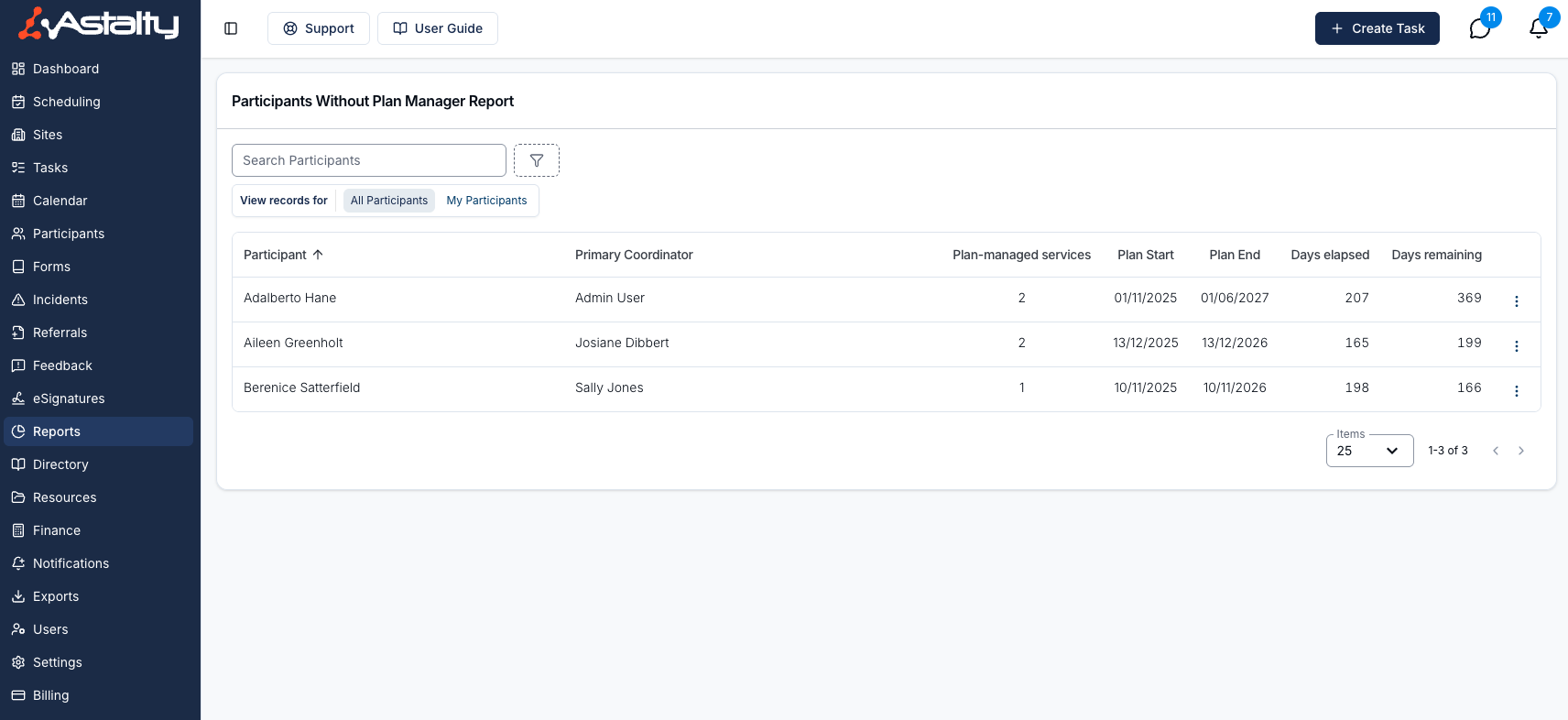
A new report is now available under Reports > Participants — the Participants Without Plan Manager report. It surfaces every Participant who has a current plan-managed Service but no Plan Manager recorded against their plan.
Missing Plan Manager details are easy to overlook during onboarding or when a plan is renewed, but they can cause problems downstream — delayed invoices, coordination gaps, and extra back-and-forth to track down the right contact. This report gives you a single place to check across your caseload and catch those gaps early, before billing runs or a service delivery issue forces the issue.
You can filter the report by Primary Coordinator, Service Coordinator, and Team, and use the row action menu to update the Participant's Plan Manager details, jump to the Participant's profile, or directly to their NDIS Plan page. Once a Plan Manager has been added, the Participant drops off the report automatically.
For more information, visit the Participants Without Plan Manager guide.
Edit Form Submissions
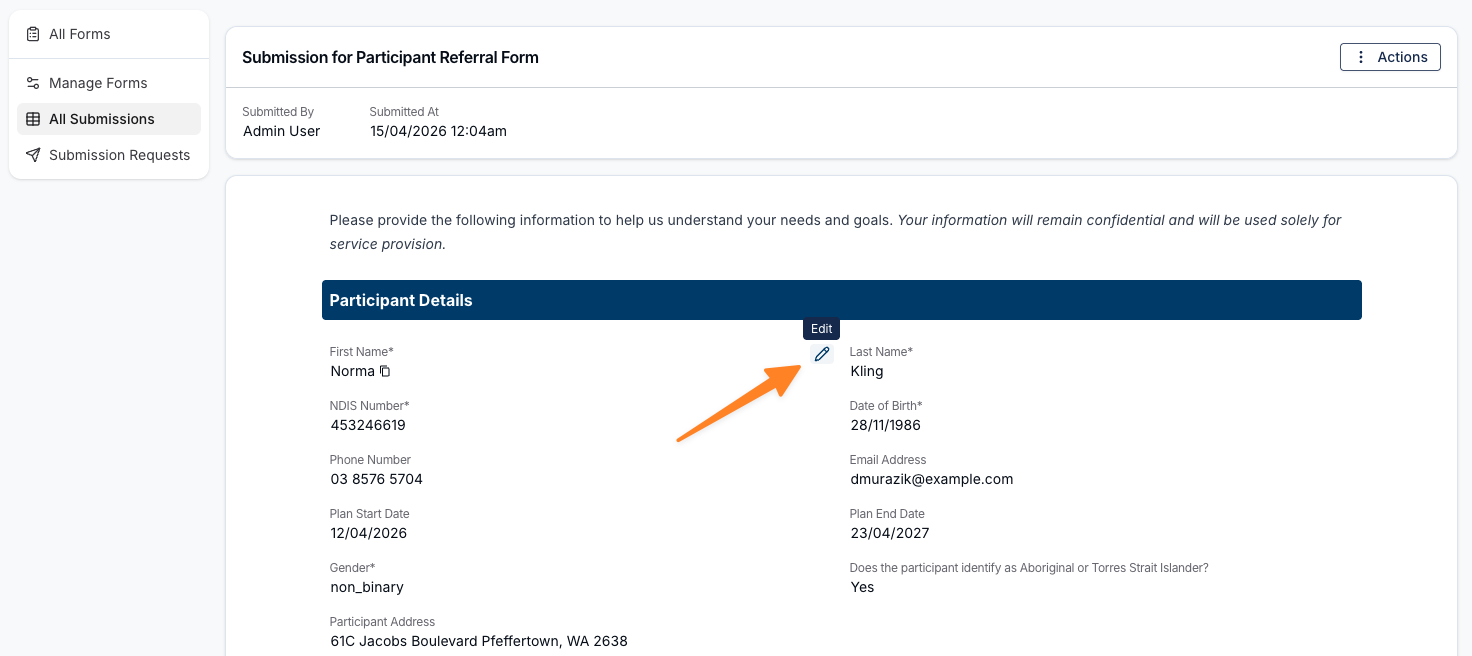
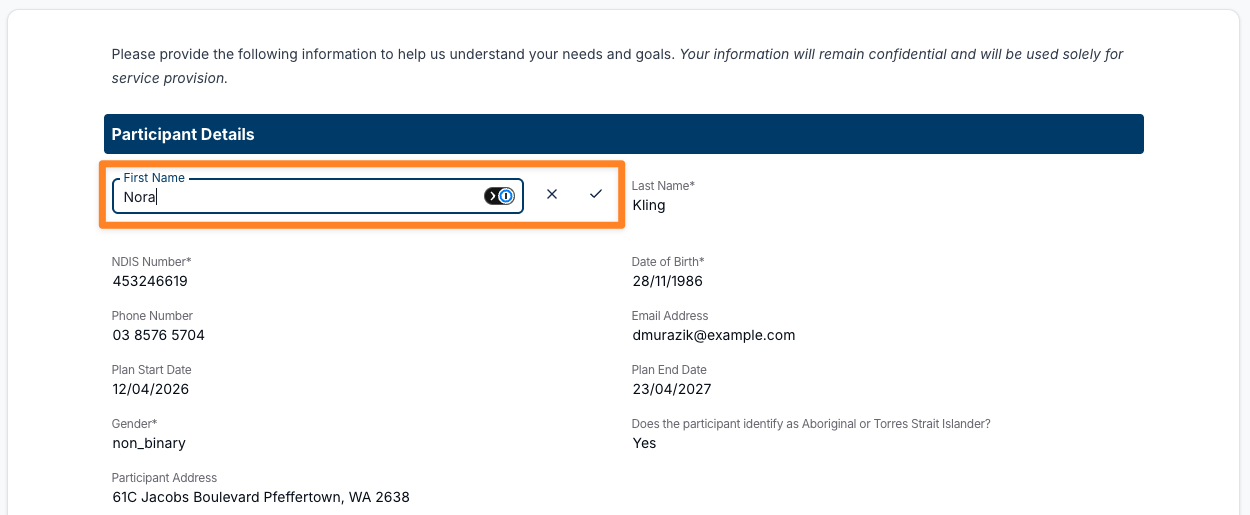
Admin users can now edit certain fields on a submitted form directly, without needing to request an updated submission. This makes it easy to correct common entry errors — like names, dates, NDIS numbers, or contact details — while keeping the submission intact and maintaining a full audit trail of every change made.
- Supported field types can now be edited after submission, including text fields, email addresses, numbers, mobile numbers, dates, drop-downs, radio buttons, and checkboxes
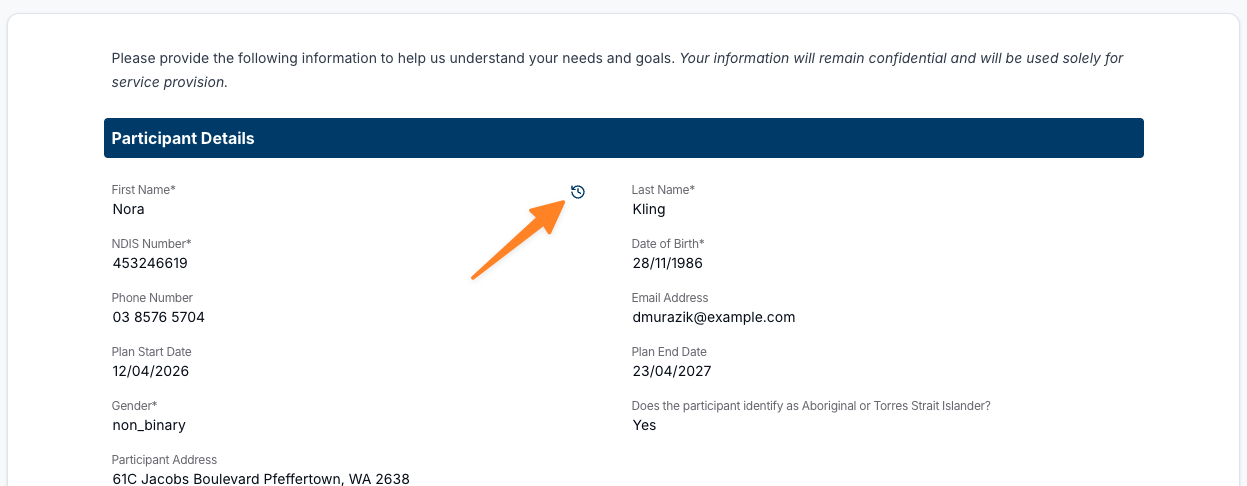
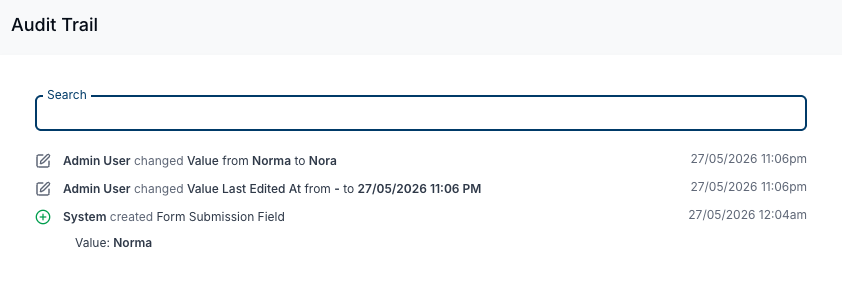
- Each edit is tracked automatically, recording the previous value, the updated value, the editor's name, and the time of the change
- Edit history can be viewed directly from the field on the submitted form
- Unsupported field types (file uploads, address fields, annotated images, repeating sections, and Participant or staff selector fields) remain locked after submission
- Archived submissions cannot be edited
For more information, visit the Viewing Submissions for a Form guide.
Copy a Budget to Another Participant
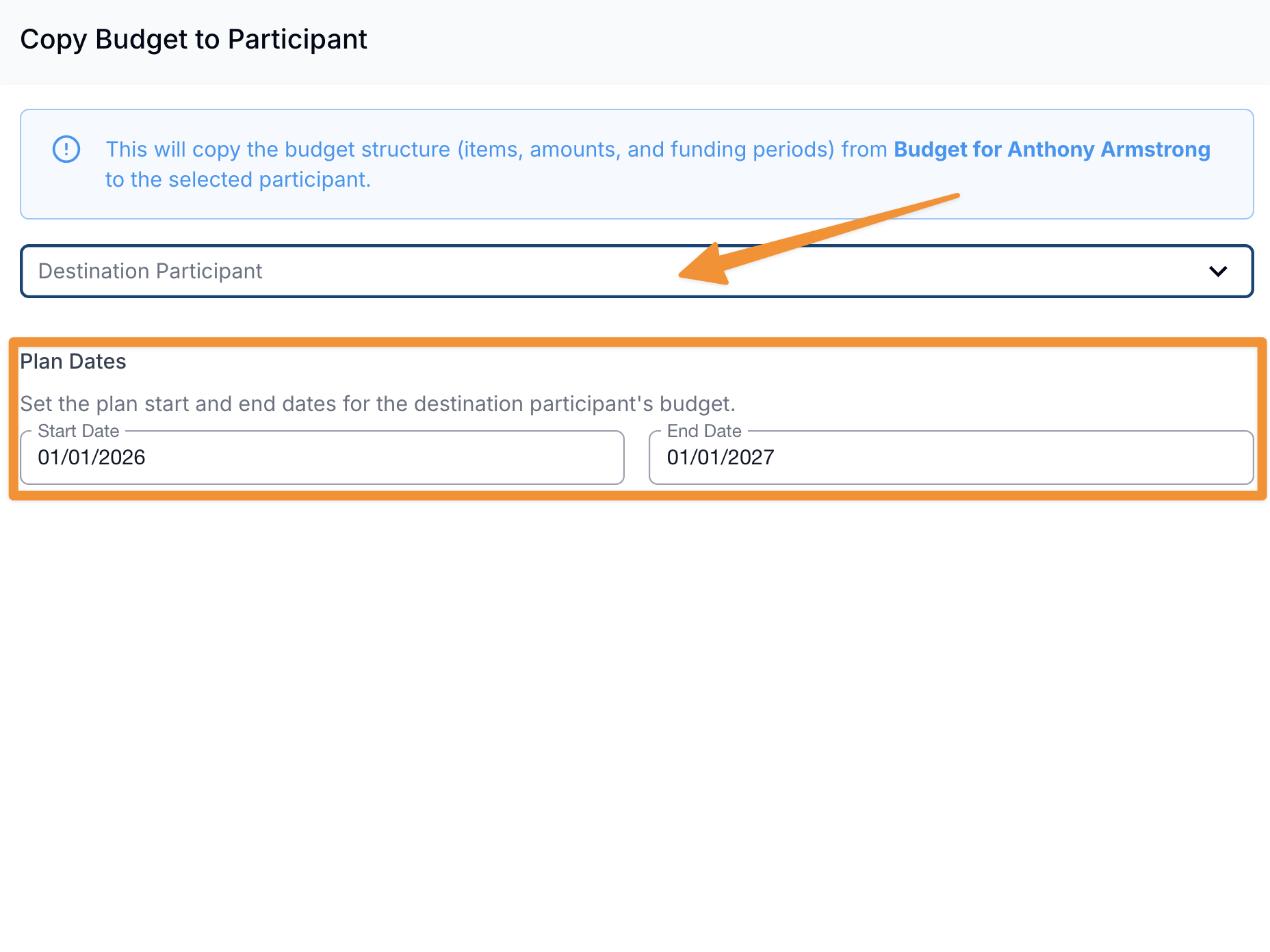
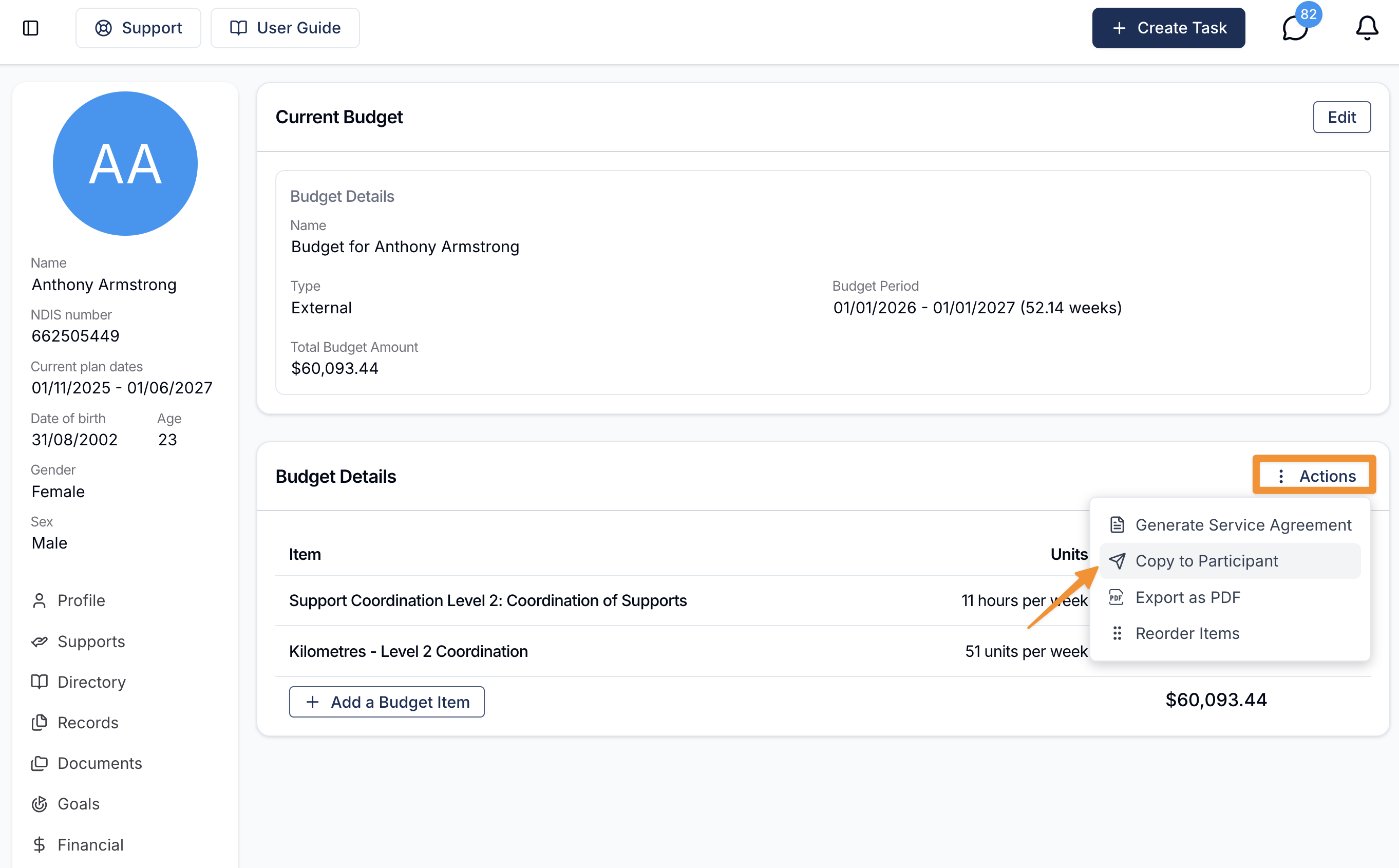
You can now copy an existing Budget to another Participant directly from the Budget page, saving you from having to rebuild the same structure from scratch. This is especially useful when onboarding a group of similar Participants or reusing a Budget that's already been set up.
- A new Copy to Participant option is available in the Actions menu on any Participant's Budget page
- The copied budget retains the original structure, including budget items, amounts, budget type, and item details such as units, pricing, and support item references
- You can select the destination Participant and set new plan start and end dates — the form pre-fills from the original Budget, or uses the destination Participant's existing plan dates if available
- Once copied, the new Budget opens automatically in a new tab
- The original budget is not affected by the copy
For more information, visit the Budget Functionality guide.
Support Notes Export
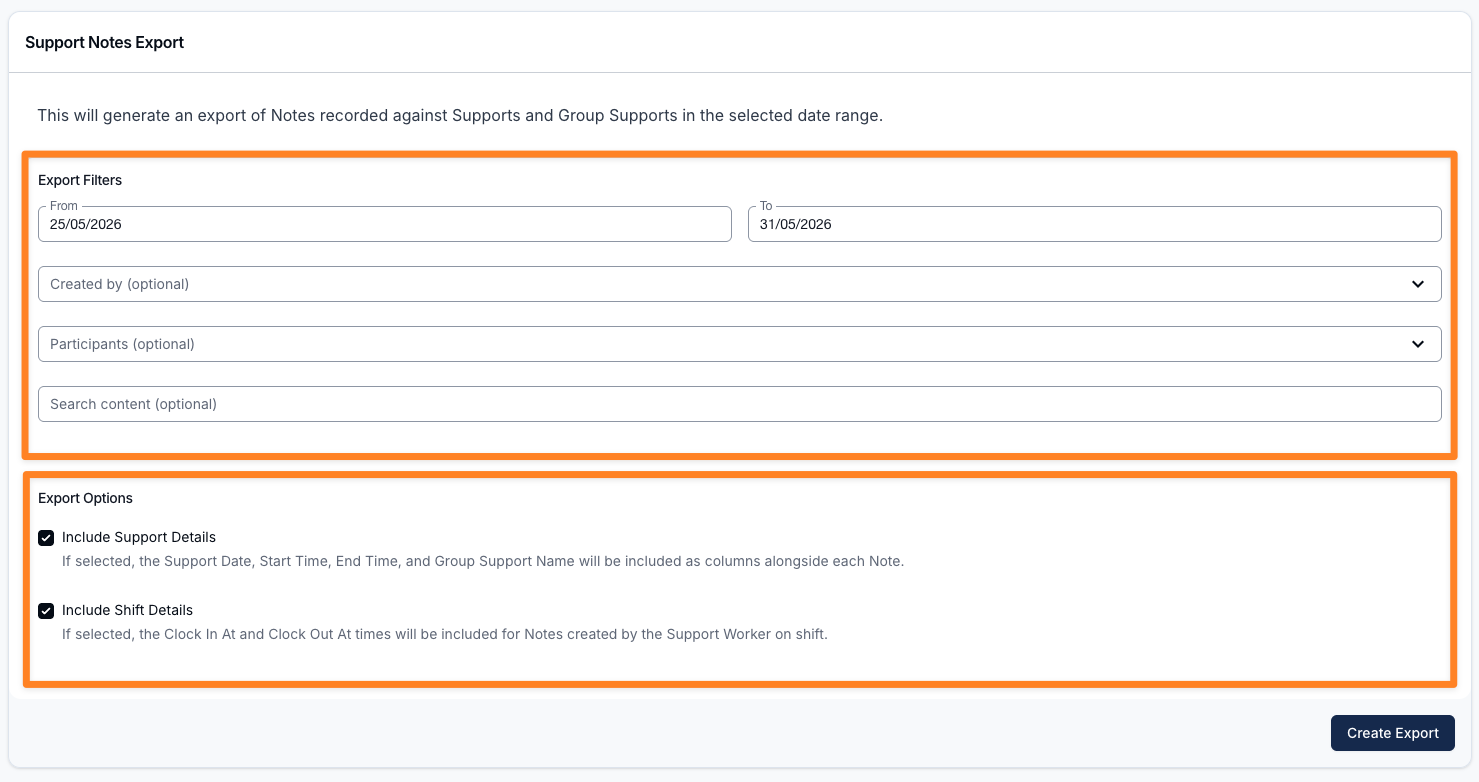
You can now export support notes directly from Astalty, with the option to include support details and shift details alongside each note. This makes it easier to review notes in context — seeing not just what was written, but when it was written, which support it relates to, and the shift clock in and clock out times for the worker who wrote it.
- Export support notes as a CSV file from the Shifts section of Exports
- Filter by date range, Participants, authors, or note content before exporting
- Optionally include support details: group support name, support date, start time, and end time
- Optionally include shift details: clock in and clock out times, matched to the worker who wrote each note
For more information, visit the Support Notes Export guide.
Adjusting Group Support Ratios
Providers can now adjust how hourly charges are split in a Group Support without needing to create separate supports. This gives you more control over billing in shared supports, making it easier to handle real-world situations like attendance changes, vacancies, and different funding arrangements within the same group.
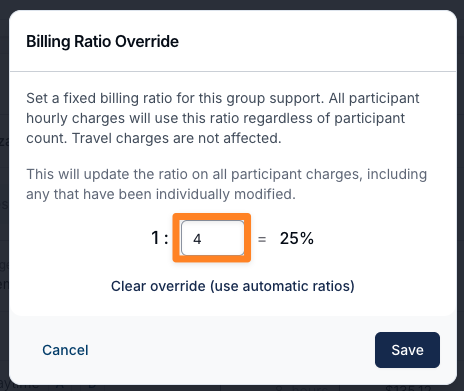
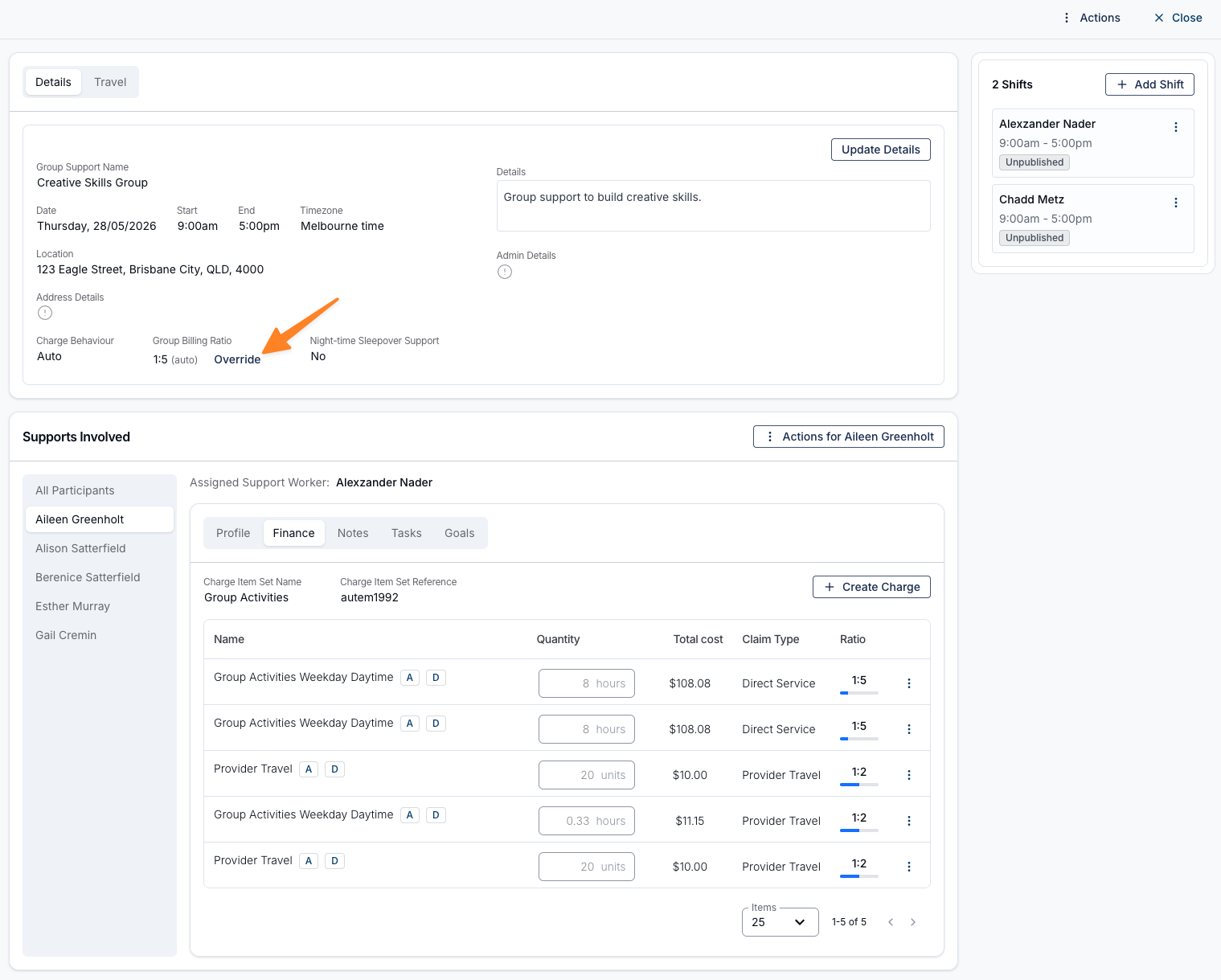
- You can override the billing ratio for a whole Group Support to keep it fixed at an agreed rate, even if a Participant cancellation would otherwise cause the automatic ratio to adjust
- You can update the billing ratio for an individual Participant's auto-created charges, useful in SIL environments where Participants in the same home have different funded ratios
- For recurring Group Supports, you can choose whether ratio changes apply to the current support only or across the series
- Only hourly charges are affected by ratio updates — travel charges are not changed
- Ratio updates apply to automatic charges only and cannot be made once charges have been invoiced
For more information, visit the Adding a Group Shift guide.
Travel in the SCHADS Interpretation Playground
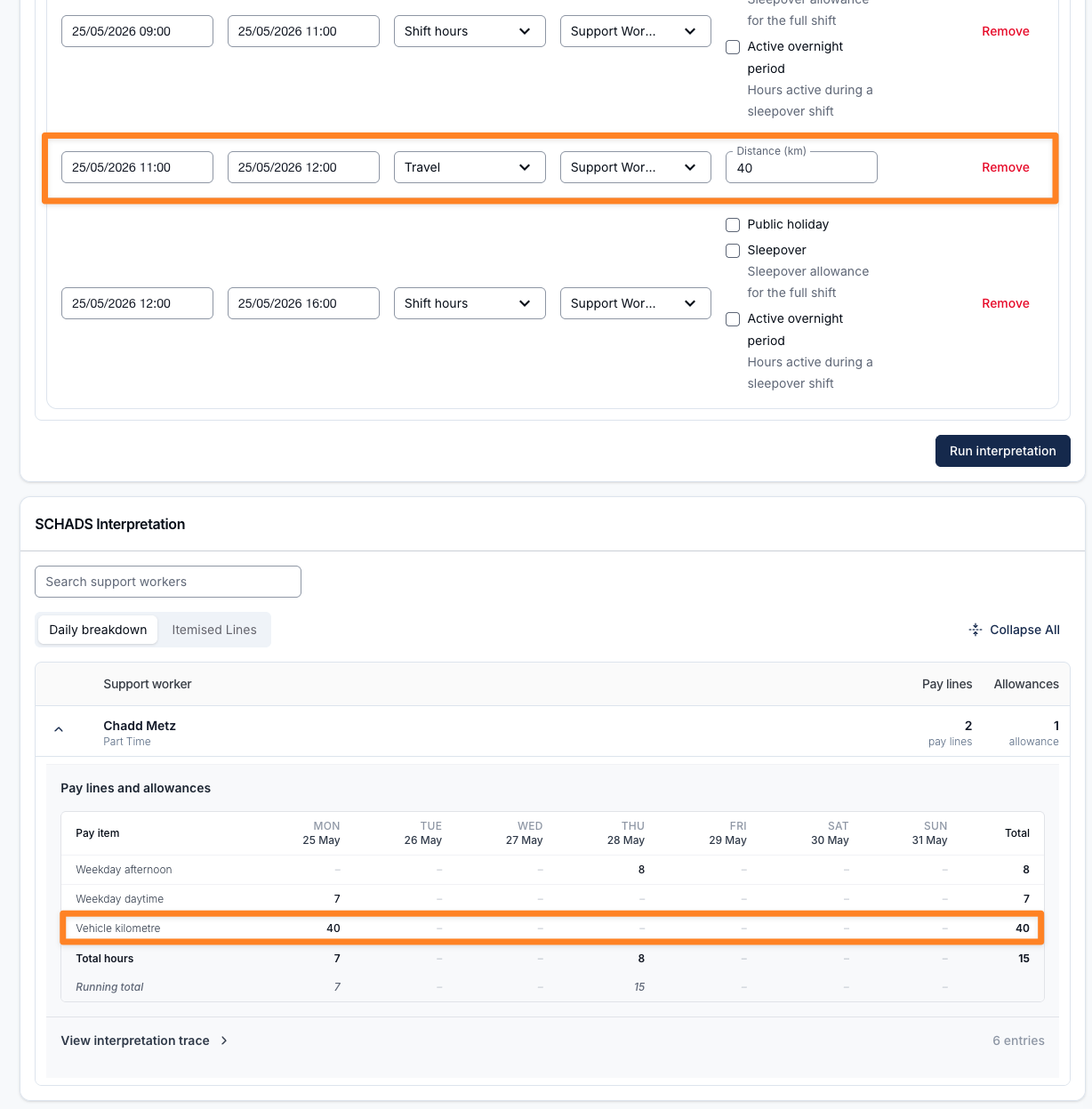
The SCHADS Interpretation Playground now supports travel records with kilometre distances, making it easier to test and verify travel-related SCHADS scenarios before running them through live payroll. A new Travel Between Shifts scenario template is also available, giving providers a ready-made starting point for the most common travel situation.
- Travel is now available as a work record type in the playground
- A Distance (km) field can be entered against any Travel record
- Interpretation results now include a Vehicle Kilometre Allowance line where applicable
- A new Travel Between Shifts scenario template is available, pre-loading a morning shift, a travel record, and an afternoon shift
For more information, visit the SCHADS Interpretations in Astalty guide.
Participant Risk Added Notification
We've added a new notification to help your team stay across Participant safety without the need for manual follow-up. The Participant Risk Added Notification automatically alerts the right people as soon as a new risk is recorded against a Participant, so nothing slips through the gaps.
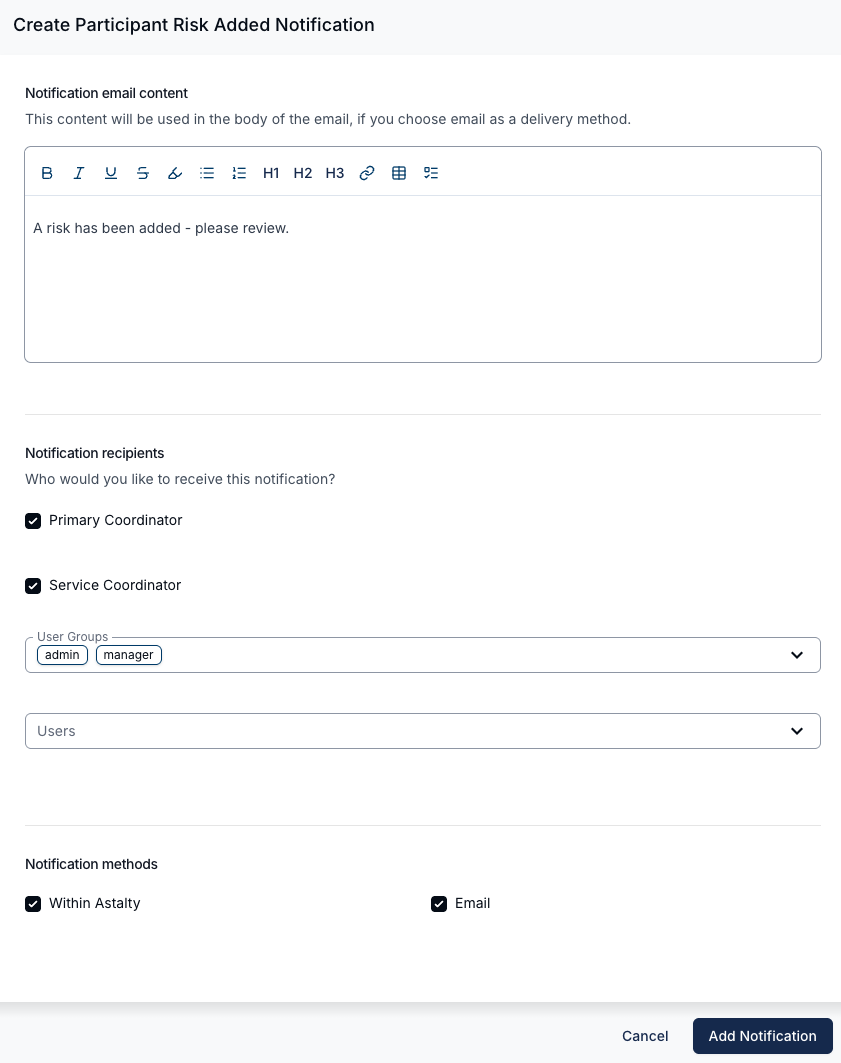
- A new Participant Risk Added notification is now available under Notifications > Participants
- Alerts can be sent to the Participant's Primary Coordinator, Service Coordinator, selected User Groups, or individual Users
- Notifications can be delivered within Astalty, by email, or both
- Email notifications include the risk title, the Participant's name, and a direct link to view the risk
- An optional email content field lets you add custom messaging, such as your organisation's standard next steps when a new risk is identified
- Multiple notification configurations can be created if needed
- Deactivated users and duplicate recipients are automatically excluded from notifications
- This notification covers newly added risks only and works alongside the existing Participant Risk Review Notification, which handles review reminders
For more information, visit the Participant Risk Added Notification guide.
Getting Notified When Interest is Expressed
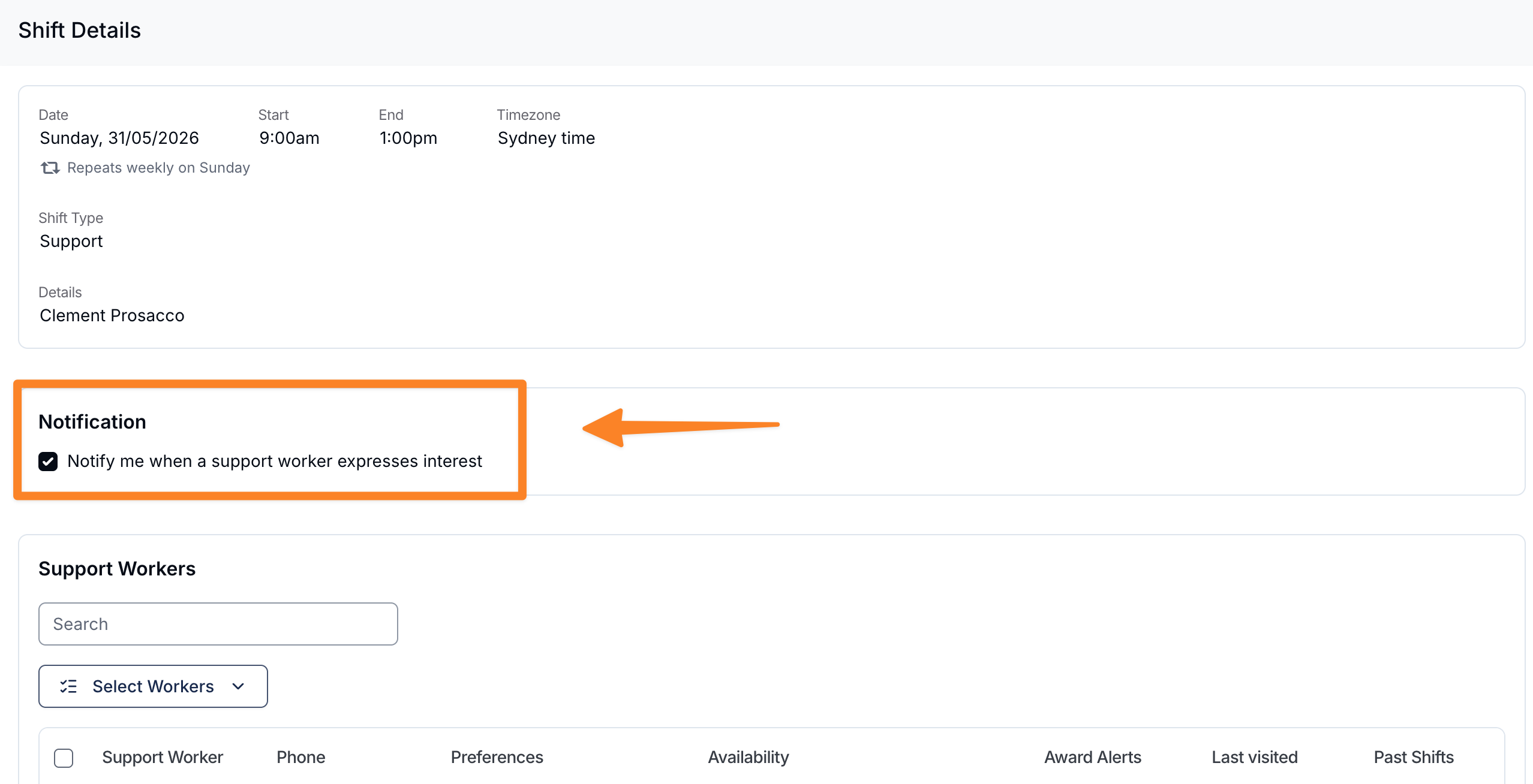
When broadcasting a shift, you can opt in to receive a notification each time a support worker expresses interest. This keeps you across who has responded without needing to check back on the Shift Board manually.
Enabling Notifications on a Broadcast
When posting a shift to the Shift Board, tick the Notify me when interest is expressed option on the broadcast form before sending. This is optional and can be enabled or left off on a per-broadcast basis.
How Notifications are Delivered
When a support worker expresses interest in a broadcasted shift and you have enabled notifications for that broadcast, you will receive:
- An in-app notification within Astalty alerting you that a worker has expressed interest, including the shift details and the worker's name.
- An email notification to your registered email address with the same information.
Both notifications link directly to the Shift Board so you can review and action the request straight away.
For more information, visit the Shift Board Workflow guide.
Bulk Document Deletion & Data Management Settings
We've added a new Data Management section to Settings, giving account owners a faster way to manage Participant Documents at scale. The first feature available there is bulk Document deletion — a tool designed to support Document clean-up for retention workflows, off-boarding, and other situations where removing Documents one by one isn't practical.
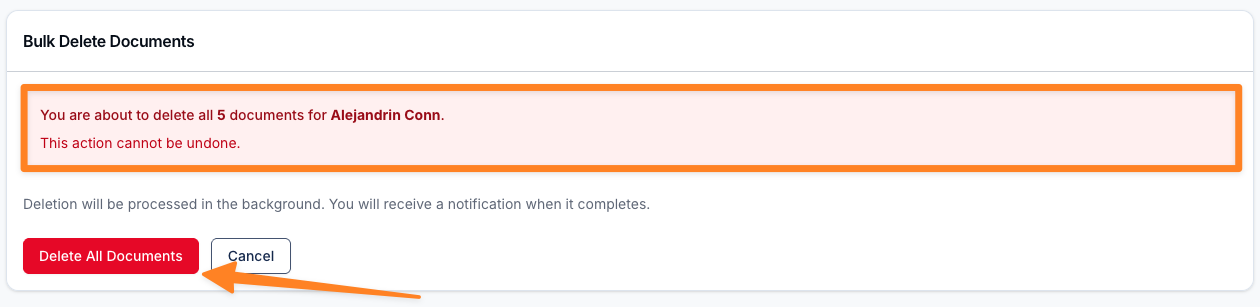
- Account owners can now permanently delete all Documents for a Participant in a single process from Settings > Data Management, without having to remove files individually from the Participant's Documents page.
- The deletion runs in the background, and you'll receive a notification once the job is complete.
- A results page shows the outcome of the deletion — whether all Documents were removed, some were skipped, or the process needs to be tried again.
- Documents attached to a Participant Record, Signature Request, or Form Submission are protected and will not be deleted. Any skipped documents are listed on the results page with a reason.
- Bulk Document deletion is available to the account owner only and cannot be undone once confirmed.
For more information, visit the following guides: