Adding Images
Add a picture - such as a chart, diagram or photo - to a Document Template or to a document generated from one. Astalty's text editor uploads the image, lets you resize it, and keeps a description for anyone using a screen reader.
Overview
Image controls are available wherever you edit an Astalty Template's content: while building the Template itself in Template Settings, and while editing a document generated from it, before you finalise it.
Adding an Image
- Put your cursor where the image should sit.
- Select Insert image in the toolbar.
- Choose one or more image files to upload.
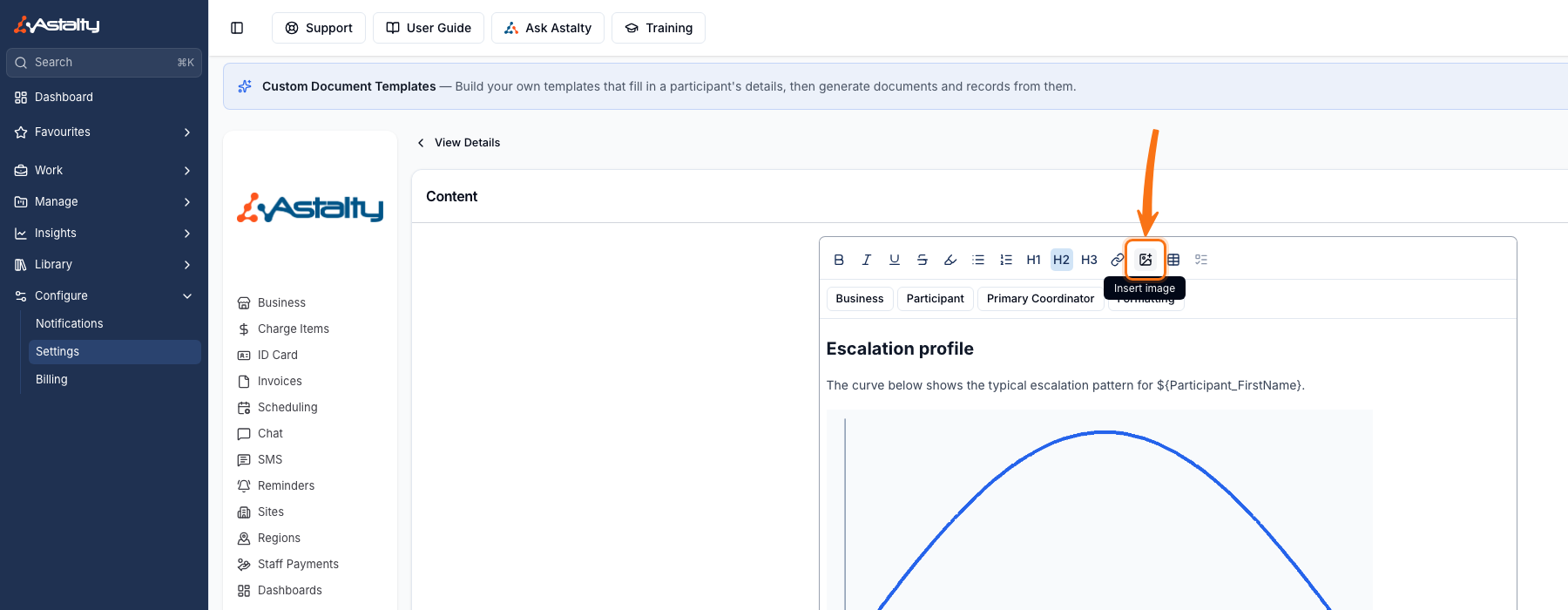
You can also drag an image file onto the editor, or paste one in from your clipboard - both insert it at the cursor without opening the file picker. Astalty accepts PNG, JPG, GIF and WebP files up to 10 MB each, and shows Uploading image in the content while each one finishes.
Resizing an Image
Select the image, then either drag one of its bottom corner handles to resize it freely, or open its settings for a quick preset.
- Select the image.
- Select Image settings in the toolbar.
- Under Width, choose 25%, 50%, 75%, or Full width.
- Select Update.
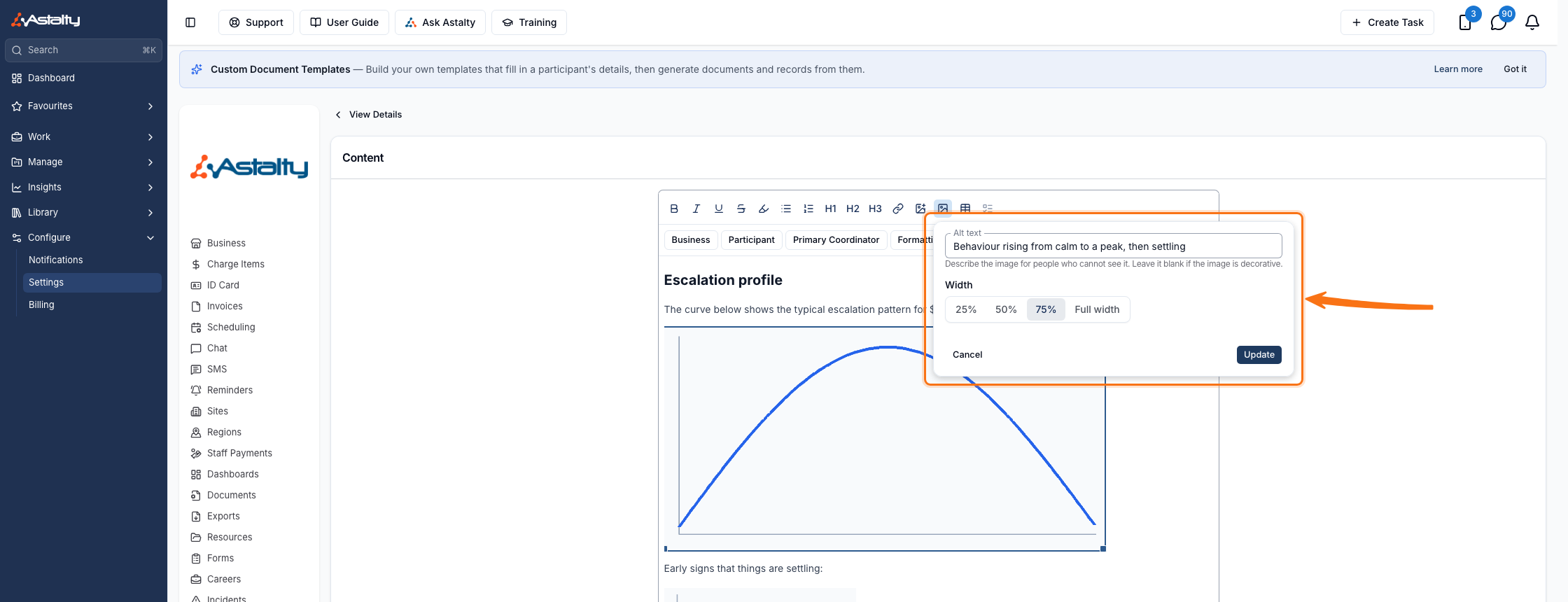
Astalty keeps the image's proportions as you resize it, whichever way you choose.
Adding Alt Text
Alt text describes an image for anyone using a screen reader, and for search. Astalty fills it in with the image's file name when you upload it - open Image settings and replace it with a plain description of what the image shows, such as Behaviour rising from calm to a peak, then settling. Leave it blank if the image is purely decorative.
Things to Keep in Mind
- An image's width and alt text save with the content, so they carry through to the PDF generated from a Document Template as well as to the document generated from it.
- Uploading several files at once adds each one as a separate image, in the order you selected them.
- A generated document has its own copy of the content, so adding an image to it - or editing an image already there - never changes the Template it came from, and editing the Template afterwards never changes a document already generated from it.