Sending Submission Request Reminders
Reminding several people at once
Rather than opening each request and reminding people one at a time, Send Reminders lets you pick any number of outstanding submission requests from across your organisation and email all of those recipients in one go.
Only requests that are still Awaiting Completion are offered - anything already completed or cancelled is left out.
How to send reminders
- Open Submission Requests.
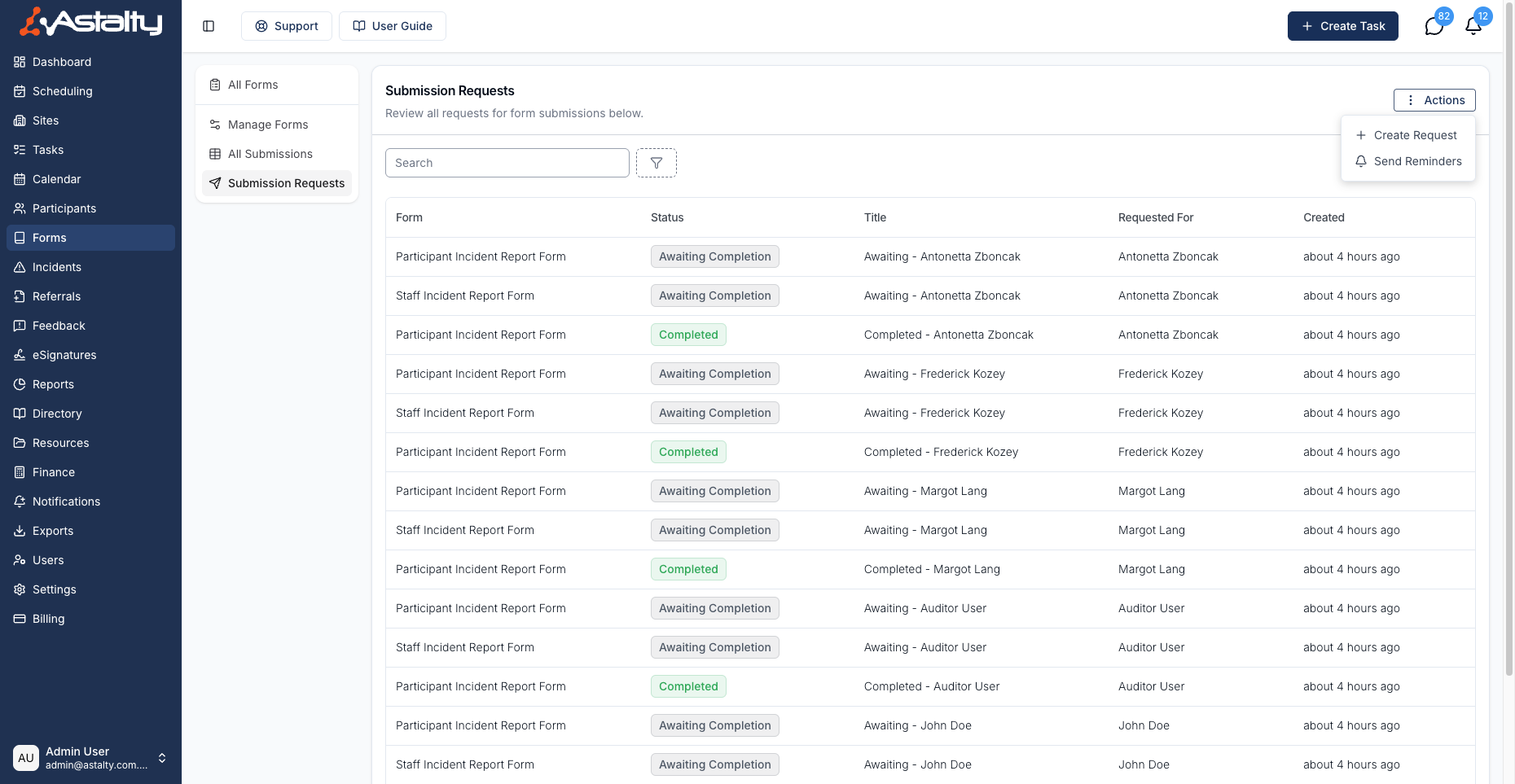
- Click Actions in the top right, then Send Reminders.
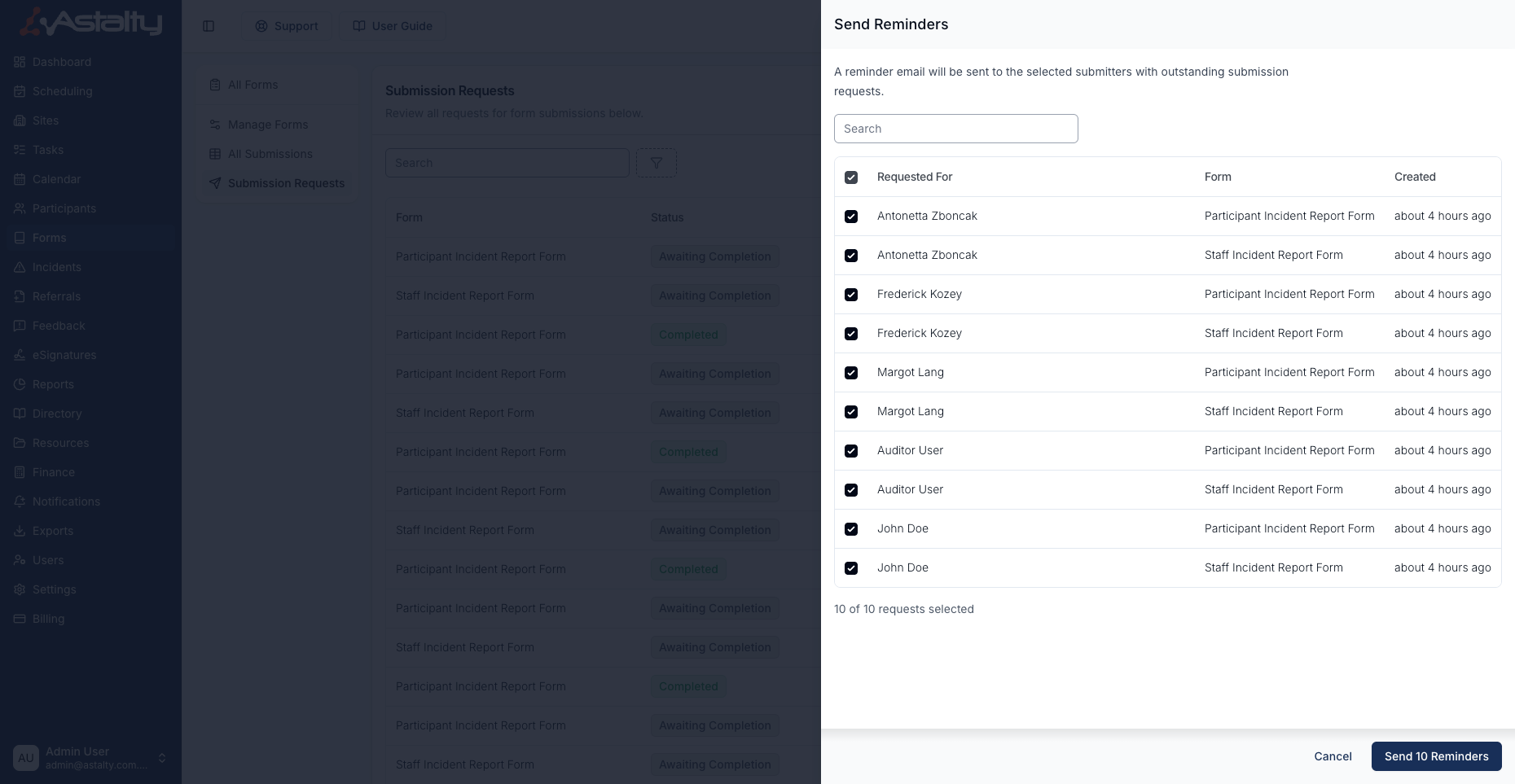
- Every outstanding request is listed and ticked for you. Untick anyone you don't want to chase, or use the tickbox in the header row to select or clear them all.
- Use the Search box to narrow the list - it matches on who the request is for, the request title, and the form name. The header tickbox then applies to just the requests you can see.
- Check the count underneath the list, for example 10 of 10 requests selected.
- Click Send n Reminders.
What the reminder email says
Recipients get a short email with the subject "[Your organisation] is waiting for your submission", telling them the form is still waiting and giving them a Complete Form button.
The button opens the same link as the original request, so nobody needs a new invitation. The email is sent from your organisation's name, with replies going back to the person who created the request.
This is the same email that goes out when you remind someone from an individual request.
After you click Send
Astalty queues the reminders and sends them in the background, so you don't need to keep the page open.
Each request is re-checked at the moment of sending. Anyone who submitted their form after you opened the panel is skipped, so slightly fewer emails may go out than you selected.
Every reminder is recorded against its request. To check what was sent, open the request from the Submission Requests list, click Actions, then View Activity Log.
Reminding one person instead
If you only need to chase a single person, open their request from the Submission Requests list, click Actions, then Send a reminder. Astalty confirms who the email will go to before sending. This option is greyed out once a request has been completed.