- Changelog
- 7 May 2026
7 May 2026
Sites (beta)
Astalty now includes Sites — a major new feature built for SIL providers and organisations that deliver services across multiple locations. Sites gives your organisation a central place to manage every physical and operational location where you deliver supports, bringing together participants, compliance records, operational information, documents, forms, and scheduling all in one place.
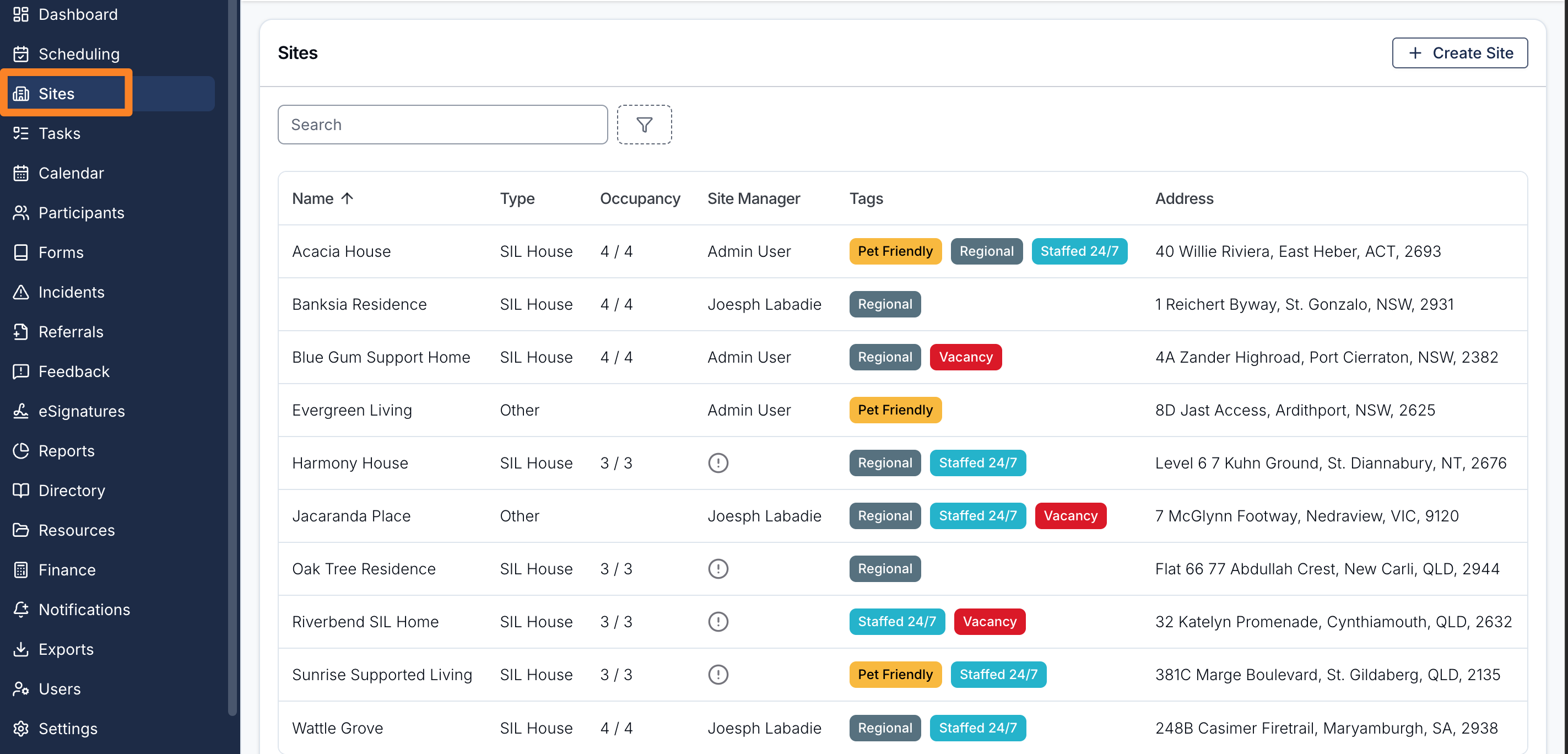
Site Types
Every site has a type - SIL House or Other. SIL House sites support a capacity limit, a dedicated schedule view, and the full Sites feature set. Other sites (day programs, offices, respite properties) support scheduling, records, participants, information items, documents, and forms, but without capacity.
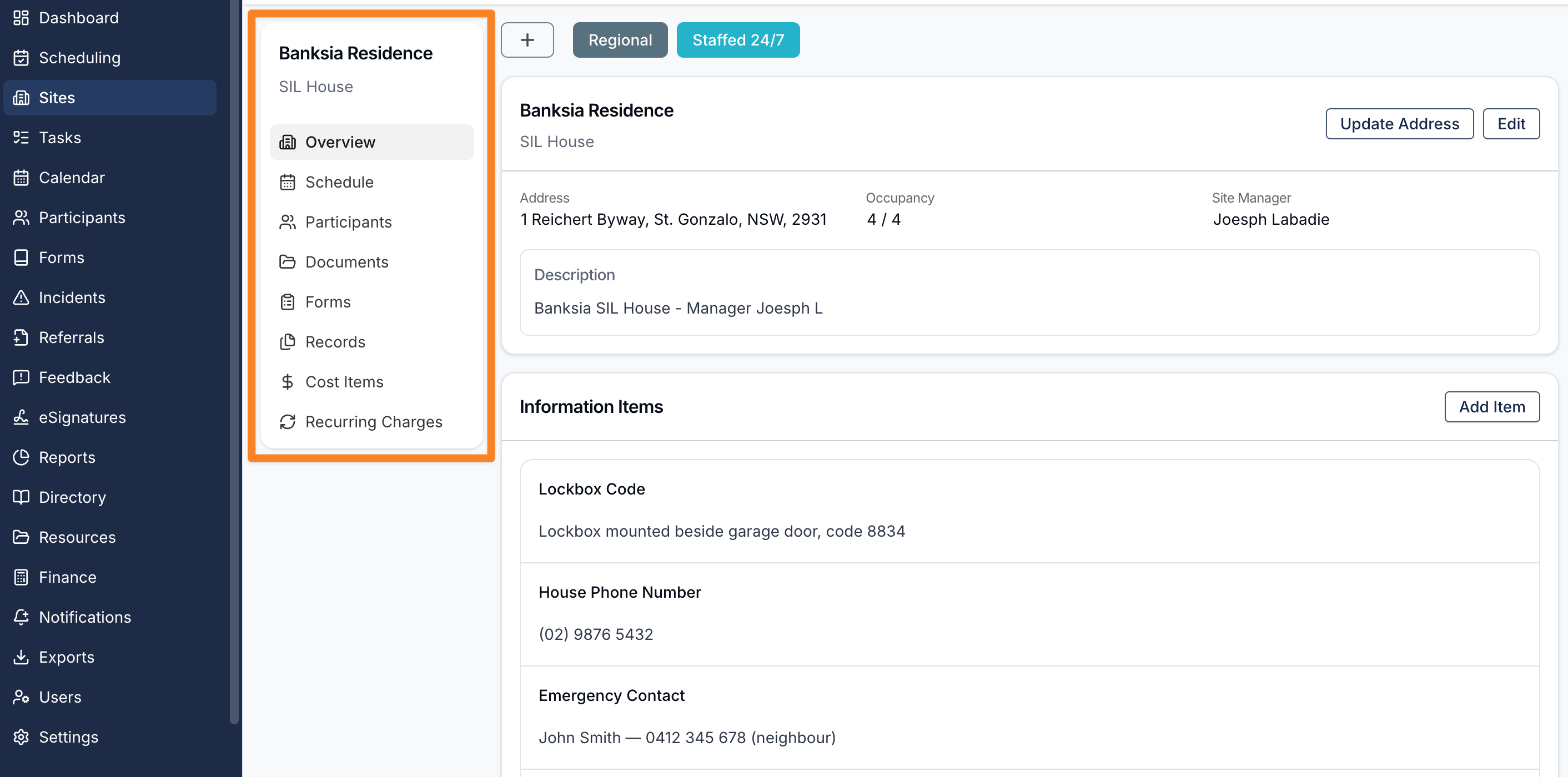
Creating and Managing Sites
Sites are created and managed from the new Sites menu item in the left-hand navigation. Each site has a name, type, description, capacity (SIL House only), site manager, address, and optional colour-coded tags for grouping and filtering. Participants can be assigned to a site from the Participants tab, with an occupancy indicator showing current assignment count against capacity. A participant can be assigned to multiple sites, and a site can have multiple participants.
Site Records
Site Records give you a structured way to track compliance documents against a site — fire safety certificates, building insurance policies, pest inspection reports, and more. Each record has an issue date, optional expiry date, optional reference number, and attached files. Astalty automatically tracks whether each record is Current, Expired, Archived, or Missing, so you always have a clear picture of your compliance status. Records can be emailed directly to external recipients such as auditors, landlords, or contractors, and Astalty keeps a full email history for each record. Record types are configured by an administrator in Settings.
Site Information Items
Site Information Items are a place to store practical, day-to-day information that support workers need when they're on shift — lockbox codes, bin collection days, preferred tradespeople, access instructions. Information items are created against types configured in Settings, and types can be marked as visible to support workers so the information surfaces automatically in the mobile app during a shift.
Site Documents and Forms
The Documents tab stores general files attached to a site. The Forms tab lets administrators associate forms with a site so support workers can complete them in site context during a shift — for example incident reports, weekly checklists, or maintenance logs.
Scheduling Integration
The shift form now includes a Site field. Linking a shift to a site means it appears in that site's Schedule tab. For SIL House sites, selecting the site on a shift automatically filters the participant picker to only the participants assigned to that site, keeping rostering accurate and fast. SIL House sites have their own Schedule tab on the site detail page — a dedicated calendar view pre-filtered to that site.
Recurring Charges
Recurring direct charges tied to a site allow you to easily capture weekly SIL charges for your Participants, without navigating away to the Finance tab.
Reports
The Billable Charges report now includes a multi-select Site filter. A new dedicated Site Records report lists every site's records and their statuses in one table, with a toggle to view all sites or just the sites you manage.
Mobile App
Support workers access site information directly from the Shift Details screen in the Astalty app. When a shift is linked to a site, a Site row appears showing the name and address. Tapping it opens the Site screen, where support workers can view records and information items marked as visible to them, and access any site forms associated with the shift. The mobile experience is read-only — all creating, editing, and uploading is done in the Astalty web app.
Permissions
Sites uses role-based permissions. Admins have full access. Managers can create, update, and manage sites, records, and participants. Site Managers can manage records and information items on the sites they are assigned to. Support workers have read-only access to sites linked to their active shifts, and only see the records and information items explicitly marked as visible to support workers.
Getting Started
Before your team starts using Sites, an administrator needs to configure Site Record Types, Site Information Types, and Site Tags in Settings → Sites. Full documentation is available in the Sites section of the guide.
This feature is currently in beta - to request access, please send an email to support@astalty.com.au.
What Auditors Can Access
Auditors will be able to view information related only to the Participants and Users assigned to them. They will also be able to view resources.
They will have access to:
- Participants
- Users
- Reports
- Resources
All access is read-only, ensuring auditors can review information without modifying any records.
For more information, visit the Inviting NDIA Auditors to your Account guide.
Filtering Notes by Type
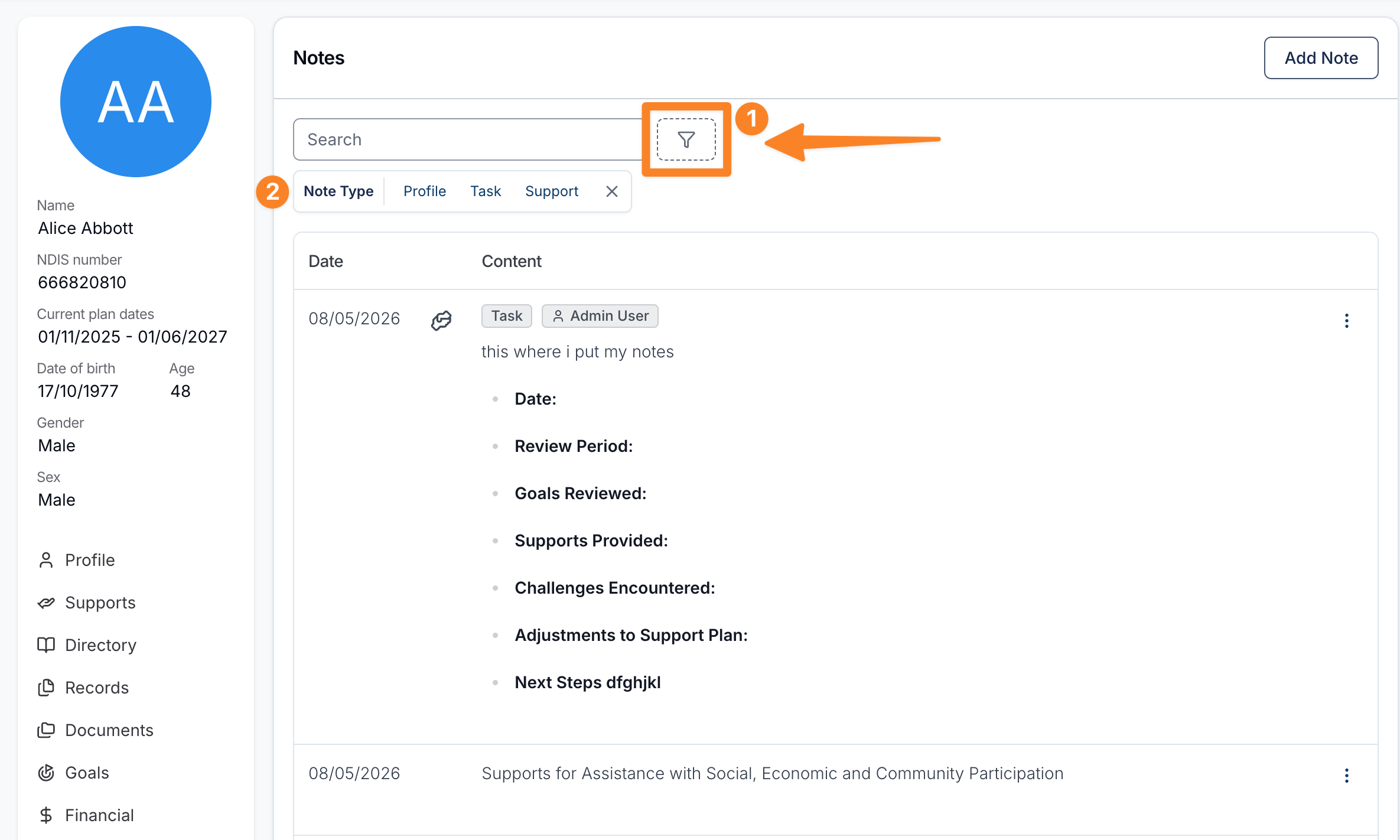
You can filter the notes list by note type to focus on a specific category of notes. Click the filter option above the notes list, select Note Type and select one or more of the following types:
- Profile — notes added directly to the participant's profile
- Task — notes created within a task linked to this participant
- Support — notes created within a support shift for this participant
Selecting a type will narrow the list to only notes of that kind. You can combine multiple types to broaden the view, or clear the filter to return to the full notes list.
For more information, visit the Participant Notes guide page